How-to
Download Videos on iPad

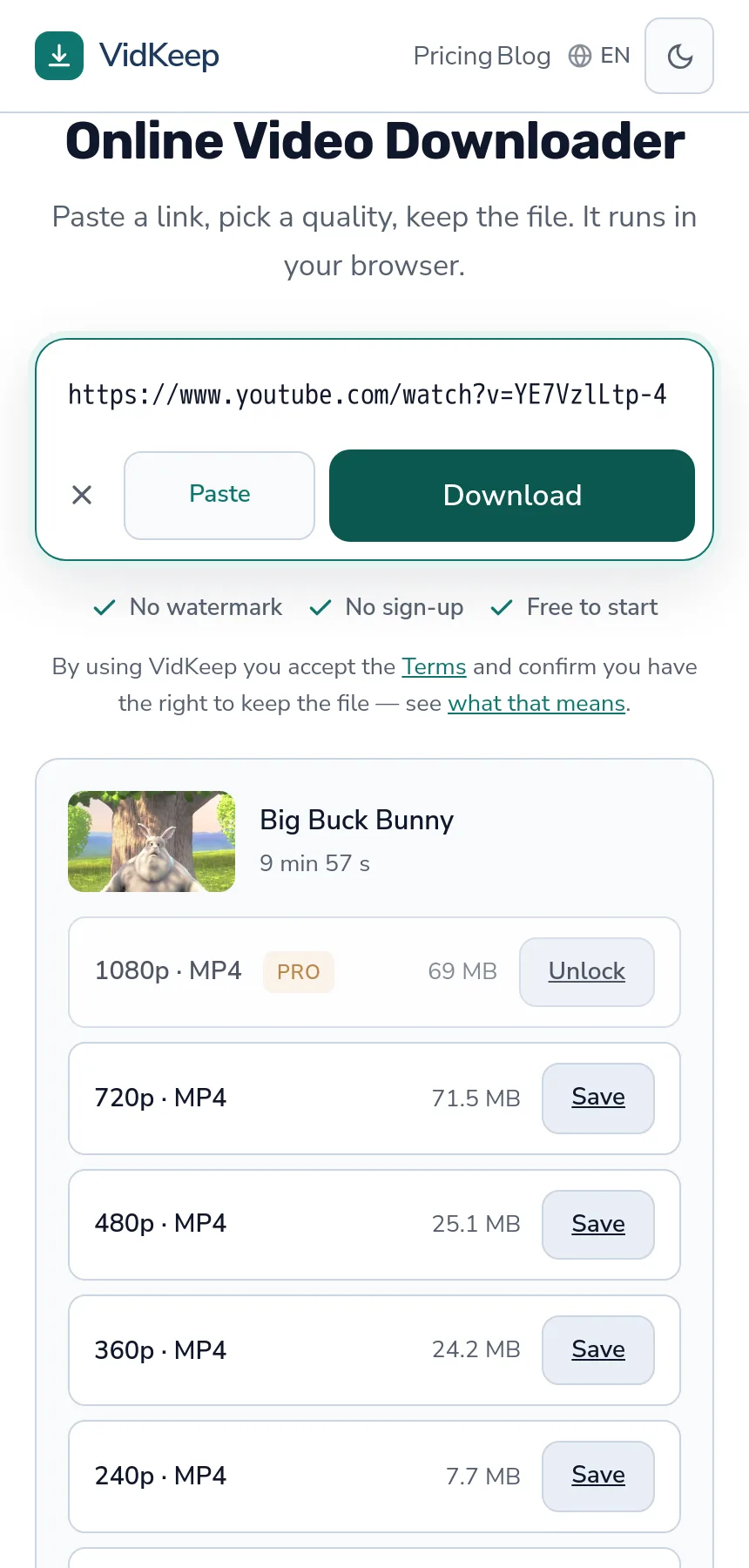
Same three steps as any other device: open VidKeep in Safari, paste the link, pick a quality. The file lands in the Files app under Downloads — not in Photos. What makes an iPad different is what happens afterwards: Split View makes the whole thing quicker, and iPadOS can save straight to an external drive, which no iPhone will do.
The three steps
- Copy the video link. From Safari's address bar, or Share then Copy link in an app.
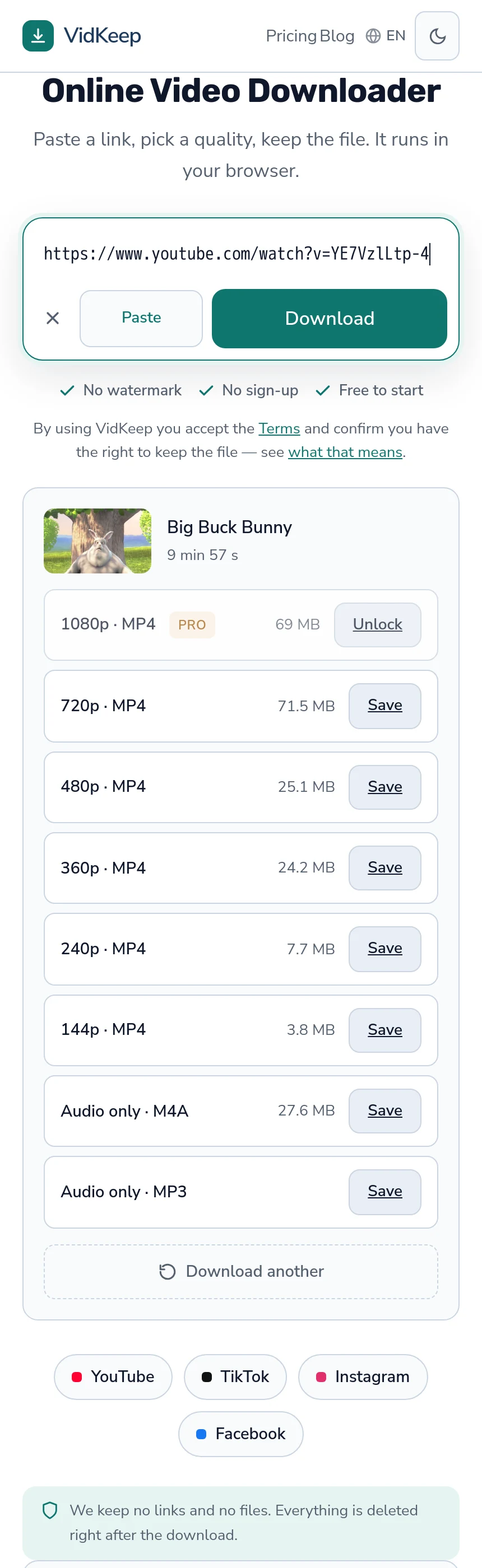
- Paste it in and let the page read the available qualities.
- Tap Save on the quality you want.
Safari asks permission the first time a site downloads anything. Tap Allow — the prompt is small, appears at the top and fades after a few seconds, which is why people miss it and conclude nothing happened.
Split View makes this genuinely faster
The one real advantage an iPad has here, and most people never use it for this.
Open the video source in one Safari window and the downloader in another, side by side. Now copying a link and pasting it is a two-tap operation with no app switching, and you can work through a list of videos without losing your place.
To set it up: open Safari, drag a second Safari window from the Dock or use the multitask control at the top of the window. On recent iPadOS versions Stage Manager does the same job with resizable windows.
It sounds minor and is not, if you are saving more than one thing. The friction in this task is almost entirely in moving between apps, and Split View removes it.
Where files go, and getting them into Photos
Downloads land in the Files app, under Downloads. Depending on your Safari setting, that folder sits under On My iPad or iCloud Drive.
To check or change it: Settings → Apps → Safari → Downloads. For video, On My iPad is usually the better choice — a few large files fill a free iCloud allowance quickly.
To put a video in Photos: open it in Files, tap the share button, choose Save Video. That copies rather than moves, so delete the one in Files afterwards if you do not want both. The same logic applies on iPhone, and it catches everyone the first time.
The reason is worth knowing rather than memorising: Photos is a managed library for camera media, Files is ordinary storage. A browser download is a file, whatever it contains.
The iPad-only trick: save straight to an external drive
iPadOS supports external storage and iPhone does not, which changes what this device is good for.
Plug in a USB-C drive or an SD card reader and it appears in Files alongside the internal storage. From there you can move downloads onto it, or set Safari's download location to a folder on the drive so files land there directly.
This makes an iPad a genuinely reasonable device for saving a lot of video — a trip's worth of viewing, a set of lectures, an archive — without touching the tablet's own storage. It is the one scenario where an iPad clearly beats both a phone and, in portability terms, a laptop.
One caveat: the drive must be formatted in a way iPadOS reads (exFAT is the safe choice) and some drives need more power than the iPad supplies, in which case a powered hub solves it.
Choosing a quality for an iPad screen
iPads have good displays and people over-download because of it. The screen deserves a moment's thought rather than reflexively taking the maximum.
| Use | Sensible choice |
|---|---|
| Watching on the iPad itself | 720p is plenty on most models |
| Larger iPad Pro, held close | 1080p if the source has it |
| Casting to a TV later | The highest available |
| Background listening | Audio only — a fraction of the size |
| A long flight, storage tight | 480p; the difference is small at normal distance |
Above 1080p is generally wasted on a tablet unless you will move the file elsewhere — the panel cannot show the extra detail and the file is several times larger. Matching quality to screen covers the reasoning in full.
iPad-specific problems
- Nothing downloaded and no error. Almost always the Safari permission prompt, dismissed or missed. Revisit the site and watch the top of the screen.
- Downloads stop when you switch apps. iPadOS suspends background activity. Keep Safari in front, or use Split View so it stays visible.
- Save Video missing from the share sheet. iPadOS does not recognise the file as playable video — usually a codec question rather than a broken download.
- School or work iPad refuses. Managed devices carry policies no browser setting overrides. That is a different problem — covered here.
- Storage full mid-download. iPadOS abandons the transfer quietly. Check free space before large files.
Why there is no separate tablet version of the page
We serve iPads the same page we serve phones and laptops, with a layout that adapts to the width. That is not laziness, and the alternative was seriously considered.
The obvious argument for a tablet-specific version is that an iPad has room for more: a preview player, a queue, side-by-side panels, a richer list. The tools that build those interfaces are usually the ones that need an app, and the more elaborate the interface, the more the page has to know about the device it is running on.
What stopped us is that device detection is unreliable in exactly the cases that matter. An iPad in Safari reports itself much like a Mac. A tablet in desktop mode is indistinguishable from a laptop. A phone in landscape has a tablet's width. Every detection scheme we might use would misclassify a real device someone is holding, and the failure mode is a layout that fits nothing.
So the page is one page that responds to available width, and the same code path serves every device. It means an iPad user gets a slightly simpler interface than the screen could support. It also means there is no tablet-specific bug class, no second layout to maintain, and no device that silently gets a worse experience because our detection guessed wrong about it.
There is one place where the device genuinely matters and we handle it without detecting anything: the file is always sent as an attachment rather than as a playable link. That header is what makes Safari save the file instead of opening it in a player with no save button — a failure that cost us real downloads before it was fixed, and one that hits iPad and iPhone identically. Solving it in a way that works everywhere was better than solving it for detected Apple devices.
Frequently asked questions
How do I download videos on an iPad?
Open the downloader in Safari, paste the video link and tap Save. No app is needed, and Safari asks permission the first time.
Where do downloads go on iPad?
The Files app, in Downloads — under On My iPad or iCloud Drive depending on your Safari setting. Not Photos.
How do I get a video into the Photos app?
Open it in Files, tap share, choose Save Video. That copies it; the original stays in Files.
Can I download straight to an external drive?
Yes, and this is iPad-only — iPhone will not. Connect a USB-C drive or SD reader and set Safari's download location to a folder on it.
What quality should I pick for an iPad?
720p is plenty on most models. Above 1080p is wasted on a tablet panel unless you plan to move the file elsewhere.
Why did my download stop when I switched apps?
iPadOS suspends background activity. Keep Safari in front, or use Split View so it stays visible.
VidKeep runs in your browser — paste a link, pick a quality, keep the file. No account, no app.
Open VidKeepLast updated: 2026-09-25. We revise our guides as the platforms change.