Troubleshooting
When the Browser Blocks Your Download

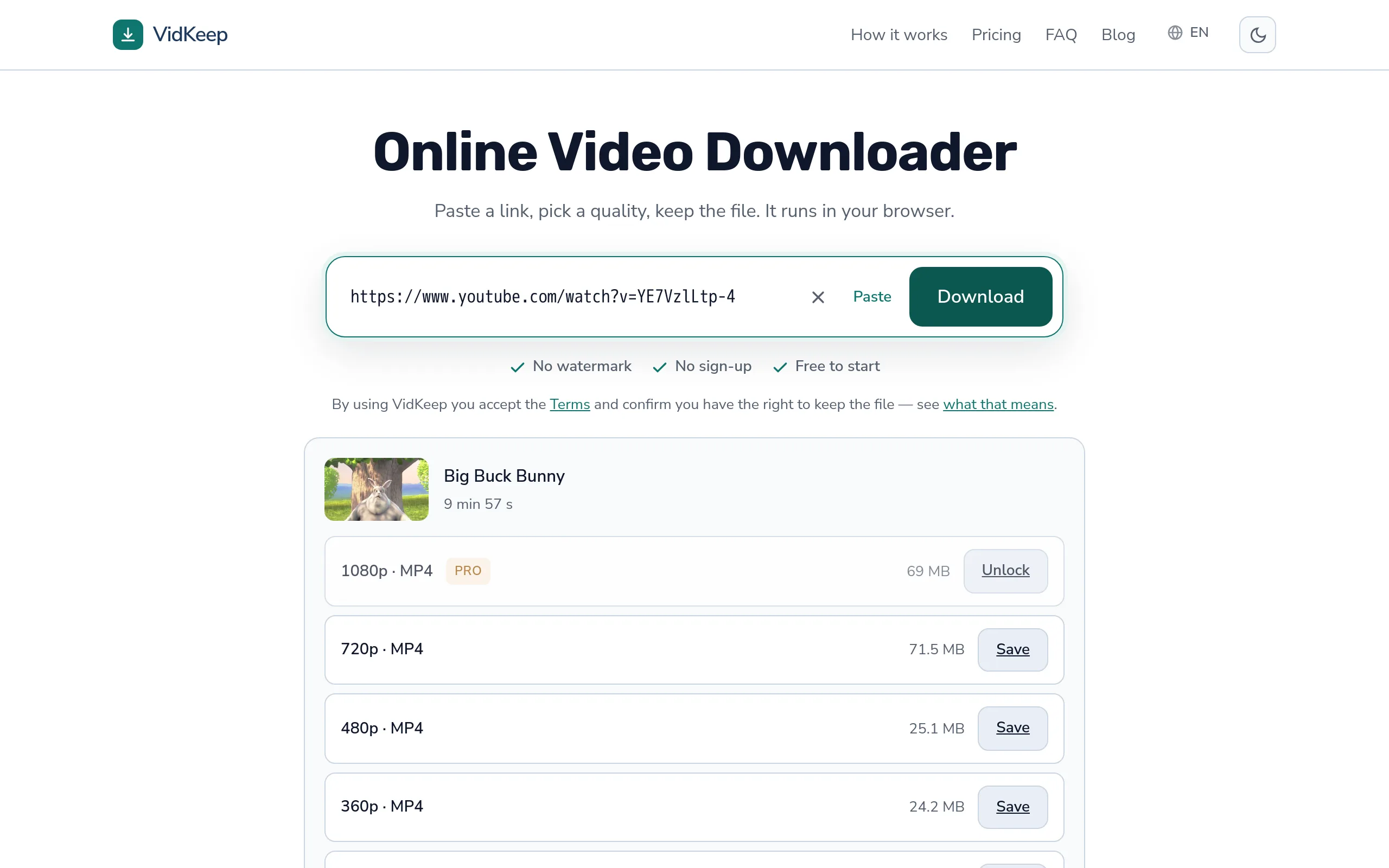
Four different things are called ‘blocked’ and they need different responses. Safari asks permission the first time a site downloads anything — tap Allow. Chrome shows a warning banner you can override with Keep. A work laptop may refuse by policy, which nothing overrides. And sometimes nothing happens at all, which is not a block but a pop-up blocker. Here is how to tell them apart.
Safari: the permission prompt
The most common one, and the least alarming. The first time a website tries to download something, Safari asks whether to allow downloads from that site. Tap Allow and it remembers.
People miss this prompt constantly. It appears at the top of the screen, it is small, and it disappears on its own after a few seconds — after which nothing has downloaded and there is no explanation.
If you dismissed it and want it back: on iPhone, Settings → Apps → Safari → Downloads controls where files go, and revisiting the site triggers the prompt again. On Mac, Safari → Settings → Websites → Downloads lists every site and lets you switch one to Allow.
Chrome: the warning banner
Chrome sometimes flags a download with a warning rather than blocking it outright. The file is there; it wants confirmation before keeping it.
Click the download entry and choose Keep. Before you do, check the file name ends in .mp4, .mp3 or .webm. Those are media files and cannot execute anything.
If a downloader ever hands you an .exe, .dmg, .apk or .zip, do not keep it. Saving a video never requires running a program, and a site that offers one is doing something other than what you asked. More on how to tell a safe tool from an unsafe one.
Chrome's warnings lean cautious: a large media file from a site you have not visited before is enough to trigger one, with nothing wrong. The extension is the signal worth acting on.
Work and school devices: the block that stays
This one is different in kind, and it is worth recognising early so you stop trying to fix it.
Managed laptops run policies set by an IT department. Those can block downloads by file type, block categories of website, or route all traffic through a filter that refuses media. The block sits above the browser, so no browser setting, no other browser and no private window changes it.
| Sign | What it means |
|---|---|
| ‘Blocked by your administrator’ | Explicit policy. Nothing to do. |
| The site will not load at all | Category filter, not a download issue |
| Downloads fail on Wi-Fi, work on mobile data | Network filter rather than the device |
| Only some file types fail | Type-based policy |
The honest answer is to use a personal device. Working around an employer's controls on an employer's machine is a bad idea regardless of what you are downloading, and the tools that promise to are not tools you want on a work laptop.
Nothing happened at all
The confusing case: you tapped Save, no error appeared, and no file exists. Usually not a block.
- Pop-up blocker. If a download opens in a new tab, an aggressive blocker can kill it silently. Look for a small icon in the address bar.
- The video played instead. On phones, a direct video link opens in the browser's player rather than saving. If the video started playing full-screen, nothing was saved.
- Storage full. Both iOS and Android abandon downloads quietly when space runs out.
- The connection dropped mid-transfer. Partial downloads are usually discarded rather than kept.
Check storage first — it takes seconds and is the cause more often than people expect, particularly on phones that have been quietly filling up for a year.
Antivirus and security software
On Windows, security software occasionally quarantines a download before you see it. The browser reports success; the file is not where it should be.
For plain MP4 and MP3 files this is nearly always a false positive — a large file from an unfamiliar source, scored as suspicious on those grounds alone. Your antivirus keeps a quarantine list, and restoring from it is straightforward.
Before restoring anything, check what was quarantined. If it is the video you asked for, restore it. If it is something else — an installer, a script, an archive you did not request — the software was right and the site was not honest with you.
Turning protection off to force a download through is the wrong move. If a video will not come through with normal protection running, the problem is worth understanding rather than silencing.
Working through it in order
- Read what appeared on screen. A permission prompt, a warning banner and an administrator block are three different situations that look similar at a glance.
- Check the file extension if there is a warning. Media extensions are safe to keep; executables are not.
- Check free storage. The commonest silent failure on phones.
- Try a different network. Mobile data instead of office Wi-Fi separates a network filter from a device problem in one step.
- Try a different browser. If it works there, the setting is in the first browser and not on the network.
If none of that changes anything and the failure is specific to one video rather than all of them, it is not a browser problem at all — the guide to error messages covers failures that happen before the browser is involved.
The headers we send, and the one we deliberately do not
Whether a browser blocks, warns or saves silently depends largely on what the server tells it. Since that is our side of the exchange, here is exactly what we send and why.
Every file goes out with Content-Disposition: attachment. That single header is the difference between a browser saving a file and playing it in a tab, and it is the reason we pass downloads through our own servers at all — we cannot add a header to a platform's response, and a page cannot re-serve the file itself because platform CDNs send no CORS headers. Paying for that bandwidth is the cost of the file actually being saved on a phone.
We also send Content-Length whenever the source reports it. Browsers use it for the progress bar, and a download with no known size is treated with more suspicion — some security tools score unknown-length transfers higher. Passing the number through costs nothing and makes the download look like what it is.
The site sends a strict set of security headers too, which matters here for an unobvious reason: browsers increasingly weigh how a site behaves overall when deciding whether to trust a file from it. A site with a proper content policy, HTTPS everywhere and no mixed content triggers fewer warnings than one without, for the same file.
What we do not send is anything that tries to start a download without you asking. No automatic redirects to a file, no download triggered on page load, no second file alongside the one you wanted. Those patterns are exactly what browser protections were built to catch, and a tool that uses them earns its warnings — the mistake is concluding from a warning that all downloaders deserve one.
There is a limit to what any of this achieves, and it is worth stating. Browser protections judge patterns, not intentions. A large media file from a site with modest traffic will occasionally be flagged no matter how correctly it is served, because that is genuinely what some malicious downloads look like. We would rather be occasionally flagged and correct than adopt the tricks that avoid scrutiny.
Frequently asked questions
Why does Safari ask permission to download?
Safari asks once per site before allowing any download. Tap Allow and it remembers. The prompt is easy to miss because it fades after a few seconds.
Why does Chrome warn me about a video file?
Chrome's warning comes from Safe Browsing's file-reputation check, not from anything specific to video. That system looks at signals like how many other Chrome users have downloaded the exact same file, how old the source domain is, and what file type is involved — it does not inspect the video content itself, since it cannot know what is in an MP4 before you open it. A file few people have downloaded from an unfamiliar domain gets flagged more readily than the same file from a site Chrome already trusts, which is why the same download can pass silently on one computer and warn on another. The fix is simple and safe for a real video file: open the download entry, confirm the name ends in .mp4, .mp3 or .webm, and choose Keep. What is not safe is keeping an .exe, .dmg, .apk or .zip from the same warning — a video download never legitimately needs one of those.
My work laptop blocks it. Can I get around that?
No, and you should not try. The policy sits above the browser, so no setting or alternative browser changes it. Use a personal device.
I tapped save and nothing happened
Usually a pop-up blocker, full storage, or a video that opened in the player instead of saving. Check free space first.
My antivirus deleted the download
Almost always a false positive on a large media file. Check the quarantine list and restore it — but only if what was quarantined is the video you asked for.
Should I disable protection to download?
No. If a plain video will not come through with normal protection running, that is worth understanding rather than silencing.
VidKeep runs in your browser — paste a link, pick a quality, keep the file. No account, no app.
Open VidKeepLast updated: 2026-08-26. We revise our guides as the platforms change.