Guides
Where Downloaded Files Go on iPhone

They go to the Files app, in a folder called Downloads — not to Photos, which is where almost everyone looks first. Open Files, tap Browse, and the Downloads folder is either under On My iPhone or iCloud Drive depending on one setting. Your video is there. Getting it into the camera roll is a separate step, and this explains both.
Finding the file, step by step
- Open the Files app. It ships with iOS and cannot be deleted, though it is easy to lose in a folder. Swipe down on the home screen and type ‘Files’.
- Tap Browse at the bottom.
- Open Downloads. It sits under On My iPhone or iCloud Drive — whichever your Safari settings point at.
- Sort by date if the list is long. Tap the sort control and choose Date; the newest arrival goes to the top.
There is a faster route immediately after downloading. Safari shows a small download icon in the address bar — an arrow in a circle — and tapping the entry there opens the file directly. That icon disappears after a while, which is why so many people end up hunting through Files a day later.
Why it is not in Photos
This is the part that confuses people, and it is worth understanding rather than memorising, because the same logic explains several other iOS oddities.
iOS keeps two separate worlds. Photos is a managed library: it holds pictures and videos your camera made or that an app deliberately added, and it organises them by date, place and face. Files is ordinary storage: documents, PDFs, archives, and anything a browser downloaded.
A video arriving through Safari is a downloaded file, so it goes to Files. It does not matter that it is a video — what matters is how it arrived. That single rule explains why a clip you saved yesterday is nowhere in Photos while the one you recorded is right there.
Android works differently, which is why advice written for one phone confuses owners of the other. On Android a downloaded video usually appears in the gallery automatically, because the system scans storage for media. iOS does no such scanning, by design.
Moving a video into the camera roll
If you want the video in Photos — to edit it, to post it, or simply to have it where you look — one extra step does it:
- Find the file in Files and tap to open it.
- Tap the share button — the square with an arrow, bottom left.
- Choose Save Video. It appears in the list of actions, not among the apps.
The video is now in Photos and still in Files: this copies rather than moves. Delete the one in Files afterwards if you would rather not keep two, and check the copy landed in Photos before you do.
If Save Video is missing from the share sheet, iOS does not recognise the file as a video it can play. That is almost always a codec question rather than a damaged download — the guide to playback failures covers what to do about it.
The two Downloads folders, and which one you have
iPhones do not all use the same download location, which is why one person's instructions send another person to an empty folder.
| Setting | Where files land | Consequence |
|---|---|---|
| iCloud Drive | Downloads inside iCloud Drive | Syncs to your other devices; uses iCloud storage |
| On My iPhone | Downloads on the device | Stays local; no sync, no iCloud space used |
| Other… | A folder you picked | Wherever you chose, easily forgotten |
To check or change it: Settings → Apps → Safari → Downloads. On older iOS versions Safari sits directly in the Settings list rather than under Apps.
For video, On My iPhone is usually the better choice. A few large files can eat a free iCloud allowance quickly, and syncing a 70 MB video to devices that will never play it is bandwidth spent for nothing.
When the file seems to have vanished
Downloads do go missing on iOS, and there are only a handful of reasons:
- You are looking in the wrong Downloads. Check both On My iPhone and iCloud Drive — the setting may have changed, or the file predates the change.
- The download never finished. Safari discards partial downloads when a connection drops, and it does so quietly. Nothing is left behind to find.
- Storage ran out mid-download. The same silent failure, with a different cause. Check available space before blaming the tool.
- It opened in a player instead of saving. If the video started playing full-screen and you closed it, nothing was saved. That behaviour is covered below — it is the single most common way people lose a download on iPhone.
Worth ruling out in that order. The first two cover most cases, and both take seconds to check.
Keeping downloads findable a month later
Finding a file today is easy; finding it in six weeks is the problem nobody plans for. The Downloads folder fills with items named after video titles, which are long, similar and not what you would have called them.
Renaming takes a long press on the file and the Rename option. It is worth doing immediately for anything you intend to keep, because the moment you know what the file is for is the moment you close the tab — a week later you are opening files to check which one it was.
Folders help more than renaming for anything beyond a handful of files. Files lets you create them anywhere under On My iPhone, and dragging a download into one takes a second. A folder per purpose — a trip, a course, a project — survives far better than a naming scheme you have to remember to follow.
One thing worth knowing before you organise heavily: files in On My iPhone are included in an iPhone backup, while files in iCloud Drive are already in iCloud and are not duplicated. Neither is wrong, but it explains why a phone backup can grow unexpectedly after a month of saving video, and why some people keep downloads local and archive the keepers to a computer instead.
Storage: what to expect before you fill the phone
Video is the largest thing most people put on a phone, and the numbers are worth knowing before rather than after.
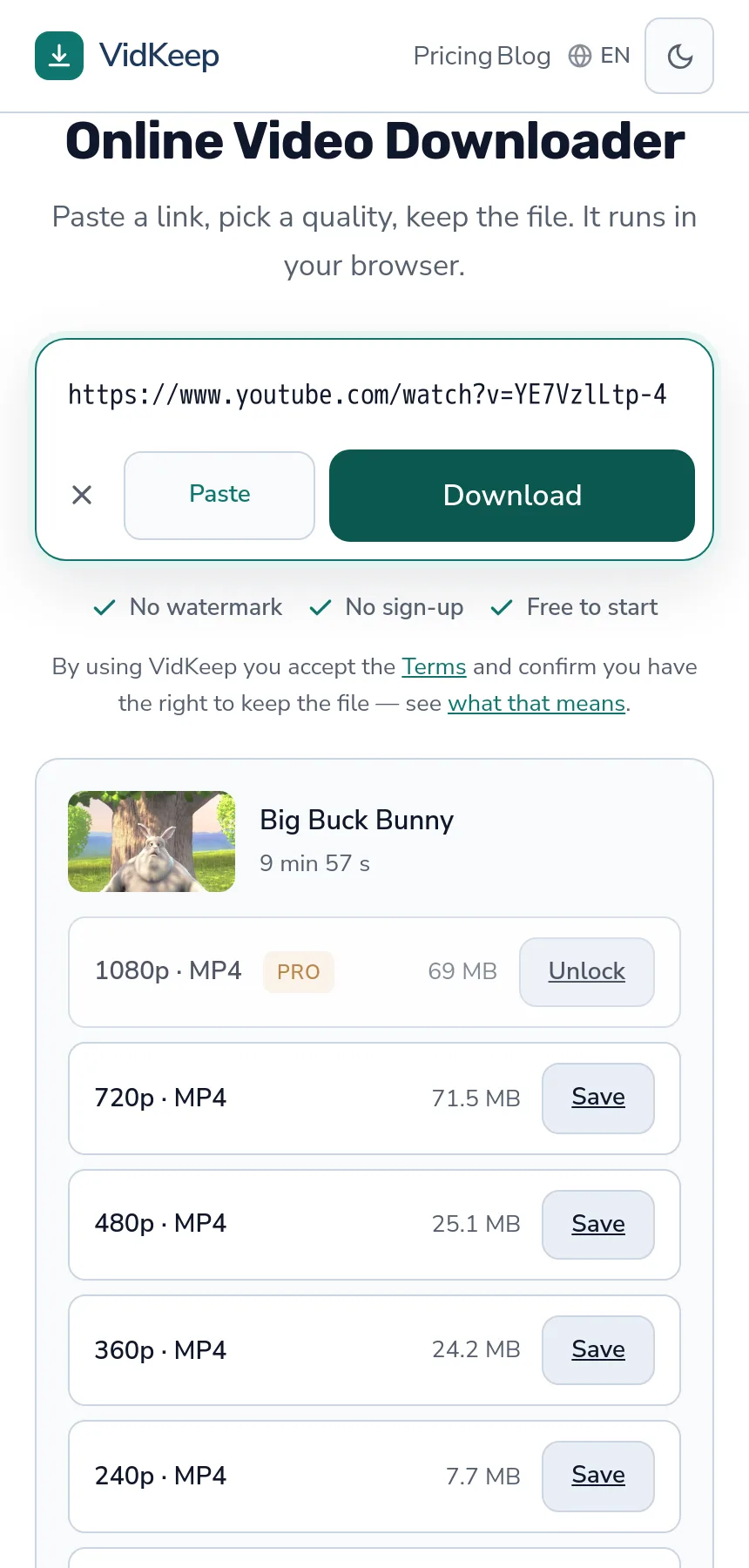
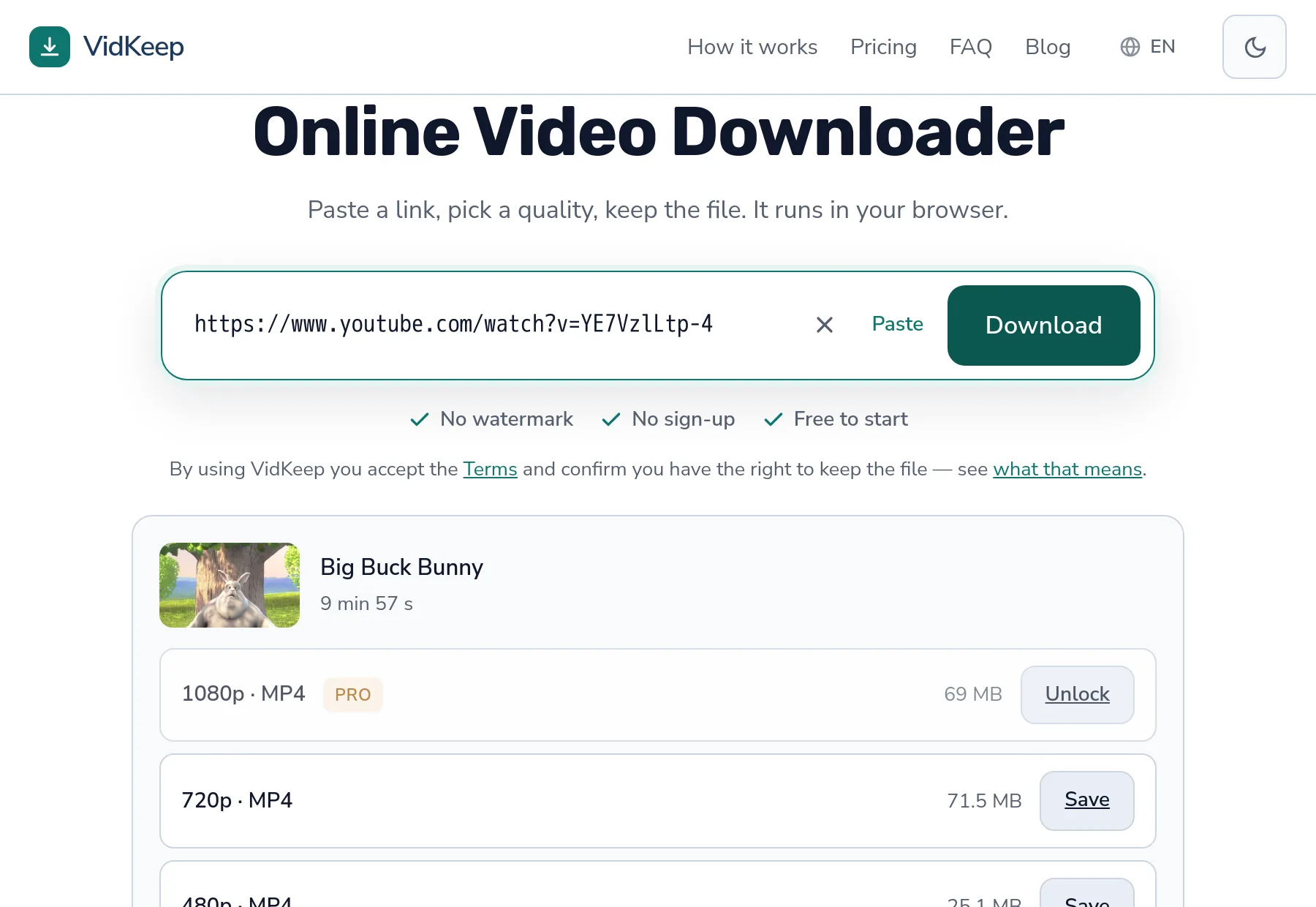
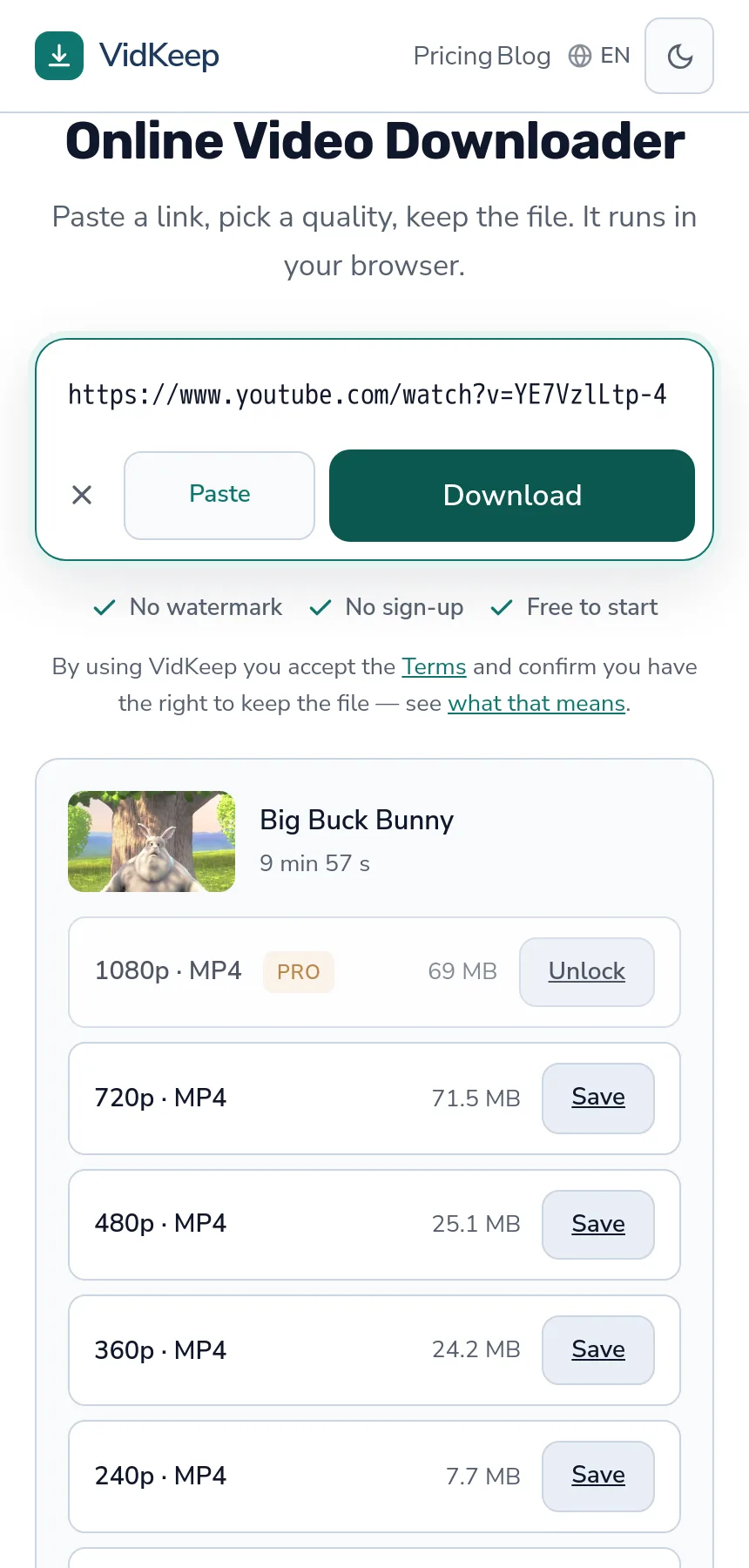
A ten-minute video at 1080p runs around 70 MB. At 720p, roughly the same or a little more, for reasons to do with codecs. At 480p, about 25 MB. Audio only is a few megabytes. So a dozen full-length videos is close to a gigabyte — noticeable on a 64 GB phone, invisible on a 256 GB one.
Two practical habits follow. First, if you are saving something to watch once on the train, 480p on a phone screen is genuinely hard to distinguish from 1080p and takes a third of the space. Second, clear the Downloads folder occasionally — nothing on iOS does it for you, and the folder accumulates for years without anyone noticing.
Settings → General → iPhone Storage shows what is actually using space, sorted by size. It is more honest than guessing, and it counts the Downloads folder separately from Photos so you can see which of the two is the problem.
The iPhone bug we caused, and the fix
We got this wrong for a while, and the way it failed is specific to iPhone — so it belongs in an article about where iPhone files end up.
The original design was the obvious one: give the browser a direct link to the video and open it in a new tab. Simple, no traffic through our servers, and it works fine on a desktop where the browser downloads what it is given.
On a phone it was a dead end. Mobile Safari sees a link that returns video and does what it considers helpful: it plays the video full-screen in its built-in player. That player has no save button. People watched their video, closed the tab, and had nothing — a download that felt like it worked and left no file. The owner noticed this himself on 29 July 2026, and the code carries a comment recording the date, because the fix is not obvious enough to leave unexplained.
The fix is a header. A response marked Content-Disposition: attachment tells the browser to save rather than display, and Safari respects it. But we cannot attach a header to someone else's server's response, and a page cannot fetch the file itself and re-serve it either — platform CDNs send no CORS headers, so the browser refuses the request before it starts.
That left one route: pass the file through us so we can set the header. It costs us bandwidth on every download, which is a real expense we would rather not carry, and we do it anyway because the alternative is a product that quietly fails on the most common device our visitors use. The file is streamed in 64 KB chunks and never written to our disk, so nothing accumulates and memory stays flat regardless of size.
There is a second iPhone-shaped detail in that same code. The header carries the video's title as the file name, and HTTP headers only accept Latin-1 characters — so a Japanese or Arabic title returned a 400 error and the download died. We now send two names, as RFC 5987 prescribes: a stripped ASCII version for anything old, and the full UTF-8 name that every current browser reads. When the title has no Latin characters at all the ASCII fallback would collapse to a bare extension, so we substitute a plain name rather than hand you a file called .mp4 that iOS displays as nothing at all.
Frequently asked questions
Where do downloaded videos go on iPhone?
To the Files app, in the Downloads folder — under On My iPhone or iCloud Drive depending on your Safari setting. Not to Photos.
Why is my downloaded video not in Photos?
iOS separates the managed photo library from ordinary file storage. Anything a browser downloads is a file, so it goes to Files regardless of being a video.
How do I move a video from Files to the camera roll?
Open it in Files, tap the share button, and choose Save Video. That copies it into Photos; the original stays in Files until you delete it.
How do I change where downloads are saved?
Settings, then Apps, then Safari, then Downloads. On My iPhone keeps files local; iCloud Drive syncs them and uses your iCloud storage.
My download disappeared. Where is it?
Check both Downloads folders, then check whether the download actually finished — Safari discards partial downloads silently when a connection drops.
Why did the video just play instead of saving?
Safari plays video links in its built-in player, which has no save button. A proper download sends the file as an attachment so the browser saves it instead.
How much space does a downloaded video use?
Around 70 MB for ten minutes at 1080p, roughly 25 MB at 480p. A dozen full-length videos approaches a gigabyte.
VidKeep runs in your browser — paste a link, pick a quality, keep the file. No account, no app.
Open VidKeepLast updated: 2026-08-21. We revise our guides as the platforms change.