Troubleshooting
Why a Downloaded Video Won't Play

A downloaded video that will not open is almost never a broken file. Four things cause nearly all of it: the player does not understand the codec, the file is a container your device dislikes, the download finished early, or there is genuinely no video track inside. Each has a different fix, and telling them apart takes about ten seconds once you know what to look at.
First: check the file size
Before blaming codecs, rule out the boring explanation. Compare the file's size on disk with the size shown when you downloaded it.
- Much smaller than expected — the download stopped early. The file is a fragment; no player can fix that. Download it again.
- Zero bytes — nothing arrived at all, usually a connection drop at the start.
- Correct size — the file is complete, and the problem is playback. Read on.
This one check resolves a surprising share of ‘corrupt file’ reports. A half-downloaded MP4 opens, shows a black frame and fails — which looks exactly like corruption but is simply an unfinished download.
What codec issue actually causes this?
A video file is a box with streams inside it. The box is the container — MP4, WEBM, MKV. The streams are encoded with a codec — H.264, VP9, AV1 for picture; AAC, Opus for sound.
Your player has to understand both. A file can be a perfectly ordinary MP4 and still refuse to play, because the codec inside is one the player has never met.
| Codec | Support | Typical problem |
|---|---|---|
| H.264 | Universal — every device made this century | Essentially none |
| VP9 | Browsers and modern phones | Older TVs, some default players on Windows |
| AV1 | Newest, best compression | Anything more than a few years old struggles |
This is why the same video plays in your browser but not in your phone's gallery app. The browser ships its own decoders; the gallery app relies on what the operating system provides, and that lags years behind.
The fix that works nine times out of ten
Install a player that carries its own decoders instead of borrowing the system's.
- VLC — every platform, plays essentially anything, free and without advertising.
- MPV — lighter, for people comfortable with fewer buttons.
- Your browser — genuinely underrated. Drag the file into a browser tab; if it plays there, the file is fine and the problem was your player.
That last trick is the fastest diagnostic available. Browser plays it, gallery app does not? The file is healthy, and you now know exactly where the gap is.
Note what this does not require: converting the file, re-downloading it in a different format, or any tool promising to ‘repair’ videos. Repair tools are mostly aimed at the small share of genuinely damaged files, and installing one to solve a codec mismatch is treating the wrong illness.
Which format avoids this problem entirely?
If a device keeps refusing files, pick differently at download time rather than fixing afterwards.
MP4 with H.264 is the compatibility champion. It is not the most efficient — the file is larger than the same video in VP9 or AV1 — but it plays on old TVs, old phones, car head units and every editor ever written.
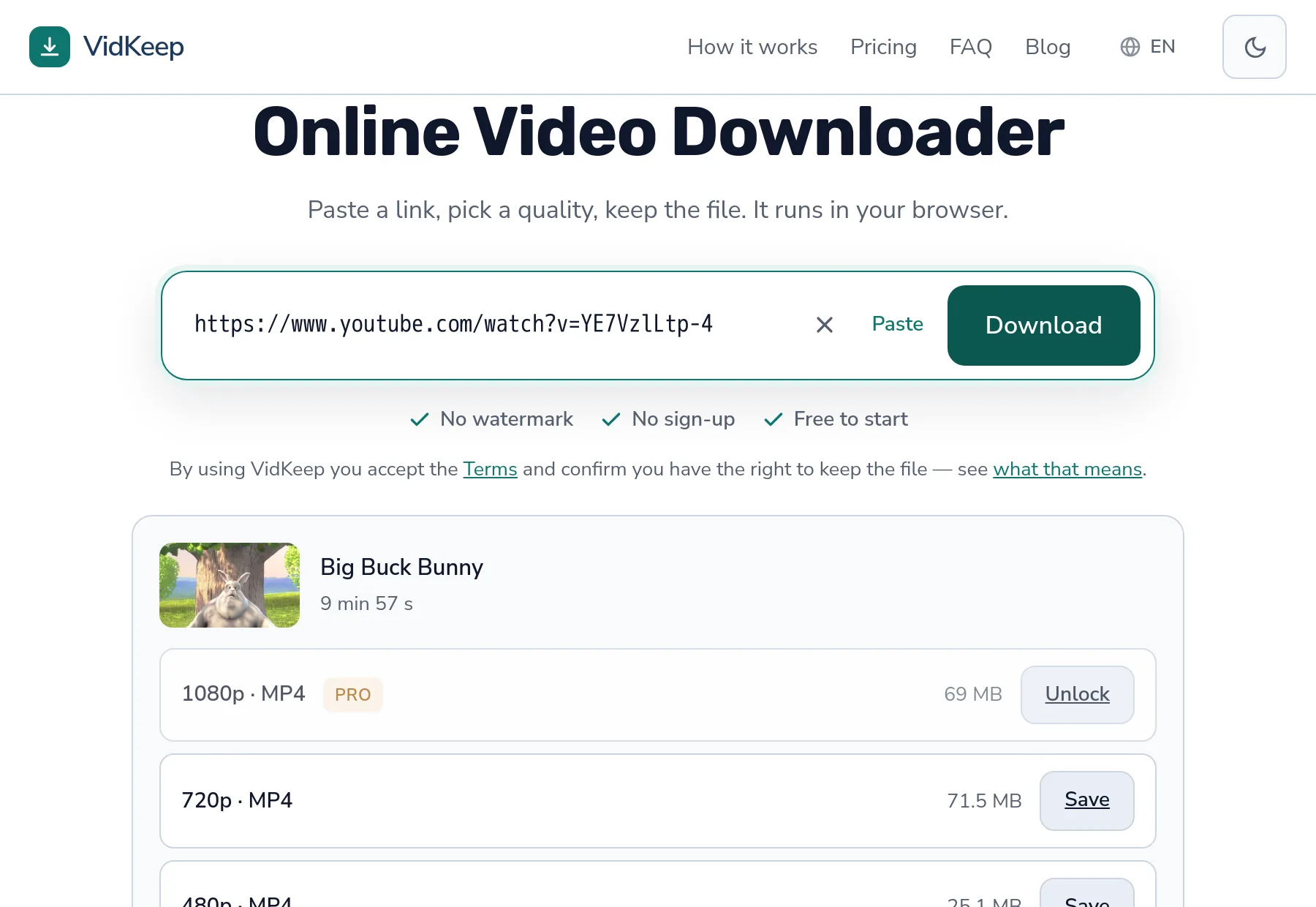
Our downloads prefer H.264 for exactly this reason. When a platform offers a quality in several codecs, we take the widely compatible one, because a file that will not open is worth nothing however elegantly it was compressed. The container side of this is worth reading if you keep meeting the problem.
The trade-off is real and worth stating: choosing compatibility means slightly bigger files than the theoretical minimum. We think that is the right side to err on, since storage is cheap and a video you cannot watch is not a video.
When there is genuinely no video inside
Occasionally a file opens, shows a black rectangle and plays sound — or shows nothing at all while the timeline advances. That usually means you have an audio file with a video extension, or a video stream that never got attached.
This is the mirror image of the no-sound problem, and it comes from the same root: platforms store picture and sound separately above a certain quality, and a tool that mishandles the join produces one without the other.
The check: look at the file size again. A ten-minute ‘video’ weighing 8 MB is an audio file wearing the wrong hat.
Why we pick the boring codec on purpose
This is a decision inside our tool that directly causes — and prevents — the problem this article is about, so it is worth explaining rather than leaving as a footnote.
When a platform lists the formats available for a video, the same resolution often appears several times over: 1080p in H.264, 1080p in VP9, sometimes 1080p in AV1. They look identical in a list. They are not identical in outcome.
AV1 is the newest and compresses best — the file can be meaningfully smaller for the same picture. A tool optimising for the number in a size column would pick it every time, and the landing page would boast about efficiency. It would also generate a steady stream of people whose files will not open on a four-year-old phone.
So our format selector asks for H.264 first, and only falls back to something newer when there is no H.264 at that quality. The result is files that are slightly larger than they strictly need to be, and that play everywhere without anybody having to learn what a codec is.
The reasoning generalises beyond us. When you are choosing a download and see options that look the same, the one labelled MP4/H.264 is the safe choice, and the newer codec is the choice for a device you are confident about. Efficiency matters when storage is tight. Compatibility matters when the video has to actually play, and that is most of the time.
There is one case where we do not get to choose: some videos are published only in a newer codec, with no H.264 version at any resolution. Then the file you get is the file that exists, and a modern player is the answer rather than a different download.
Worth adding what this choice does not do. Picking H.264 is about the video track only — the audio alongside it may still be AAC or Opus, and Opus trips up some older players even when the picture is fine. That is the version of this problem where the file opens, the picture moves and nothing comes out of the speakers, which people naturally read as a missing soundtrack rather than an unsupported one.
Frequently asked questions
Why won't my downloaded video play?
Usually the player does not support the codec inside, not that the file is broken. Try opening it in VLC or dragging it into a browser tab — if it plays there, the file is fine.
Is my file corrupt?
Rarely. Check the size first: much smaller than expected means the download stopped early. Correct size means the file is complete and the problem is playback.
Which player should I install?
VLC is the pragmatic answer — free, on every platform, carries its own decoders. MPV if you prefer something lighter.
Why does it play in my browser but not in my gallery?
Browsers ship their own decoders; gallery apps use what the operating system provides, which lags years behind on newer codecs.
Which format should I download to avoid this?
MP4 with H.264. Slightly larger than newer codecs, plays on essentially everything, including old TVs and car systems.
The video plays but the screen is black
You probably have an audio file with a video extension, or a video whose picture stream never got attached. The file size gives it away.
VidKeep runs in your browser — paste a link, pick a quality, keep the file. No account, no app.
Open VidKeepLast updated: 2026-08-13. We revise our guides as the platforms change.