How-to
How to Download YouTube Videos on iPhone

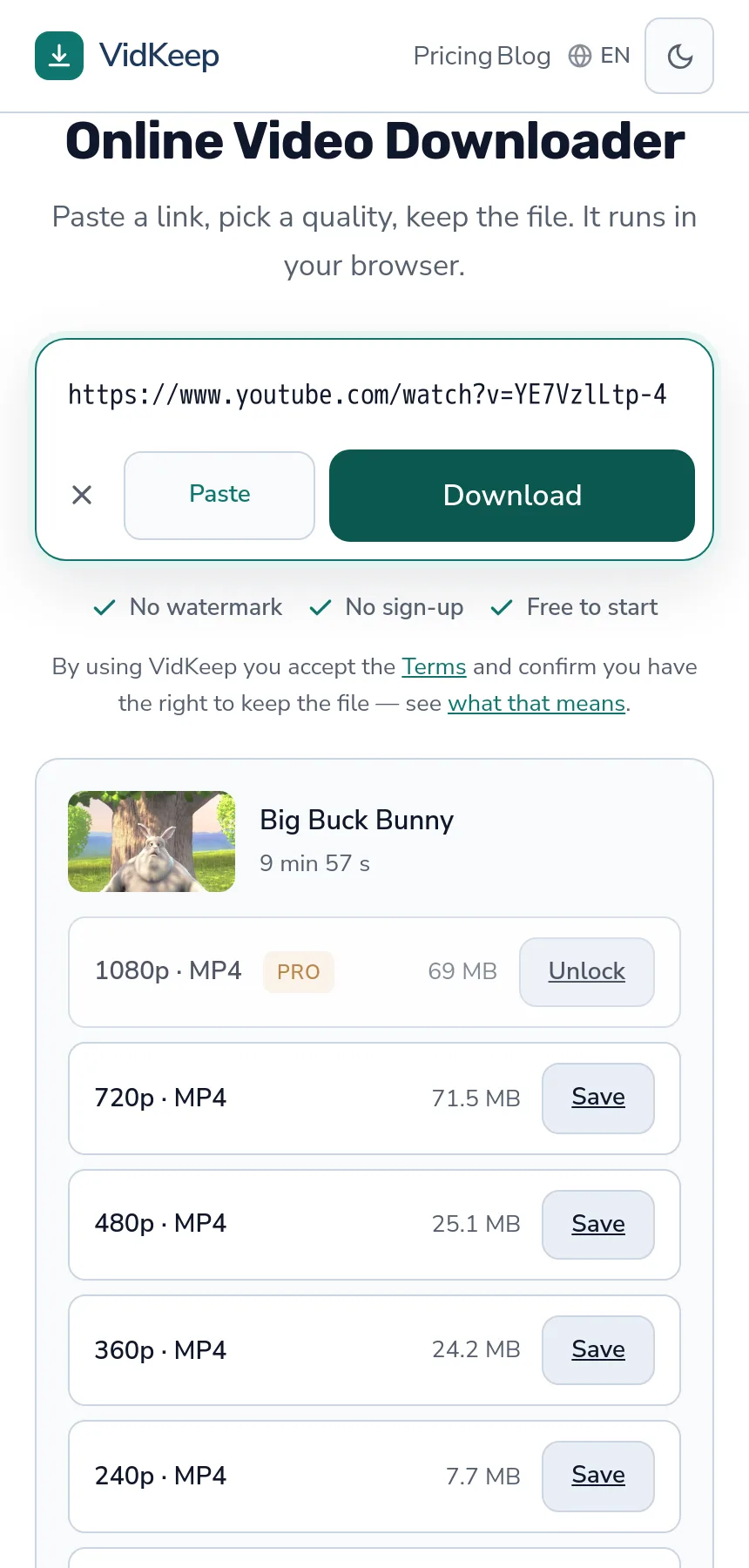
On an iPhone you can download a YouTube video without installing anything: open VidKeep in Safari, paste the link, pick a quality, and tap Download. The file goes to the Files app under Downloads, not to Photos — that trips up most people. From Files you can move it into your camera roll in two taps. Here is the full path, including the parts iOS simply will not allow.
Download a YouTube video on iPhone in four steps
- Copy the link. In the YouTube app tap Share → Copy link. In Safari, tap the address bar and copy the URL.
- Open the downloader in Safari. Paste the link into the box. Safari is the safest choice on iOS: it is the only browser with full access to the Files app.
- Pick a quality. You will see each option with its real file size — useful when you are on mobile data rather than Wi-Fi.
- Tap Download, then confirm. Safari asks ‘Download?’ once. Confirm, and the file saves to Files → On My iPhone → Downloads.
There is no app to install and no account to create. The whole thing happens in the browser tab you already have open.
Where the file actually goes on iPhone
This is the single most common confusion on iOS, and it is not the downloader's doing — it is how Apple separates the two storage areas.
| Where | What lands there | How to open it |
|---|---|---|
| Files → Downloads | Everything Safari downloads: MP4, MP3 | Files app, or the download arrow in Safari's toolbar |
| Photos | Only what you deliberately save there | Photos app, Recents |
To move a video into your camera roll: open Files → Downloads, tap and hold the file, choose Share, then Save Video. It appears in Photos within a second or two. Audio files (MP3) cannot go to Photos at all — Photos only accepts images and video, so music stays in Files or moves to your music app of choice.
If you cannot find the file at all, tap the download arrow that appears at the top-right of Safari after a download finishes. It lists everything Safari has saved and jumps straight to the file.
Three ways to do this on iPhone, compared honestly
A browser tool is not the only route, and pretending otherwise would be silly. There are three real options on iOS, and each is genuinely better at something.
| Method | Best for | The catch |
|---|---|---|
| YouTube Premium | Watching offline inside the YouTube app | The file never leaves the app. You cannot edit it, share it or keep it after the subscription ends. |
| Browser downloader | Getting a real MP4 or MP3 file you own | Two taps to move it into Photos, and the tab must stay open while it downloads. |
| iOS Shortcuts | People who like automation and repeat the task often | You install a community-made shortcut and grant it permissions. Nobody audits those shortcuts, and they break whenever YouTube changes something. |
Our honest read: if you only want to watch on a plane, Premium is the cleanest answer and we will happily say so. If you need an actual file — to edit, to archive, to put in a presentation you have the rights to use — a browser tool gives you that without installing anything. Shortcuts sit in between: powerful, but you are trusting a script written by a stranger with access to your share sheet.
One detail worth knowing whichever route you pick: on older iOS versions Safari sometimes needs a long press on the download link and Download Linked File rather than a plain tap. If a tap seems to do nothing, try that before assuming the tool is broken.
Which quality to pick on a phone
A phone screen makes 4K pointless most of the time. On a 6-inch display, 1080p and 4K are hard to tell apart, while the 4K file is substantially larger. Unless you plan to play the video on a TV later, 1080p is the sensible ceiling.
- 360p — smallest, downloads instantly, fine for a quick reference clip
- 720p — good balance for watching on the phone itself
- 1080p — what you want if the clip might end up on a bigger screen
- 4K — only worth the storage for a TV or for editing
Watch the file size shown next to each option before you tap, because the numbers are not always what you expect. Here is a real ten-minute video as our tool reports it:
| Quality | Size |
|---|---|
| 1080p | 69 MB |
| 720p | 71.5 MB |
| 480p | 25.1 MB |
| 360p | 24.2 MB |
| 240p | 7.7 MB |
Look at the top two rows: 1080p is smaller than 720p here. That is not a mistake. YouTube encodes different resolutions with different codecs — the 1080p stream is often VP9 or AV1, which compress far better than the older H.264 used for 720p. So the sharper file can genuinely be the lighter one.
This is exactly why guessing from the resolution label is a bad habit, and why we show the real size next to every option instead of a vague ‘HD’ badge. On mobile data, the number is the decision.
What iOS will not let any tool do
Some limits come from Apple, not from the downloader, and no website can work around them. Being clear about this saves you hunting for a tool that does not exist.
- No background downloads. Safari pauses a download if you lock the screen or switch apps for too long. Keep the tab open until it finishes.
- No saving straight to Photos. Browser downloads land in Files by design. The extra step to Photos is Apple's, and every browser tool has it.
- No private or age-restricted videos. Those need a signed-in account, and a browser tool never has your login. This is true on every device, not just iPhone.
- Chrome and Firefox on iOS are Safari underneath. Apple requires it, so switching browsers changes nothing about downloads.
If a site promises background downloads or direct-to-Photos saving on iPhone from a web page, it is either describing an app you have to install or simply overselling.
If the download does not start
Four things account for nearly every failed download on iPhone:
- Storage. iOS silently refuses when space is tight. Settings → General → iPhone Storage will tell you in seconds.
- Low Data Mode. It throttles large transfers. Settings → Cellular → Cellular Data Options.
- The tab lost focus. If you switched apps mid-download, start it again and leave the tab in front.
- The link is not a video link. A channel page or a playlist page is not a video. Open the video itself, then copy the link.
If the file downloads but arrives without sound, that is a different problem with a specific cause — worth reading if it happens.
Why the iPhone step feels different from a laptop
We can explain this precisely because we watch it happen in our own logs. On a laptop, a download is boring: the browser writes the file to a folder and shows it in a list. On iPhone the same download passes through a sandbox that Apple guards closely, and that is where the confusion starts.
When Safari downloads a file, it does not hand it to the operating system the way a desktop browser does. It puts the file in an area owned by Safari itself, which surfaces in the Files app under Downloads. Photos is a separate database with its own rules: it indexes media, generates thumbnails, syncs to iCloud, and only accepts formats it recognises. Apple deliberately keeps browsers out of it, because a web page that could write into your camera roll unprompted would be a genuine security problem.
That single design decision explains most iPhone download questions we see. ‘Where did my video go?’ — Files, not Photos. ‘Why did my MP3 vanish?’ — it is in Files, and Photos would never have taken it. ‘Why did the download stop when I checked a message?’ — Safari suspended the tab, because iOS reclaims resources from background tabs aggressively.
There is one practical consequence worth knowing. Because the file goes through Safari's own storage, a very large download competes with whatever Safari is already holding. On an older iPhone with little free space, a 4K file can fail late in the transfer, after several minutes of apparent progress. Picking 1080p instead is not a compromise on a phone screen — it is the difference between a download that completes and one that wastes five minutes of your time. That is why we show the real file size next to every quality rather than hiding it behind a generic ‘HD’ label: on mobile, the number is the decision.
Frequently asked questions
Do I need an app to download YouTube videos on iPhone?
No. It works in Safari with no installation and no account. Apps that ask to be installed for this are usually adding tracking, not capability.
Where do downloaded videos go on iPhone?
To Files → On My iPhone → Downloads. To get a video into your camera roll, open it in Files, tap Share, then Save Video.
Can I save a YouTube video straight to Photos?
Not directly from a browser — iOS does not allow it. The file lands in Files first; moving it to Photos takes two taps.
Does this work in Chrome on iPhone?
Yes, because Chrome on iOS runs on Safari's engine. Safari is still the smoother path, since downloads integrate with the Files app directly.
Why did my download stop halfway?
Usually because the tab lost focus or storage ran out. Keep the tab in front until it finishes, and check Settings → General → iPhone Storage.
Can I download private videos on iPhone?
No. Private and age-restricted videos need a signed-in account, which a browser tool never has. That limit is the same on every device.
Is 4K worth downloading on a phone?
Rarely. On a phone screen 1080p looks the same and the file is several times smaller. Pick 4K only if the video will end up on a TV or in an editor.
VidKeep runs in your browser — paste a link, pick a quality, keep the file. No account, no app.
Open VidKeepLast updated: 2026-08-05. We revise our guides as the platforms change.