How-to
How to Download YouTube Videos (MP4 & MP3)

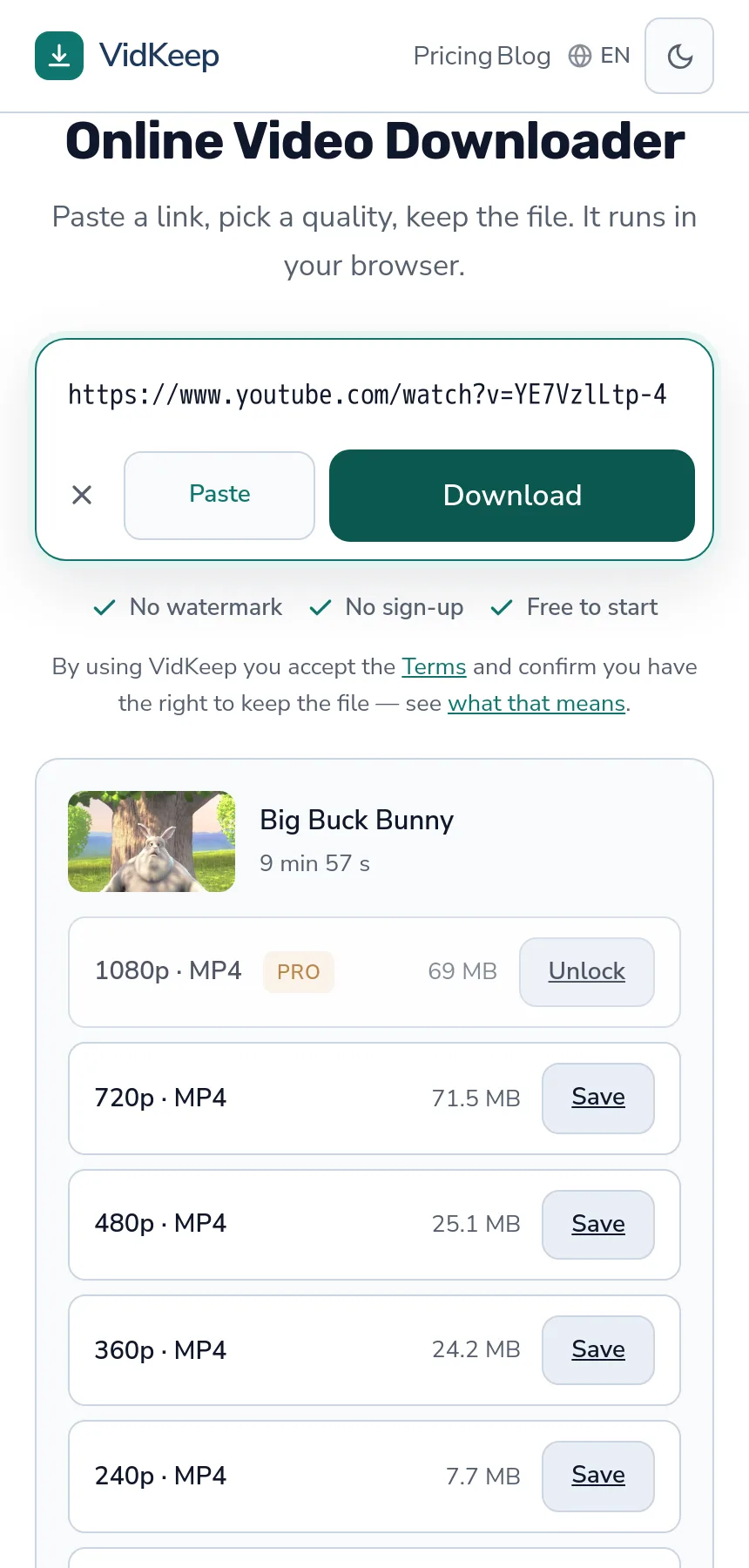
To download a YouTube video, paste its link into a downloader like VidKeep, pick a quality, and save the file. Anything up to 720p downloads straight to your device for free; 1080p and 4K take a few extra seconds because YouTube stores the picture and the sound separately and they have to be joined. Here is exactly how it works, and where it stops.
How do I download a YouTube video?
- Copy the link. Open the video on YouTube and copy its URL from the address bar, or tap Share → Copy link in the app.
- Paste it in. Drop the link into the box and let the tool read what the video offers. You will see every available quality with its real file size.
- Pick a quality and save. Choose MP4 for video or MP3 for audio only. Free qualities download directly; higher ones are prepared for you first.
No account, no app to install, nothing to sign up for. It runs in the browser tab you already have open — on a phone or a laptop, the steps are identical.
Why 1080p and 4K take a moment
This is the part most guides skip. Above 360p, YouTube does not keep a single ready-made file. It stores the video stream and the audio stream separately and lets your player line them up on the fly. Only the old 360p format (the one labelled 18) still ships as one muxed file with sound baked in.
So when you ask for 1080p or 4K, a good downloader grabs the matching video stream, grabs the best audio, and merges them into one MP4 with sound. That merge is why higher qualities show a short ‘preparing’ step instead of an instant link — it takes a few seconds, not minutes. Tools that skip the merge hand you a beautiful 4K file with no sound, which is the single most common complaint in this niche.
| Quality | How it is delivered | Has sound? |
|---|---|---|
| 360p | One muxed file, direct link | Yes, instantly |
| 720p | Merged on request (fast) | Yes, after merge |
| 1080p & 4K | Video + audio merged | Yes, after a short prepare |
MP4 or MP3: keep the video or just the audio
Two things people actually want from YouTube: the video, or the sound. Pick MP4 when you want the picture — a tutorial, a clip, a talk. Pick MP3 when all you need is the audio: a podcast, a lecture, a song you already have the right to keep.
- MP4 — the standard video container. Plays on every phone, TV and editor.
- MP3 — audio only, small file, plays everywhere. Quality matches whatever the video actually contained, usually 128–160 kbps for talk, higher for music uploads.
What you can and can't download
Being honest about the limits saves you a frustrating hour. A browser downloader can only reach what a normal viewer can reach:
- Private and members-only videos — no. They sit behind a login the tool never has.
- Age-restricted videos — usually no, for the same reason: they require a signed-in account to view.
- Live streams while they are live — wait until the stream ends and is published as a normal video, then it downloads like any other.
- Public videos, Shorts, unlisted links you have — yes.
One rule that matters: a tool doesn't check who owns a video — you do. Download things you made, things with a download or Creative Commons licence, or clips you have permission to keep. Re-uploading someone else's work is on you, not the button.
What actually happens the moment you paste a link
Here is the part we can describe because we built it. When you paste a YouTube URL, VidKeep does not start downloading the video to our server and then forward it to you — that would be slow and expensive. Instead it asks YouTube the same question your browser would: ‘what formats does this video have?’ YouTube answers with a list — every resolution, every codec, the audio tracks, and a direct URL for each one.
We read that list and show it to you honestly, with the real file size next to each quality. For anything up to 720p, the link we hand you is a direct link to the video: your browser downloads it straight from YouTube's servers, and ours never touch the file. That is why free downloads are fast and why we can offer them at all — there is almost no cost on our side.
Only when a quality needs merging — 1080p and up, where video and audio are separate — does the file pass through us for a few seconds. We pull the video stream, pull the best matching audio, run a lossless join (a straight copy, no re-encoding, so nothing degrades), and hand you a single MP4 with sound. That merge is the one moment we do real work, and we cap it so a giant 4K file can't hog the server for everyone else.
Why spell this out? Because it explains the two things you'll notice: free qualities download instantly (direct link, zero server load), and the high ones show a short ‘preparing’ step (that's the merge). It also explains why a tool that promises instant 4K with sound is usually lying — either it's giving you a silent file, or it's re-encoding and wrecking the quality. The honest version has a three-second wait. We'll take the wait.
Frequently asked questions
Is it free to download YouTube videos?
Yes, up to 720p — that covers most needs. Very large 4K files are kept behind Pro so the free tier stays fast for everyone. There is no account and nothing to install either way.
Why does my downloaded file have no sound?
Because the tool you used grabbed the video stream but skipped the audio merge. Above 360p YouTube serves picture and sound separately; they have to be joined. A downloader that does the merge gives you a file with sound.
Can I download a whole playlist at once?
Not in one click on the free tier — paste the individual video links. Bulk playlist grabbing is heavier and easy to abuse, so it's deliberately not a one-button feature.
Does it work on iPhone and Android?
Yes. It runs in the browser, so the same three steps work on iOS, Android, Windows and Mac. On iPhone the file lands in Files or Photos depending on the format.
Can I download private or age-restricted videos?
No. Those require a signed-in account to view, and a browser tool never has that login. Only public and unlisted-with-link videos can be saved.
VidKeep runs in your browser — paste a link, pick a quality, keep the file. No account, no app.
Open VidKeepLast updated: 2026-07-28. We revise our guides as the platforms change.