Troubleshooting
Only Sound, No Picture

Two causes, and they need opposite responses. Either the file genuinely contains no video — you took an audio option, deliberately or not — or the video is there and your player cannot decode it, which shows as a black screen with working sound. Check the file extension first: .mp3 or .m4a means audio, and no player will ever find a picture in it.
Tell the two apart in ten seconds
| What you see | Extension | Meaning |
|---|---|---|
| Opens in a music player | .mp3, .m4a | Audio file — no video exists |
| Black screen, sound plays | .mp4, .webm | Video is there; the player cannot decode it |
| Shows a duration but no picture | .mp4 | Usually a codec the player does not know |
| Will not open at all | any | A different problem — an incomplete download |
The extension settles the first case immediately. An MP3 has no video track and cannot be made to produce one; nothing was lost, the wrong option was chosen.
A file size check confirms it. Ten minutes of audio is a few megabytes; ten minutes of video is dozens. If the file is small, it was always audio.
If you took the audio option by accident
Easy to do, and worth knowing why it happens.
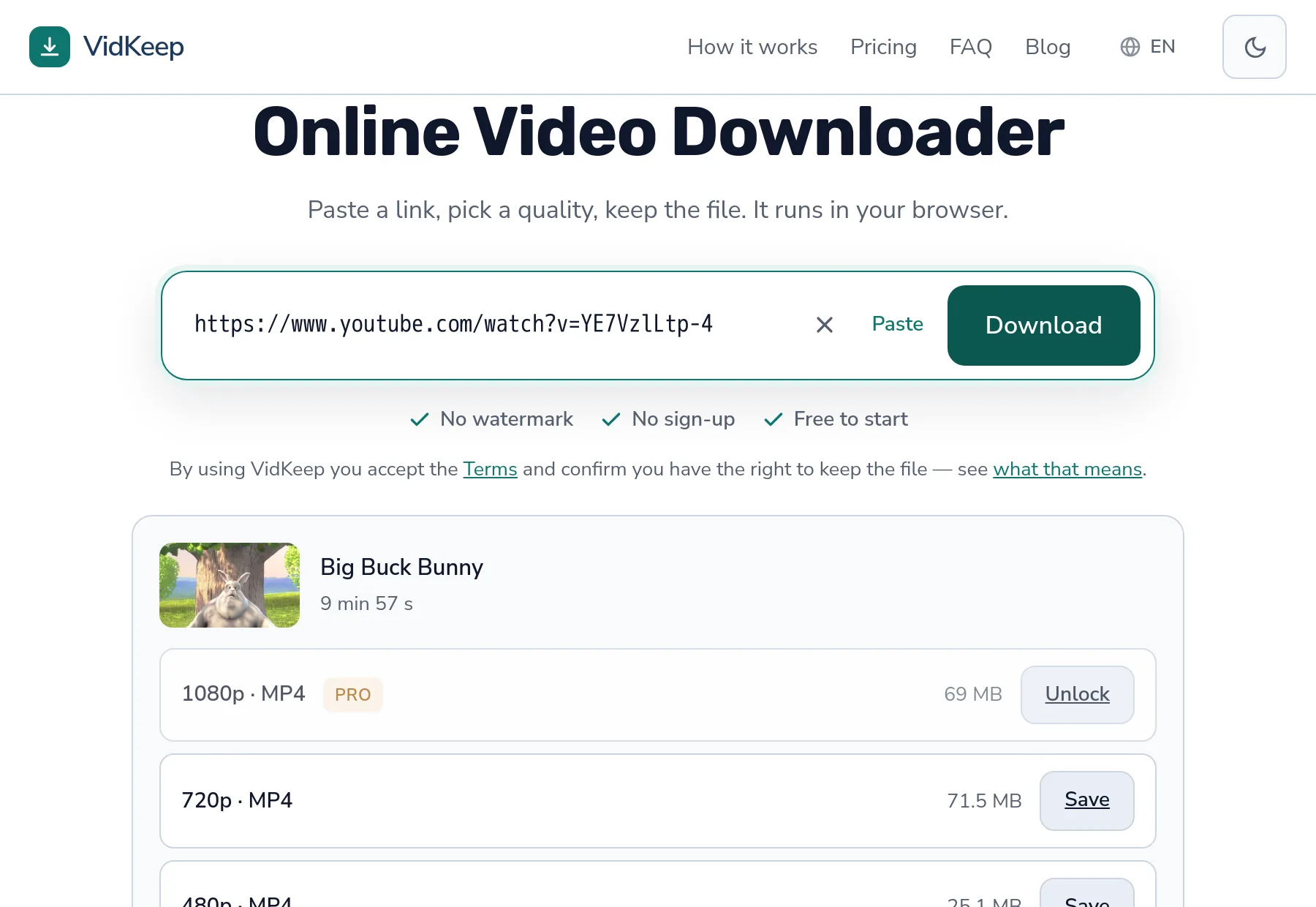
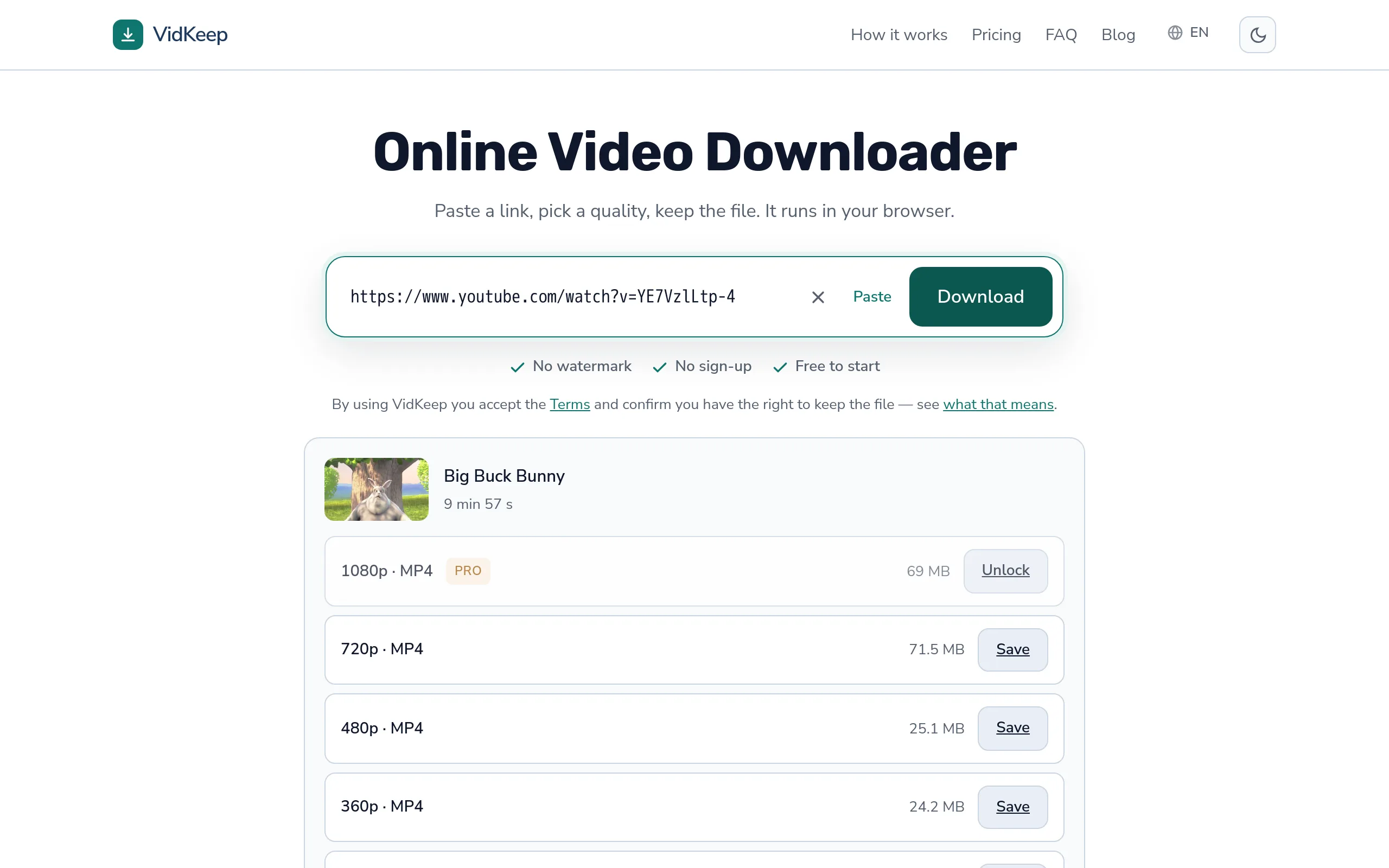
Audio usually sits at the bottom of the quality list, below every video option. On a phone that means it is the last thing your thumb passes on the way down, and it is often the smallest and most tempting number on screen.
The fix is simply to download again and choose a video quality. Nothing is wrong with the tool or the video — the audio file is exactly what was asked for.
There is no way to add a picture to an audio file afterwards. The video data was never fetched; it exists only on the platform. Downloading again is not a workaround, it is the only route.
Black screen with sound: a codec problem
The more interesting case. The file is a video, the audio plays, and the picture is missing or black.
This happens when a player can decode the audio track but not the video track. Audio codecs are few and universally supported; video codecs are several and support varies. A player that knows AAC but not VP9 or AV1 produces exactly this — sound, no picture.
The fastest fix is a player that carries its own decoders rather than relying on the system. VLC is the standard answer and it plays essentially everything. Trying it takes a minute and tells you definitively whether the file is fine.
If the file plays perfectly in VLC and not in your usual player, nothing is wrong with the download — the guide to playback failures covers the same territory from the other direction.
Why the extension does not guarantee anything
A detail that explains why an MP4 can behave unexpectedly.
The extension names the container — the box. The codec is what is inside it. An MP4 usually holds H.264, which plays everywhere, but it can hold AV1, which does not. The file name gives no indication of which.
So ‘it is an MP4, it should work’ is a reasonable expectation that is sometimes wrong, and the failure looks like a broken file rather than an unsupported codec. The codec comparison covers which ones cause this.
Checking is easy where it matters: Properties then Details on Windows, or Show Movie Inspector in QuickTime on macOS. Both name the video codec directly.
The cases that look similar but are not
- Sound plays, picture frozen on one frame. Usually a partially downloaded file rather than a codec issue — the picture stops where the data did.
- Green or pink screen with sound. A hardware decoding fault in the player, not a broken file. Another player or disabling hardware acceleration fixes it.
- Picture appears after several seconds. Software decoding struggling to keep up. The file is fine; the device is working hard.
- Video plays in one app, not another. Codec support differs per app. Nothing to do with the download.
None of these is repaired by downloading again, which is the first thing most people try. Testing in a different player is faster and tells you more.
What to do, in order
- Look at the extension. .mp3 or .m4a ends the investigation — download again and pick a video quality.
- Check the file size. A few megabytes for a long video means audio.
- Open it in VLC. If the picture appears, the file is fine and the original player lacked a decoder.
- Check the codec if you want to know why, using the system's file inspector.
- Download again only as a last resort, and choose a different quality when you do — a different rung often means a different codec.
Step five is worth understanding. If 1080p produced a file your device cannot decode, 720p may well be encoded differently and play perfectly. Same video, different stream.
How the audio option is labelled, and why it is not first
Since taking audio by accident is one of the two causes here, the design decisions around that option are worth explaining — including the one we deliberately did not make.
The audio option appears last in our list, after every video quality, and it is labelled ‘Audio only’ rather than by a resolution or a format name. Both choices came from the same reasoning: the list is ordered by what most people want, and putting the smallest and cheapest option at the top would collect accidental taps from everyone scanning for the smallest number.
The platform's own audio track is also free and does not count against the daily limit (the MP3 conversion beside it does, since that is real processing on our side). That creates an obvious temptation to promote it. Doing so would reduce our costs meaningfully — audio extraction is far cheaper for us than assembling video. We left it at the bottom because a cheaper download that is not what someone wanted is not a saving, it is a wasted attempt and a person who has to start again.
The label matters as much as the position. ‘MP3’ alone would be a format name sitting in a list of resolutions, and in that context it reads as another quality rather than a different kind of thing. ‘Audio only’ says what you will not be getting, which is the part that surprises people afterwards.
There is one thing we do not do, and it is the obvious feature request: no warning when you choose it. A confirmation dialogue on every audio download would annoy the many people who wanted audio in order to catch the few who did not, and the cost of the mistake is one repeated download rather than anything lost. Friction that protects against a cheap mistake is usually worse than the mistake.
What we did instead is make the consequence visible before the tap: the size shown next to the audio option is a few megabytes where the video options are dozens. That gap is the clearest signal available that this row is a different kind of thing, and it is there before you commit rather than after.
Frequently asked questions
Why does my downloaded file have sound but no picture?
Either it is an audio file — check for .mp3 or .m4a — or your player cannot decode the video track, which shows as a black screen with working sound.
Can I add video to an audio file?
No. The video data was never downloaded. You have to download again and choose a video quality.
Why is the screen black when the sound plays?
The player can decode the audio codec but not the video codec. A player with its own decoders, such as VLC, usually plays it correctly.
It is an .mp4, so why does it not show video?
The .mp4 extension names the container format — the box the file comes in — not the codec used to compress what is inside it. The same .mp4 container can hold video encoded with H.264, H.265/HEVC, VP9 or AV1, and each needs its own decoder to turn back into a picture. A player that only ships H.264 support will open the file, play the audio fine, and simply have nothing to show for the video track if it is HEVC or AV1, because it has no decoder for it — that shows up as sound with a black or frozen frame, not an error message. HEVC in particular is common in phone recordings and some platform exports but is not decoded by every browser or media player, either for licensing reasons or because support was never added. A player with its own bundled decoders, such as VLC, covers far more codecs and will usually show the same file correctly without downloading again.
Why is the picture green or pink?
A hardware decoding fault in the player rather than a damaged file. Another player, or disabling hardware acceleration, fixes it.
Will downloading again fix it?
Only if you pick a different quality — a different rung may use a different codec. Repeating the same download produces the same file.
VidKeep runs in your browser — paste a link, pick a quality, keep the file. No account, no app.
Open VidKeepLast updated: 2026-09-16. We revise our guides as the platforms change.