Legal & Safety
Video in a Presentation

Embed the file, do not stream it live — venue Wi-Fi fails at exactly the wrong moment, and a buffering video in front of an audience is unrecoverable. Take MP4 with H.264 at 720p or 1080p, trim it to the seconds you need, and test on the actual machine. The rights question depends on who is watching and whether anything is recorded.
Why streaming live is the wrong plan
It works in rehearsal and fails in the room, for reasons that are entirely predictable.
- Venue Wi-Fi is shared. Two hundred people on a conference network is not the connection you tested on.
- The player is not yours. Ads, cookie banners, suggested videos and autoplay all appear in front of the audience.
- You lose control of timing. Buffering at the wrong moment breaks a point you were building.
- The video can vanish. Removed, made private, or region-blocked at the venue.
An embedded file has none of these failure modes. It plays from the machine in front of you, at the moment you choose, with nothing around it.
What to download
Format: MP4 with H.264. Presentation software handles it natively on every platform, and it needs no codec pack on a machine you may not control.
Quality: 720p for a normal room, 1080p for a large screen or a close audience. Above that is wasted — projectors are usually 1080p at best, and a larger file is slower to open and heavier to carry.
Length: trim before the talk, not during it. A thirty-second clip you cue precisely is worth more than a five-minute video you scrub through while everyone watches.
Newer codecs are the specific thing to avoid here. A conference laptop, a borrowed machine or an older desktop may not decode them, and the failure appears at the worst possible moment — the compatibility comparison is here.
Embedding rather than linking
- Insert the video into the slide rather than adding a hyperlink. Both PowerPoint and Keynote embed the file inside the presentation.
- Check the file travelled with it. Some versions link rather than embed by default, and the presentation then depends on a file path that will not exist on another machine.
- Carry the video separately as well. One folder with the deck and the media files, on a memory stick, regardless of what else you have arranged.
- Test on the presenting machine if it is not yours. Ten minutes before, not at the podium.
Step two is the classic failure. The deck opens perfectly on your laptop and shows a missing-media placeholder on the conference machine, because the video was never inside it.
The rights question, honestly
It depends on the audience and on whether anything is recorded — those two answers cover most of it.
Teaching a class. Showing a clip to make a point about it is explicitly protected in many jurisdictions, and it is close to the centre of what educational exceptions exist for — covered in full here.
An internal meeting. Showing a competitor's advertisement to colleagues is not publishing. Nothing is distributed and nothing substitutes for a sale.
A conference talk that is recorded and posted. This is publishing, and the clip is now in a video you released. Different question entirely.
A commercial pitch or a client deliverable. Commercial context weakens every argument, and unlicensed footage exposes the client as well as you — the business analysis applies.
Reducing the risk without reducing the point
- Use only the seconds you need. Amount used is one of the factors courts weigh, and a thirty-second clip is a better position than five minutes.
- Say where it came from. On the slide, not just verbally. Attribution is not a legal shield, and it is expected practice.
- Discuss it, do not just play it. Commentary is what educational and critical exceptions protect. A clip that stands alone as content is weaker.
- Ask when the stakes are high. Creators frequently say yes, and an email confirming it is worth more than any argument constructed later.
- Prefer licensed or open material where it exists. Stock footage and Creative Commons remove the question entirely.
If the talk will be recorded and published, treat it as publishing from the start. Deciding afterwards that the clip has to be cut out is a worse position than choosing different footage before.
Choosing quality for the room
| Setting | Take | Why |
|---|---|---|
| Meeting room screen | 720p | Small screen, short distance |
| Lecture hall projector | 1080p | Large image, but projectors rarely exceed it |
| Sharing over a video call | 480p | The call re-compresses everything anyway |
| Deck sent by email | 480p or trimmed | Attachment limits are the real constraint |
The third row surprises people. Screen sharing compresses hard and adapts to the weakest connection in the call, so a 1080p source arrives at the other end looking much like a 480p one — the extra size buys nothing anybody sees.
Practical failures on the day
Beyond rights, the things that actually go wrong.
No sound. The projector cable carries video, and audio frequently does not follow. Check that the room's sound is connected and the laptop is outputting to it.
The aspect ratio is wrong. A vertical clip on a widescreen projector leaves large black bars and occupies a fraction of the screen — expected rather than broken, and worth knowing before you design the slide around it — explained here.
The video plays too quietly. Platform audio is normalised for headphones rather than a room. Test at the volume the room will need.
The file will not open on the venue machine. Usually a codec, occasionally a missing font or a version mismatch in the deck. This is what the ten-minute test is for.
Why the presentation case is the one our defaults suit best
Of everything people use a downloader for, a clip for a talk is the case our design choices fit most closely — mostly by accident, since they were made for other reasons.
The format preference is the main one. We ask the platform for H.264 first at any given resolution and only fall back to newer codecs when it does not exist there. That was decided for a different scenario — files that end up on old televisions and phones — and it happens to be exactly right for a laptop you have never used, in a room where you cannot debug anything.
We also deliver in MP4 rather than whatever container the platform served. That costs nothing, because a container is a wrapper and repackaging decodes nothing, and it means the file drops into presentation software without a conversation about formats. WEBM is a perfectly good format and it is the one that produces a placeholder on a conference machine.
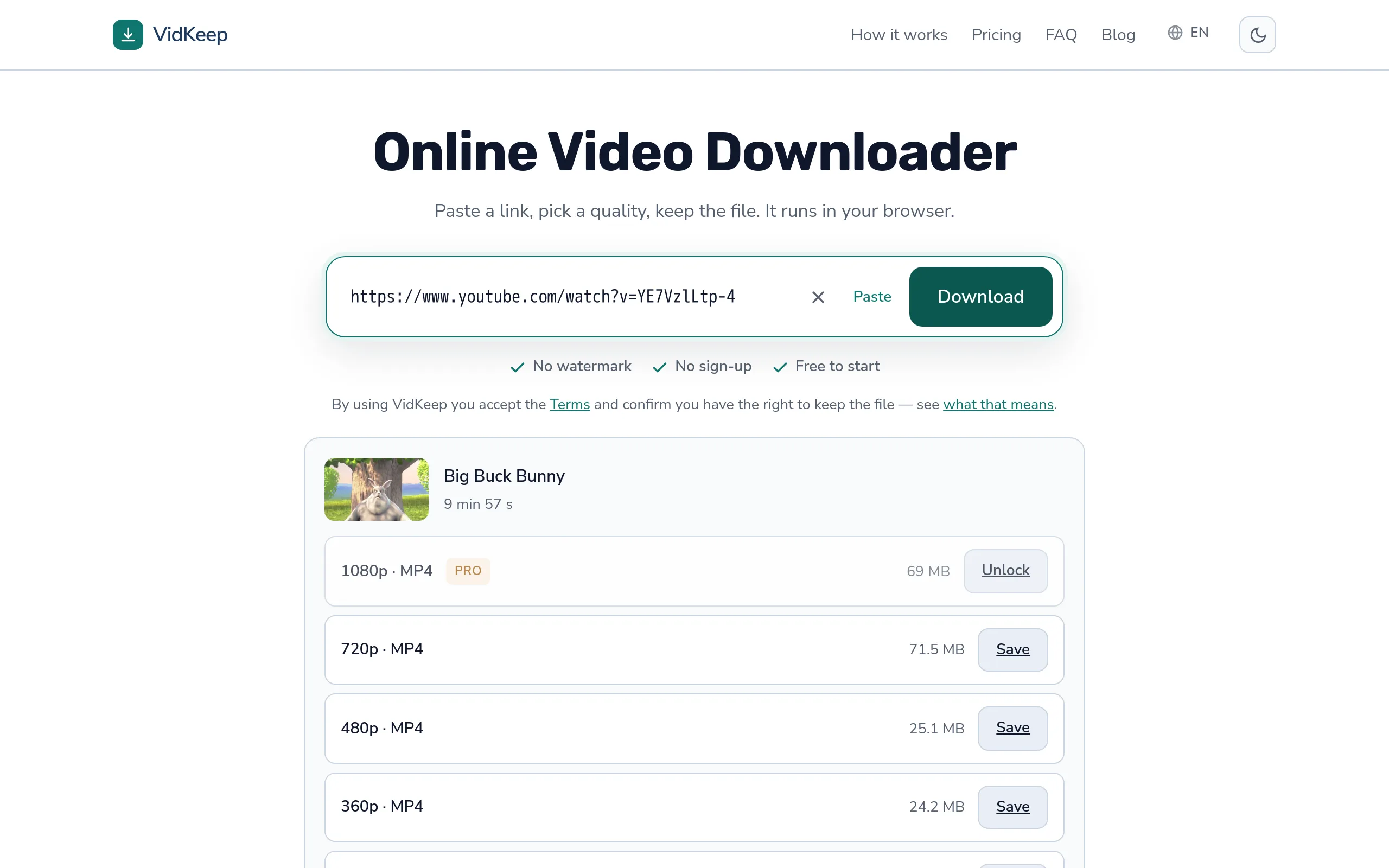
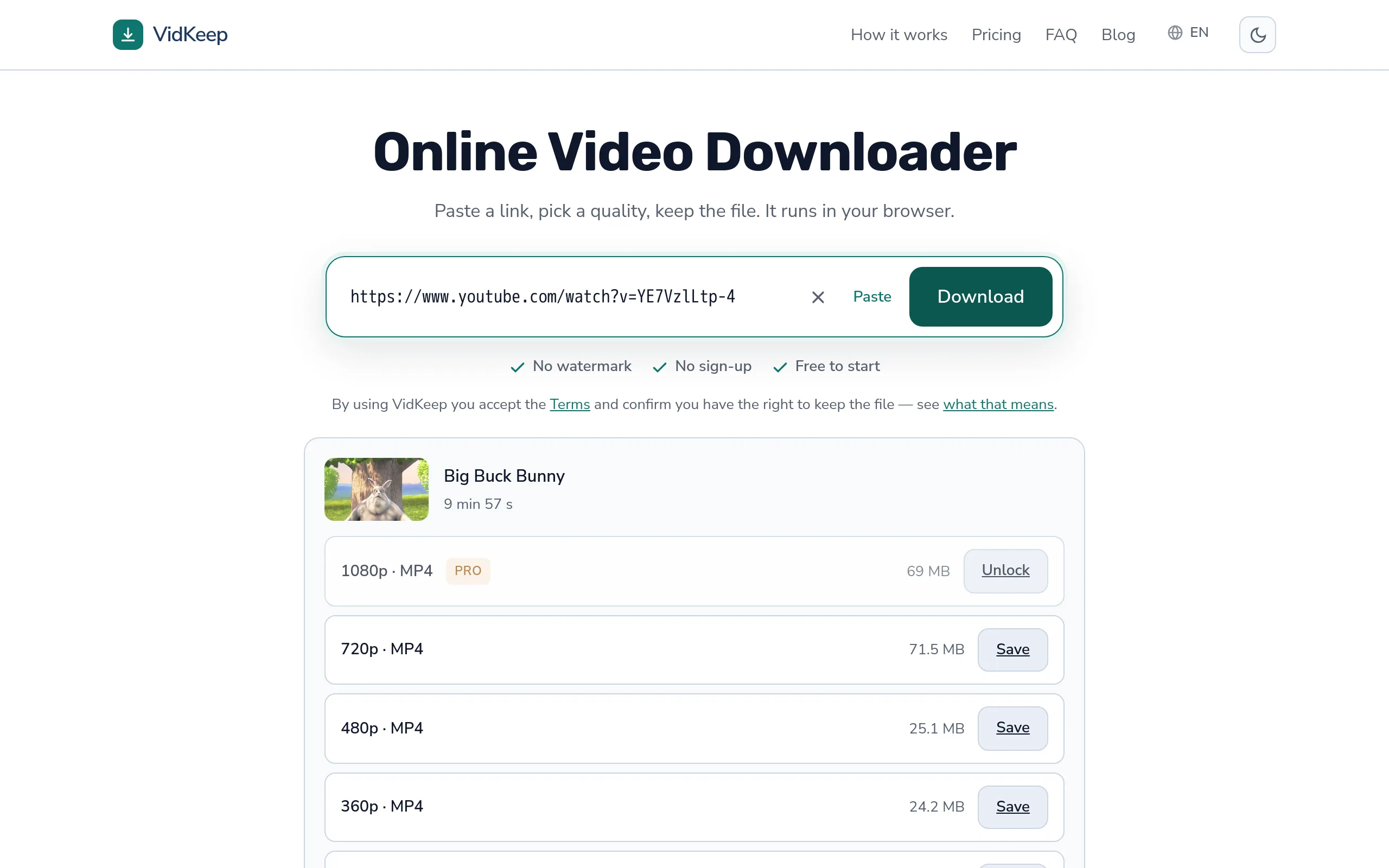
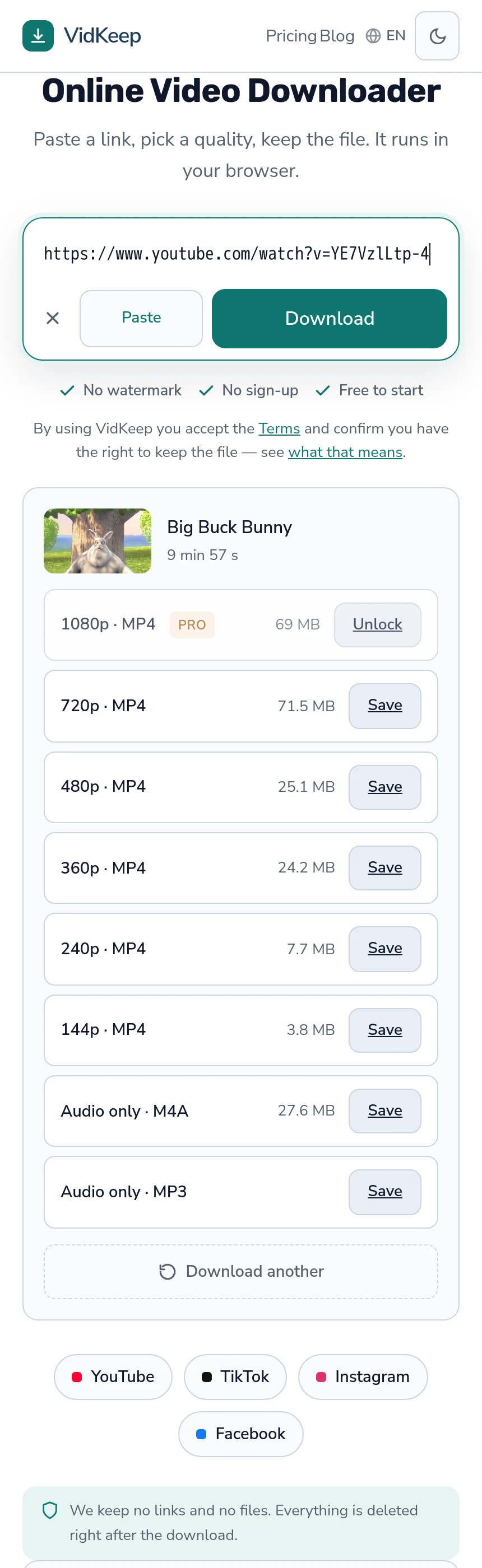
The size shown before you download matters here too, for an unglamorous reason: presentation files get emailed, and mail systems reject large attachments. Knowing that 1080p is 69 MB and 480p is 25 MB before choosing is the difference between a deck that sends and one that bounces the night before.
What we do not do is trim. There is no way to take thirty seconds from the middle of a video through our interface, and adding one would mean re-encoding — which breaks the guarantee that the picture you receive is bit-for-bit what the platform holds. Trimming is a job for whatever you are already using to build the deck, and every presentation tool can do it once the file is in.
The same goes for the one request that comes up most from this audience: a way to grab a clip without the surrounding video. It is a reasonable thing to want and it belongs in the tool where you are already making decisions about timing, because getting the exact seconds right takes trying it twice — which is a bad fit for a page that hands you one file.
Frequently asked questions
Should I stream the video during my presentation?
No. Venue Wi-Fi is shared and unreliable, the platform's player brings ads and suggestions, and the video can be removed or blocked. Embed the file instead.
What format and quality should I use?
MP4 with H.264, at 720p for a normal room or 1080p for a large screen. Projectors are rarely above 1080p, so higher is wasted.
Why does my video not play on the conference laptop?
Usually a codec the machine cannot decode, or a deck that linked the file rather than embedding it. Both are caught by testing on the presenting machine.
Is it legal to show a downloaded clip in a talk?
Showing material in teaching is explicitly protected in many jurisdictions, and internal meetings are not publishing. A recorded talk that gets posted is publishing.
Does crediting the source make it allowed?
No, but it is expected practice and costs nothing. Using only the seconds you need and discussing the clip matter more.
Can I trim the video when downloading?
Not through our interface — trimming requires re-encoding, which would change the file from what the platform holds. Presentation software can trim once the file is in.
VidKeep runs in your browser — paste a link, pick a quality, keep the file. No account, no app.
Open VidKeepLast updated: 2026-10-30. We revise our guides as the platforms change.