Guides
60fps and HDR: What You Actually Get

Neither is a separate choice. A quality list offers resolutions, and the frame rate and colour range come attached to whichever rung you pick — YouTube stores 1080p60 as its own stream, not as 1080p with a setting. 60fps costs roughly 1.5 to 2 times the size, and HDR looks wrong on a screen that cannot display it unless your player converts it properly.
How frame rate reaches you
A video shot at 60 frames per second is stored by YouTube as a distinct stream, separate from any 30fps version. It is not a toggle applied to the same file.
So whether you get 60fps depends on two things, neither of which is a setting you control: whether the creator uploaded at that frame rate, and whether the quality you chose has a 60fps variant. Most content is 30fps and always will be.
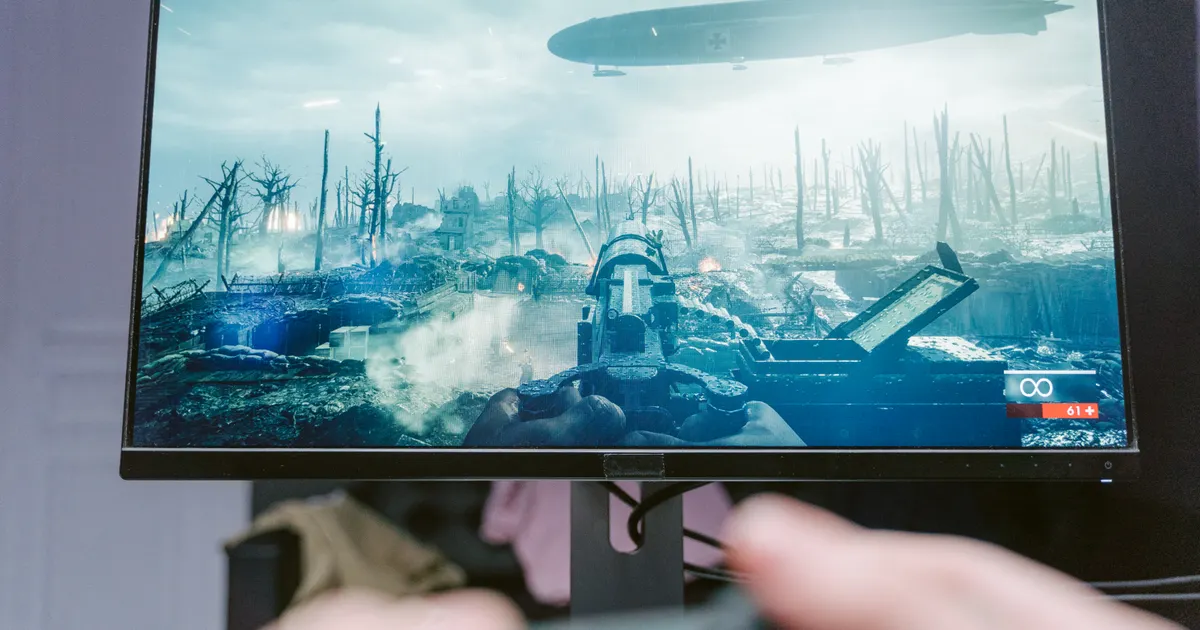
Where it exists, the difference is genuinely visible in fast motion — gaming footage, sport, anything with rapid camera movement. On a talking-head video it is close to invisible and costs you an extra half to a whole file's worth of storage for nothing.
There is a further wrinkle for anyone editing. Film and television are conventionally 24 or 25 frames per second, and a lot of uploaded content sits there rather than at 30. So a quality list can contain streams at three different frame rates depending on what the creator uploaded, and none of it is labelled. Mixing those in a timeline produces judder unless the project is set up to handle it, which is the main practical reason to care what you received.
What 60fps costs
| Same video | Relative size |
|---|---|
| 1080p at 30fps | Baseline |
| 1080p at 60fps | Roughly 1.5–2× |
| 1440p at 60fps | Substantially more again |
Twice as many frames means roughly twice as much to describe, though efficient encoding recovers some of it — consecutive frames are more similar at 60fps than at 30, so there is more redundancy to exploit.
The practical rule: take 60fps for fast motion you will watch on a decent screen, and let it go otherwise. On a phone at arm's length, watching someone talk, it is storage spent on something you cannot perceive — the wider size question is covered here.
HDR is the one that can actually look worse
High dynamic range stores a wider range of brightness and colour than ordinary video. On a display built for it, the result is striking. On one that is not, it depends entirely on the player.
An HDR file shown on a standard screen needs converting — tone mapping — to fit its range into what the display can show. A player that does this well produces something reasonable. A player that ignores it produces a washed-out, grey, oddly flat picture that looks distinctly worse than the ordinary version would have.
That is the trap. Someone downloads the highest quality available, gets an HDR stream, plays it on a laptop, and concludes the download was broken. Nothing was broken; the file contains more than the screen can express and the player did not handle the gap.
The fix is either a player that tone-maps properly, or choosing a quality without HDR. On an ordinary screen the non-HDR version is the better file, whatever the numbers say.
Telling what you have
Since the quality list does not always label these, checking the file afterwards is the reliable route.
- Windows: right-click, Properties, Details. Frame rate is listed directly.
- macOS: open in QuickTime and choose Show Movie Inspector.
- Either: VLC's media information panel reports frame rate, resolution and colour space in one place.
On YouTube itself, the quality menu names 60fps variants explicitly — 1080p60 rather than 1080p — and marks HDR content. That menu is the quickest way to know what exists before downloading anything.
Checking there first is worth the ten seconds when it matters, because it tells you something no downloader's list can: whether a 30fps alternative exists at all. If YouTube shows only 1080p60, then every tool will hand you 60fps at that resolution, and the only way to get 30 is to step down a rung or accept it.
What HDR actually stores
Worth understanding, because the name suggests brightness and the reality is broader.
Ordinary video describes each colour value in a limited range — enough for a normal screen, and it has been the standard for decades. HDR widens that in two ways at once: a greater span between the darkest and brightest parts of an image, and more steps in between, so gradients are smoother and highlights keep detail instead of clipping to white.
The visible result on capable hardware is not that everything is brighter. It is that a sunset keeps its gradation, a lit window in a dark room shows what is outside it, and specular highlights look like light rather than white patches. On content that was actually graded for it, the difference is substantial.
The catch is that this only works when the whole chain supports it — the file, the player, the connection to the screen, and the screen itself. Break any link and you are watching a conversion, which at best matches the ordinary version and at worst looks considerably worse. That is a lot of conditions for a benefit most people are not in a position to receive.
When each is worth taking
- Gaming footage: 60fps genuinely matters. This is the content it was made for.
- Sport and action: visible improvement in fast pans and rapid movement.
- Talking heads, lectures, interviews: 30fps is fine and the file is half the size.
- HDR on an HDR display: the one case where it is clearly worth it.
- HDR on anything else: avoid unless your player is known to tone-map well.
- Editing: match your project. Mixing frame rates creates problems, and HDR footage in an ordinary timeline needs handling you may not want.
Notice that two of the six point away from the more impressive option. That is unusual in a quality decision and it is why these two deserve their own article rather than being folded into ‘take the highest’.
Why the numbers do not always go up
A related oddity: a 60fps stream is not automatically larger than a 30fps one at the same resolution, and an HDR file is not always bigger than its ordinary equivalent.
The reason is codecs. Higher-tier streams frequently use newer, more efficient encoding, and the efficiency gain can outweigh the extra frames or the extra colour data. This is the same effect that makes 1080p files smaller than 720p ones — explained in full here.
Which means the file size shown next to an option is the only reliable guide. Reasoning from ‘60fps must be twice as big’ produces the wrong expectation often enough to be worth abandoning entirely.
It also has a compatibility consequence worth knowing: those efficient newer codecs are exactly the ones older devices cannot decode. A 60fps HDR stream is the most likely thing in any quality list to be unplayable on an older phone or television.
Two problems compound there rather than adding up. Even where an old device can decode the codec, doing it in software at 60 frames per second is twice the work of 30, so a file that would merely have been warm becomes one that stutters. And an HDR stream on a device without hardware support asks the processor to tone-map every frame on top of decoding it.
Which produces a counterintuitive rule for older hardware: the most impressive-looking option in the list is the one most likely to be unwatchable, and stepping down a rung usually gets you a plainer stream that plays perfectly. If a download stutters, that is the first thing to try — not a different tool.
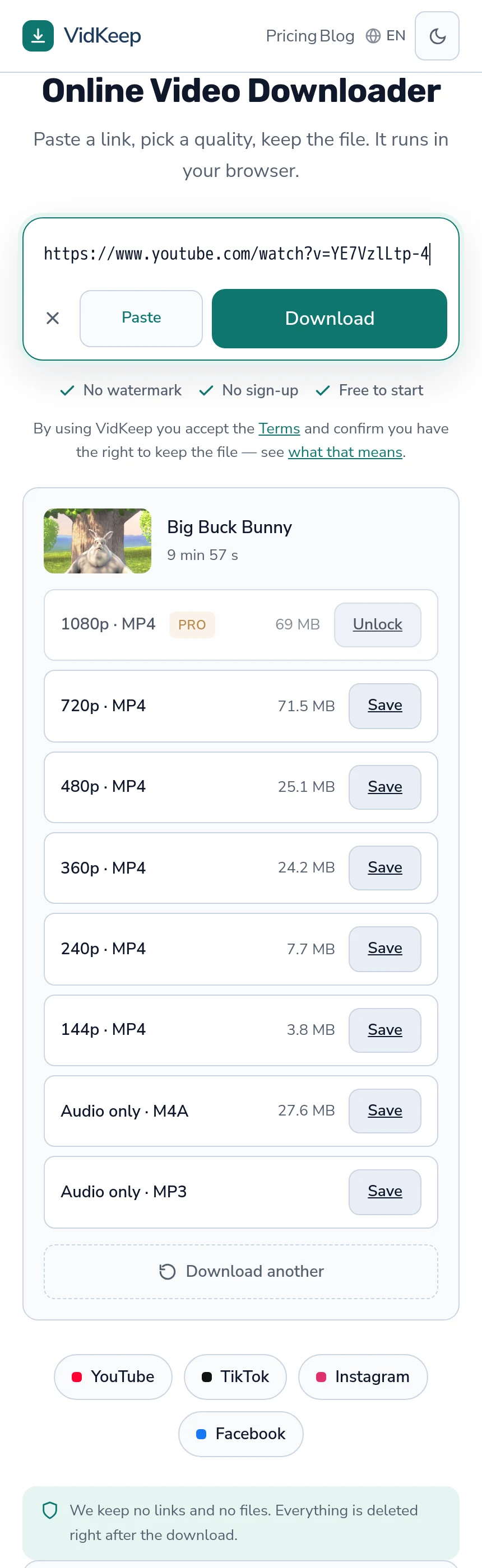
Why our list shows resolution and nothing else
Our quality options say 1080p, 720p, 480p and so on, with the file size beside each. They do not say 60fps, they do not mark HDR, and they do not name the codec. That is a deliberate narrowing, and this article is the right place to explain what it costs.
The reason is that our selector picks one option per resolution step. Where a platform offers four variants at 1080p — different frame rates, codecs, and audio pairings — showing all of them would produce a list with four identical-looking rows and no way for anyone to choose between them. So we reduce to one, preferring streams that already carry audio, then preferring MP4, then preferring H.264 for compatibility.
What that means in practice: you get whichever variant our preferences select, and if the only 1080p stream is 60fps HDR in a newer codec, that is what you get. We do not exclude those, because excluding them would mean telling someone a quality does not exist when it does. But we also do not surface the distinction, which means the choice is being made for you.
The honest cost of this design: someone who specifically wants 30fps to match an editing project, or specifically wants to avoid HDR because their screen cannot show it, has no way to express that in our interface. A tool aimed at editors would expose every variant, and for that audience ours is the worse product.
We made that trade because the alternative fails a much larger group. Four rows labelled 1080p with no explanation of the difference is the interface that produces support questions and wrong choices, and most people downloading a video do not have a frame rate requirement — they have a screen and some storage. The compatibility preference in the selector is doing the quiet work here: by asking for H.264 first, we bias away from exactly the exotic streams this article warns about.
Frequently asked questions
Can I choose 60fps when downloading?
Not separately. YouTube stores 60fps as its own stream at a given resolution, so it comes attached to the quality rather than being a setting.
How much bigger is a 60fps file?
Roughly 1.5 to 2 times, though efficient encoding recovers some of it. The size shown next to the option is more reliable than the rule of thumb.
Why does my HDR download look washed out?
Your screen cannot display the range and the player did not convert it properly. On an ordinary display the non-HDR version is the better file.
Is 60fps worth it?
For gaming, sport and fast movement, yes. For talking heads and lectures it is imperceptible and doubles the storage.
How do I check what frame rate my file is?
Properties then Details on Windows, Show Movie Inspector in QuickTime on macOS, or VLC's media information panel on either.
Why is the 60fps version not always larger?
Higher-tier streams often use more efficient codecs, and the efficiency can outweigh the extra frames. Read the size rather than reasoning from the frame rate.
VidKeep runs in your browser — paste a link, pick a quality, keep the file. No account, no app.
Open VidKeepLast updated: 2026-10-14. We revise our guides as the platforms change.