How-to
Save a TikTok to Your iPhone Camera Roll

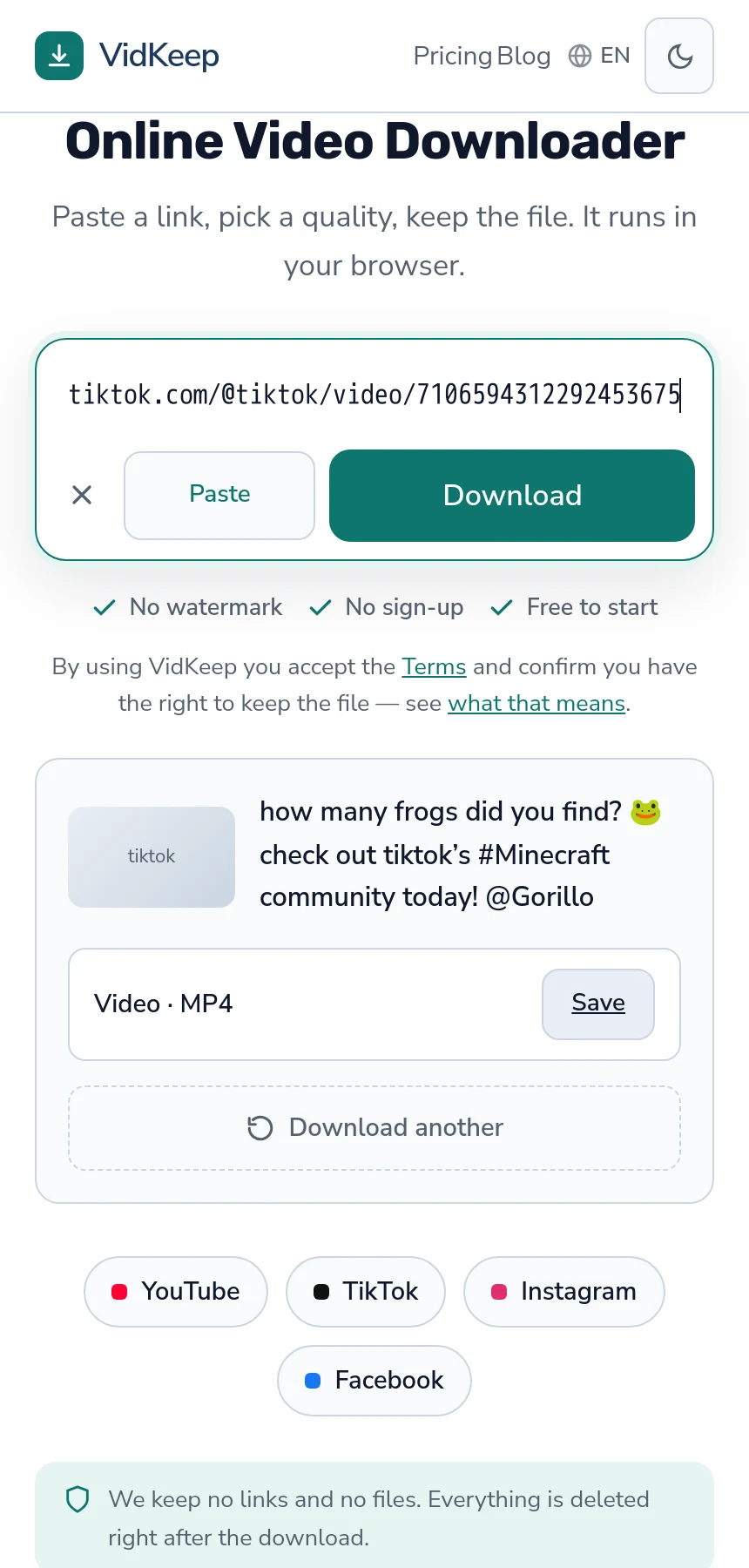
Two steps, and only the first one is about TikTok. Copy the video link, paste it into VidKeep in Safari, and tap Save — you get a clean MP4 with no watermark. That file lands in the Files app, not Photos, so the second step is opening it there and choosing Save Video from the share sheet. Nothing to install.
Getting the file
- In TikTok, tap Share, then Copy link. Use Copy link rather than sharing to another app — it gives you the plain address.
- Open Safari and go to VidKeep. Paste into the box and tap Download.
- Tap Save. TikTok videos come as one file, so there is one button and no quality menu to think about.
The file arrives without the TikTok watermark — the moving username and logo that in-app saving stamps across the video. That difference is the entire reason most people look for a tool at all.
Getting it into Photos
The download is now on your phone but not where you expect. iOS puts browser downloads in Files; Photos only receives things that were deliberately put there.
- Open the Files app and tap Browse, then Downloads.
- Tap the video to open it.
- Tap the share button — the square with an upward arrow.
- Choose Save Video. It sits in the list of actions, below the row of apps.
It is now in your camera roll and still in Files. Delete the copy in Files afterwards if you would rather not keep both. The full guide to where iPhone puts downloads covers the folder settings if Downloads turns out to be empty.
Why TikTok offers no quality choice
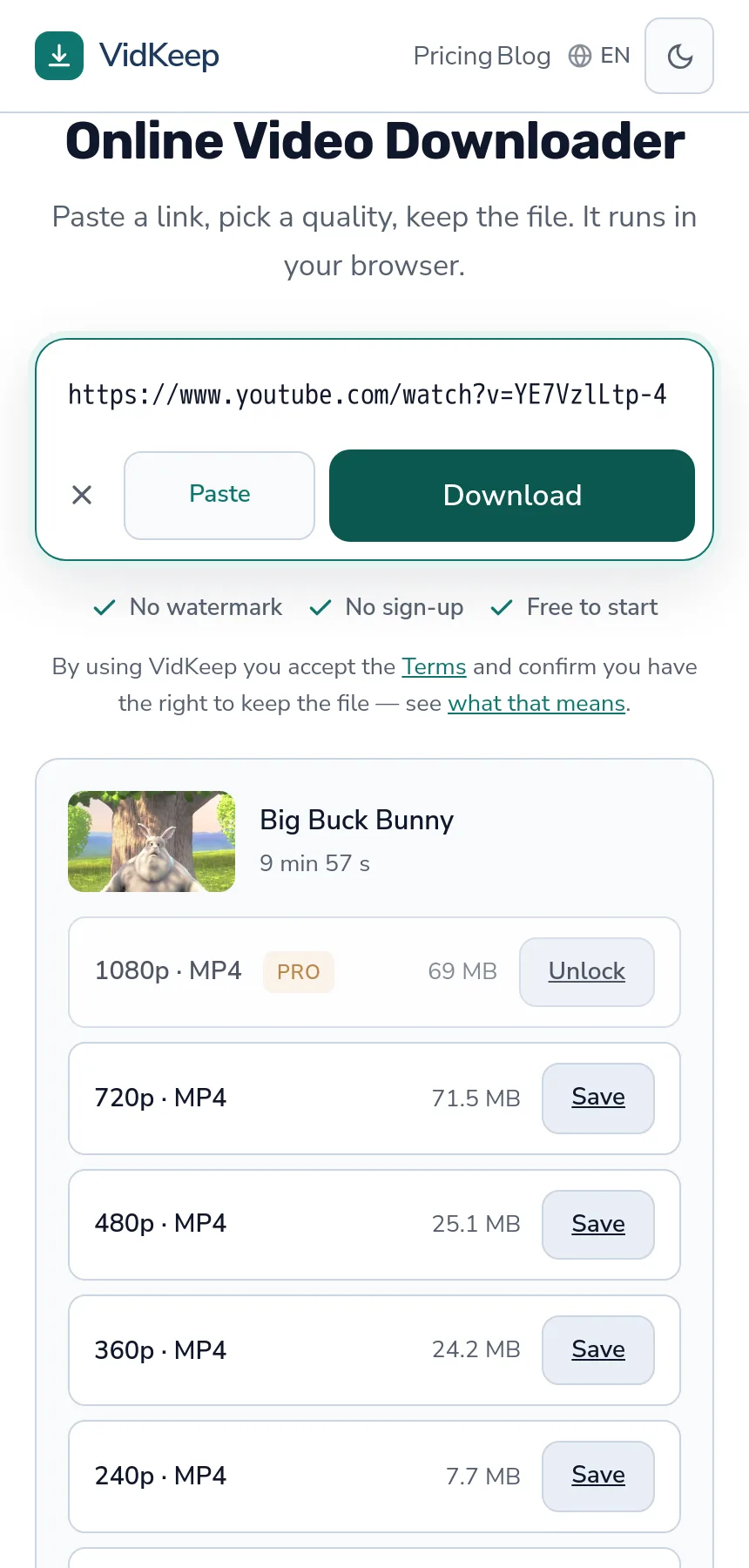
Anyone who has downloaded from YouTube notices this immediately: there, you pick from a list of resolutions; here, there is one button.
The reason is how each platform stores video. YouTube keeps every quality as a separate stream and assembles what you ask for. TikTok stores one finished file per video, already combined, at the resolution it was uploaded and processed at. There is no menu because there is genuinely nothing to choose between.
That also makes TikTok downloads fast. Nothing needs fetching twice or joining together — the file exists and is handed over. The mechanics behind that difference explain why long-form platforms work the other way.
One consequence worth expecting: the file size is not shown before you save, because TikTok's servers do not always report it in advance. Clips are short, so this rarely matters — most are a few megabytes.
What can go wrong
- Save Video is missing from the share sheet. iOS did not recognise the file as playable video. Check the download finished — a partial file looks complete in the list.
- The video played instead of saving. That happens with direct video links, which Safari opens in its player. Use the Save button rather than long-pressing the video.
- The link is rejected. A profile address is not a video address. Open the individual clip and copy from there — more on which links work.
- The account is private. No tool reaches private accounts. If you cannot see the video signed out, neither can anything else.
- It is a photo post, not a video. TikTok slideshows contain images and a sound, not a video file, and there is nothing to download as MP4.
Watermarks: what you are actually removing
Worth being precise here, because the phrase ‘remove watermark’ suggests something is being erased from a picture.
Nothing is erased. TikTok's watermark is added when the app exports a video for saving — it is burned into that copy, not into the original. A downloader that fetches the source file gets a version the watermark was never applied to.
This matters because tools that genuinely try to erase a watermark exist, and they are worse in every respect: they blur or smear the area it occupied, leaving a visible patch that moves around the frame. If a result looks smudged in one corner, that is what happened to it.
| Saving inside TikTok | Saving the source file | |
|---|---|---|
| Watermark | Username and logo, moving | None |
| Goes to | Photos directly | Files, then Photos |
| Steps | One | Two |
| Works when saving is disabled | No | Yes, if the video is public |
The clean version is not a cleverer edit — it is simply the file before the stamp. The dedicated guide goes further into how to tell the two approaches apart.
Why saving a TikTok on iPhone needs two steps and not one
The obvious question, once you have done this a few times: why can a website not put the video straight into your camera roll and skip the Files detour entirely?
The answer is that no website can, on any iPhone, for any file. The Photos library is not reachable from a web page. An installed app can request permission to write to it; a page in Safari has no such mechanism and never has. The share sheet step is not a gap in our product — it is the only route iOS provides, and every browser-based tool ends at the same place.
Which puts a real limitation honestly on the table. An app could do this in one step. We have not built one, and the reason is the same reason we have no browser extension: an install asks for a level of access that saving a video does not justify. An app that writes to your photo library has been granted your photo library, and that permission outlives whatever the app was originally for. For a task you might perform twice a month, that is a poor trade — and the App Store history of downloader apps that changed hands or changed behaviour after an update is not reassuring.
There is a second thing we cannot do on iPhone, and it shapes how the page behaves. Safari will not let a page save several files in sequence without the user confirming each one, and it treats rapid repeat downloads as something to block. So there is no ‘save all’ here, and there will not be — anything promising one on iPhone is either not doing what it says or will stop working at the next Safari update.
What we did instead was make the single-file path as short as it can be. After a download the result panel keeps a Download another button in place, so the second clip is a paste and a tap rather than a reload. It is a small thing, and it came from watching that TikTok is rarely one video — people arrive with a handful they saved to a folder, and the friction that matters is between clips, not before the first one.
Frequently asked questions
How do I save a TikTok to my iPhone camera roll?
Copy the video link, paste it into VidKeep in Safari and tap Save. Then open the file in the Files app, tap share and choose Save Video to put it in Photos.
Why is the video in Files instead of Photos?
iOS sends all browser downloads to Files. Photos only receives media that an app or the share sheet deliberately puts there.
Do I need an app?
No. It works in Safari. An app could skip the share-sheet step, but it would need permission to write to your entire photo library.
Will the video have a watermark?
No. The watermark is added when TikTok exports a copy for in-app saving; the source file never had it.
Why is there no quality choice for TikTok?
TikTok stores one finished file per video rather than separate streams per resolution. There is nothing to choose between.
Can I save videos from a private account?
No. If the video is not visible when you are signed out, no downloader can reach it.
Can I save several TikToks at once?
Not on iPhone. Safari requires confirmation for each download and blocks rapid repeats. Save them one at a time.
VidKeep runs in your browser — paste a link, pick a quality, keep the file. No account, no app.
Open VidKeepLast updated: 2026-08-25. We revise our guides as the platforms change.