How-to
Converting Video to GIF

GIF is a 1987 format with a 256-colour limit and no sound, and it produces files far larger than the video they came from. It is still the right answer when something must autoplay and loop anywhere — chat apps, documentation, forums. Keep it short, small and low frame rate: our measurements below show five seconds at 480 pixels costing 544 KB, and at 320 pixels and 8fps only 168 KB.
Measured sizes, so you can plan
These are from a five-second clip converted at four settings on our own server. Real footage varies — detailed, fast-moving material runs larger — but the relationships hold.
| Width | Frame rate | 5 seconds |
|---|---|---|
| 480 px | 12 fps | 544 KB |
| 480 px | 8 fps | 360 KB |
| 320 px | 12 fps | 248 KB |
| 320 px | 8 fps | 168 KB |
Two useful ratios fall out of that. Dropping from 12fps to 8 saves about a third. Dropping the width from 480 to 320 saves more than half — dimensions matter more than frame rate, because every pixel is stored in every frame.
For comparison, the source clip was a 28 KB MP4. The GIF versions are six to twenty times larger for a shorter, silent, lower-quality result. That is not a flaw in the conversion; it is what the format is.
The command that works
Using ffmpeg, which is free and available on every platform. This is the two-pass version and it is worth the extra step:
ffmpeg -ss 10 -t 5 -i input.mp4 -vf "fps=12,scale=480:-1:flags=lanczos,split[a][b];[a]palettegen[p];[b][p]paletteuse" -loop 0 output.gif
-ss 10— start ten seconds in.-t 5— take five seconds.fps=12— frame rate. 8 to 15 is the useful range.scale=480:-1— width in pixels; height follows automatically.palettegenandpaletteuse— the colour fix, explained below.-loop 0— loop forever.
Put -ss and -t before -i and the conversion starts from that point rather than decoding the whole file first. On a long video that is the difference between seconds and minutes.
Why the palette step matters
GIF allows 256 colours per image. Video contains millions. Something has to choose which 256, and the choice is what separates a decent GIF from a blotchy one.
Without the palette step, a generic colour table is used and the result shows banding — skies break into stripes, skin tones go patchy, gradients turn to steps. With it, ffmpeg examines your specific clip, builds a palette from the colours actually present, and then encodes against it.
One honest caveat from our own measurement: the palette version is not always smaller. On a test clip it produced 278 KB against 159 KB for the naive version — a larger file that looks considerably better, because a richer palette compresses less efficiently.
So the trade is quality against size rather than a free improvement. If size is critical, reduce dimensions and frame rate rather than skipping the palette; those cost less visually.
Keeping it small
- Shorten it. Size scales directly with duration. Three seconds instead of ten is the largest single saving available.
- Reduce the width. 320 to 480 pixels is plenty for a chat or a document.
- Drop the frame rate. 10 to 12fps looks fine for most motion; 8 works for slow movement.
- Crop to what matters. Empty space costs the same as action.
- Avoid busy footage. Rain, confetti and camera shake are expensive in every format and ruinous in this one.
Duration first, dimensions second, frame rate third. That order gets you the most saving for the least visible loss.
When not to use GIF at all
Most of the time, honestly. The format survives on compatibility rather than merit.
Use a short MP4 instead where the destination supports it. Every modern platform autoplays and loops silent video, the file is a fraction of the size, the colour is full, and it can be longer without becoming absurd. Most ‘GIFs’ on social platforms today are silent MP4s wearing the name.
Use WebP or AVIF for animation on a website. Far better compression, full colour, and supported by every current browser.
Use GIF when the destination genuinely requires it: older forums, some chat apps, email signatures, documentation systems that accept images but not video, and anywhere autoplay must work without any player.
That last case is real and it is why the format persists. A GIF is an image everywhere, and an image needs no permission, no player and no codec support.
Starting from a downloaded video
A practical note on which quality to download first, since a GIF is usually made from something saved earlier.
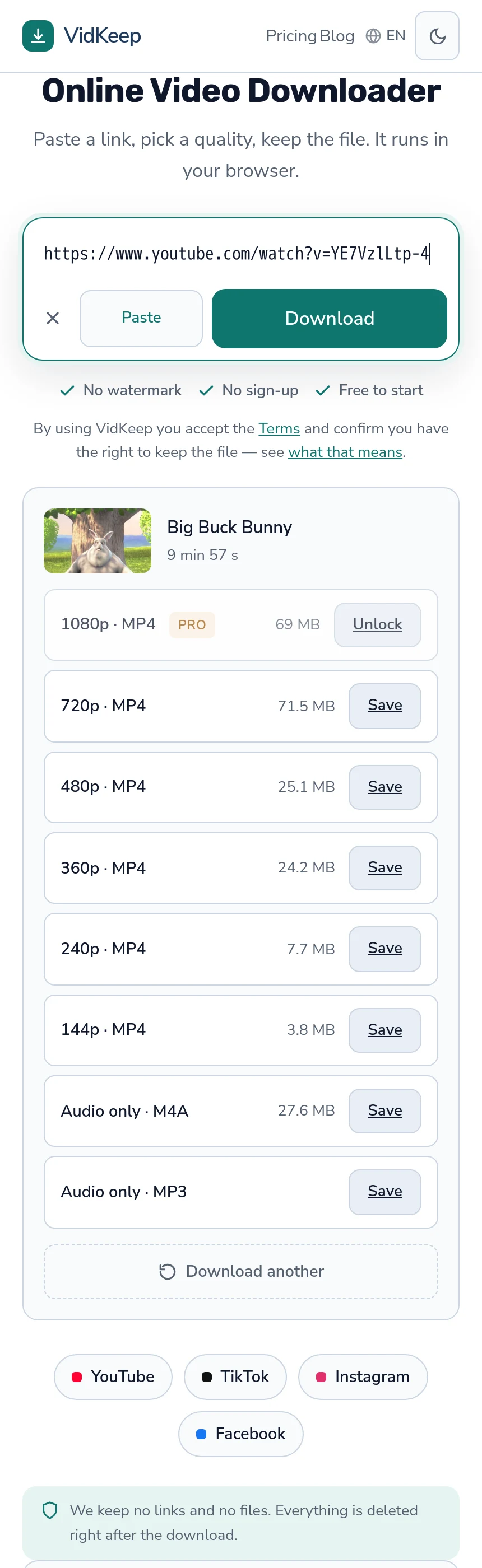
Take a low quality. The GIF will be 320 to 480 pixels wide, so downloading 1080p to make a 320-pixel GIF wastes bandwidth and storage for detail that is discarded in the first step of conversion.
480p is comfortably enough for any GIF, and on a long source video it is roughly a third the size of 1080p — measured sizes are here.
The exception is cropping. If you plan to crop into a small part of the frame, start higher: cropping into 1080p and scaling to 480 keeps detail that cropping into 480p would not have.
Why we do not offer GIF conversion, having tested it
We have ffmpeg on the server, it does this well, and adding a ‘convert to GIF’ button would take an afternoon. The measurements in this article were produced by running exactly that conversion on our own machine, so this is not a theoretical position.
The reason it is not a feature is cost, and specifically the shape of the cost. Everything else we do is either a direct link or a remux — copying streams into a container without decoding the picture. A GIF conversion is a genuine re-encode: every frame decoded, scaled, quantised against a palette, and written out. On a single CPU shared with another product, that is the most expensive thing we could offer per output byte.
Worse, it is expensive in a way that does not scale down. A video download costs us proportionally to file size, and a small file is cheap. A GIF conversion costs processor time proportional to the source duration regardless of how small the output is — so the twenty-second clip someone wants as a 200 KB GIF costs more to produce than a 70 MB video download.
There is a second reason, and it is the one that settled it. The conversion needs decisions: which segment, what width, what frame rate, whether to crop. Those are exactly the choices this article spends its length on, and an interface that guesses them produces a bad GIF that the person then has to redo. A tool where you can iterate — ffmpeg, or a local editor — is simply the right instrument for a task that requires trying twice.
So we published the command instead. It works, the numbers above came from running it, and it will keep working long after any button we might have added. Given the choice between building a mediocre version of something and explaining the good version, the explanation is worth more.
Frequently asked questions
How do I convert a video to GIF?
Use ffmpeg with a two-pass palette: fps, scale, palettegen and paletteuse in one filter chain. The full command is in this article.
How big is a GIF?
From our measurements, five seconds at 480 pixels and 12fps came to 544 KB; at 320 pixels and 8fps, 168 KB. Real footage with more motion runs larger.
Why does my GIF look blotchy?
The 256-colour limit with a generic palette. Generating a palette from your specific clip fixes it, at the cost of a somewhat larger file.
How do I make a GIF smaller?
Shorten it first, then reduce the width, then lower the frame rate. That order costs the least visually.
Should I use GIF or MP4?
MP4 where the destination supports it — a fraction of the size, full colour, and every modern platform autoplays silent video. GIF only where an image is required.
What quality should I download to make a GIF?
480p is plenty, since the GIF will be 320 to 480 pixels wide. Download higher only if you plan to crop into part of the frame.
VidKeep runs in your browser — paste a link, pick a quality, keep the file. No account, no app.
Open VidKeepLast updated: 2026-10-28. We revise our guides as the platforms change.