Guides
Saving Videos for a Trip

Plan by hours, not by files. At 480p a ten-minute video is around 25 MB, so roughly 150 MB an hour — a full day of viewing fits in under two gigabytes. Do it before you leave, on real Wi-Fi, and check each file plays before you go. A download you discover is broken at 10,000 metres cannot be redone.
How much space per hour
| Quality | Roughly per hour | Sensible for |
|---|---|---|
| 1080p | 400–700 MB | A laptop or tablet you will watch closely |
| 720p | 250–450 MB | Tablets, generous storage |
| 480p | 150 MB | Phones — the practical default |
| 360p | 100 MB | Tight storage, small screens |
| Audio only | 60–100 MB | Podcasts, talks, anything conversational |
The 480p row is where most people should land for a phone. On a screen held at arm's length, the difference from 1080p is genuinely hard to see, and it is a third of the space — the reasoning is here.
Work backwards from what you have free. Two gigabytes at 480p is around thirteen hours, which is more than any flight. Two gigabytes at 1080p is three hours, which is not.
Do it before you leave
- Download on home or hotel Wi-Fi, not at the airport. Airport networks are shared, throttled and frequently re-authenticate mid-transfer.
- Leave time. Ten videos is ten downloads with gaps between them, not one batch — rapid batches trigger rate limiting.
- Check the free space first. A download needs roughly twice the file size available.
- Play each file for ten seconds before you go. This is the step that actually matters.
Point four catches the failures that cannot be fixed later: a partial download that plays the first minute and stops, a codec your tablet cannot decode, a file that saved to the wrong place. All of those are trivial at home and impossible in the air.
Choosing for the device you will actually use
The screen decides the quality, and people routinely download for the wrong one.
Phone. 480p is plenty. The screen is small and you will be watching in poor light with the device propped against a tray table.
Tablet. 720p is worth it; above that is rarely visible — and an iPad can save straight to an external drive, which changes the storage question entirely.
Laptop. 1080p if you have space, though battery matters more than picture quality on a long flight, and a smaller file in a familiar codec decodes with noticeably less power.
Something else entirely. If you plan to watch on a hotel television via USB, download MP4 with H.264 and nothing newer — televisions are the pickiest device you will encounter.
Battery is the constraint nobody plans for
Storage is the obvious limit and battery is the one that ends the viewing.
Video playback is among the most power-hungry things a device does, and how hungry depends on the file. A video in a codec your device decodes in hardware sips power; one it must decode in software drains the battery several times faster and makes the device warm.
Which means the compatible, slightly larger file is often the better travel choice — H.264 over anything newer, because it has hardware support on essentially every device made this century. The codec comparison covers which is which.
Two smaller habits help more than they sound: reduce screen brightness, and use headphones rather than speakers. Both cost more battery than the decoding does on most devices.
Watching a downloaded file also uses considerably less power than streaming the same content would, which is worth knowing on a long journey. Streaming keeps the radio active throughout, and a mobile connection searching for signal — on a train, in a car, anywhere coverage comes and goes — is among the most draining things a phone does. A downloaded file needs no connection at all, so aeroplane mode plus offline video is dramatically kinder to the battery than the same hours streamed.
That is a genuine argument for downloading beyond the obvious one about signal. Even where you have coverage the whole way, saving in advance and flying with the radio off can be the difference between arriving with a usable phone and arriving with a dead one.
What to download beyond entertainment
- Anything you will need without signal. A tutorial for something you are assembling, a language lesson, a route explanation.
- Audio for the journey itself. Podcasts and talks work while walking through an airport in a way video does not.
- Content for children. The single most valuable category on a long flight, and worth more than your own viewing.
- Things you may not find abroad. Regional restrictions vary by country, and something available at home may not be where you are going — how region blocks work.
That last point is worth acting on. Travelling does not carry your regional availability with you, and a service that works at home may show a different catalogue or none at all.
Roaming data deserves its own warning. Video is the fastest way to exhaust an allowance or run up a bill, and a phone that silently resumes streaming when it finds signal can do real damage before anyone notices. Downloading before departure removes the temptation entirely, and turning off data roaming for video apps removes the accident.
Hotel Wi-Fi is the other half of this. It is usually adequate for downloading and usually poor for streaming, which inverts the habit most people have: save what you want in the evening rather than trying to stream it in the moment, and the connection stops mattering.
The mistakes that ruin a flight
Four failures account for almost every ‘I downloaded things and could not watch them’ story, and all four are avoidable in the ten minutes before leaving.
The file is in the wrong place. On iPhone, browser downloads go to the Files app rather than Photos, and someone looking in the wrong one concludes nothing saved — the distinction is explained here.
The download did not finish. A partial file frequently plays the portion that arrived, which is exactly what makes it easy to miss until the video stops mid-sentence.
The device cannot decode it. More likely on an older tablet than a phone, and it shows as a black screen with working sound.
You downloaded to the wrong device. Obvious, common, and irreversible once you have left the phone with the files at home.
All four are caught by the same ten-second check per file. It is the least interesting advice in this article and the only step that genuinely cannot be recovered from.
Where to put it all
A trip's worth of video is more than a phone comfortably holds, and there are better options than deleting photos.
Android: an SD card, with the browser set to download there directly — including which cards not to buy.
iPad: a USB-C drive, which iPadOS mounts in the Files app. iPhones cannot do this.
Laptop: anything, obviously, and it is the device to load up if you are carrying one.
Nothing else available: lower the quality rather than fewer videos. Thirteen hours at 480p beats three hours at 1080p on any journey long enough to need either.
One organisational habit repays itself on a long trip: put everything in a single named folder rather than leaving it in Downloads among months of other files. Scrolling a general downloads list to find the next episode is a small irritation at home and a genuine one on a tray table with the person beside you asleep on your arm.
Why we show the size before you commit
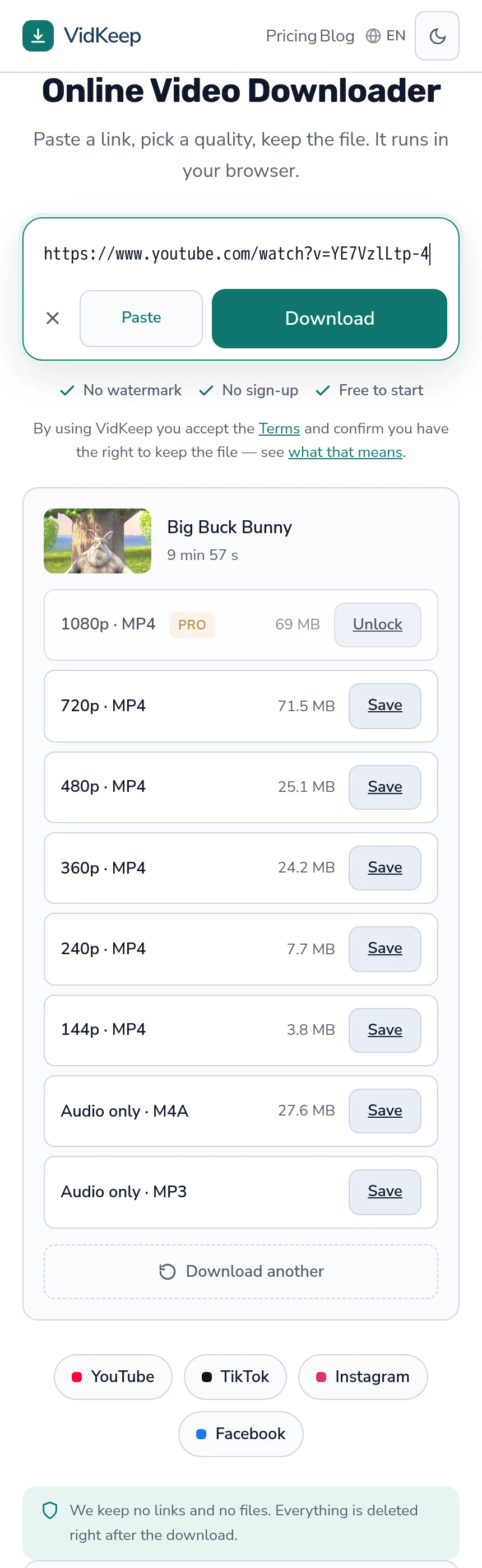
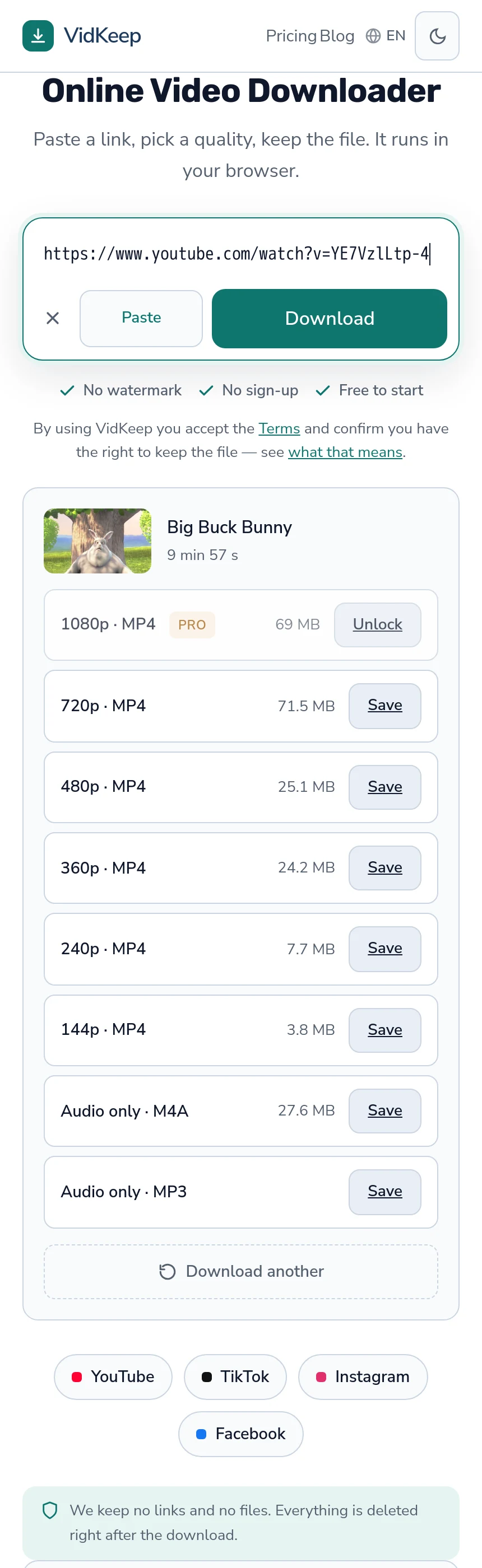
Planning a trip's viewing is the clearest case for something our interface does that a surprising number of tools do not: every quality carries its real file size, from what the platform reports, shown before you choose anything.
The common pattern in this category is quality labels alone, with the size revealed once the file has arrived. That is easier to build and precisely useless for the person deciding whether a day of viewing fits in what is left. Choosing between 480p and 1080p is a storage decision before it is a picture decision, and it cannot be made with the numbers hidden.
It also makes the arithmetic in this article possible from the interface itself. If a ten-minute video shows as 25 MB at 480p, an hour is roughly 150 MB, and you can work out a flight's worth in your head while standing in front of the page. No tool can do that planning for you, and showing the number is what lets you do it.
We show them even when they are confusing. Our list regularly displays 1080p as smaller than 720p, because the higher rung uses a more efficient codec — genuine, counterintuitive, and something we could hide by sorting differently. Hiding it would misrepresent what you receive, and on a trip that is exactly the misrepresentation that leaves you short.
Where a platform reports no size, we show a blank rather than an estimate. Calculating one from bitrate and duration would be simple and usually close, and an estimate that is occasionally wrong is worse than an honest gap — particularly for someone counting megabytes the night before a flight.
The one thing we cannot help with is the check that matters most: whether each file actually plays on the device you are taking. We know what the platform reported and what we sent; we cannot know whether your tablet decodes that codec. Ten seconds of playback per file answers a question no interface can, and it is the step worth building a habit around rather than a feature.
Frequently asked questions
How much space do I need for offline viewing?
At 480p, roughly 150 MB per hour, so a full day of viewing fits in under two gigabytes. At 1080p the same two gigabytes buys about three hours.
What quality should I download for a flight?
480p for a phone, 720p for a tablet. On a small screen at arm's length the difference from 1080p is hard to see and costs three times the space.
Should I download at the airport?
No. Airport networks are shared, throttled and often re-authenticate mid-transfer. Download on home or hotel Wi-Fi with time to spare.
What is the step people skip?
Playing each file for ten seconds before leaving. A partial download or an unsupported codec is trivial to fix at home and impossible in the air.
Does the file affect battery life?
Yes. A codec your device decodes in hardware uses far less power than one it must decode in software, which also makes the device warm.
Where can I store more than the phone holds?
An SD card on Android, a USB-C drive on iPad. iPhones support neither, so lowering the quality is the answer there.
VidKeep runs in your browser — paste a link, pick a quality, keep the file. No account, no app.
Open VidKeepLast updated: 2026-08-01. We revise our guides as the platforms change.