How-to
Saving Videos to an SD Card

Change where Chrome puts downloads and every future video lands on the card automatically: Chrome menu → Downloads → Download location → SD card. Files already on internal storage can be moved with the Files app. The whole thing takes a minute, and the part worth reading is the last section — a cheap or failing card is the most common way people lose a video collection.
Setting the download location
- Open Chrome and tap the three-dot menu.
- Go to Downloads. On some versions this sits under Settings first.
- Tap Download location and choose the SD card.
- Turn on ‘Ask where to save’ if you want to choose per file rather than always using the card.
From then on every download goes to the card, including large videos, and internal storage stops filling. The setting persists until you change it.
Other browsers have the same option in a similar place — Firefox under Settings then Downloads, Samsung Internet under Sites and downloads. If a browser offers no such setting, downloading normally and moving the file afterwards works just as well.
Moving files that are already downloaded
Anything saved before you changed the setting stays where it was. Moving it is straightforward.
- Open the Files app (or your phone's file manager).
- Go to Internal storage → Download.
- Long-press to select the videos — tap more to select several.
- Choose Move, not Copy, and pick a folder on the SD card.
Use Move rather than Copy unless you specifically want two versions. Copy leaves the original on internal storage, which is the opposite of the point and a common way people conclude the transfer did not free any space.
Moving a large batch takes a while and should not be interrupted. A move that stops part-way can leave files in both places or, on a failing card, in neither.
Why videos may vanish from your gallery
A confusing side effect worth expecting: files moved to an SD card sometimes disappear from the gallery app even though they are clearly there in the file manager.
Android builds a media index by scanning storage, and that index does not always update immediately after a move. The file exists; the gallery has not noticed it yet.
Restarting the phone forces a rescan and fixes it in almost every case. If a specific folder never appears, check for a file named .nomedia in it — that marker tells Android to skip the folder entirely, and some apps create one without saying so.
This is also why a downloaded video appears in the gallery automatically on Android but never does on iPhone. Android scans storage for media; iOS keeps a managed library and scans nothing — the iPhone side is covered here.
Choosing a card that will not lose your collection
The part that actually matters, and the part nobody reads until something is lost.
| What to look for | Why |
|---|---|
| A brand you recognise, bought from a real retailer | Counterfeit cards are widespread and report a false capacity |
| Capacity you actually need | A genuine 128 GB card beats a fake 512 GB one |
| Class 10 / U1 or better | Slow cards stutter on high-bitrate video |
| exFAT formatting | Handles files over 4 GB; FAT32 does not |
The counterfeit problem is the serious one. A fake card reports a large capacity to the phone and has a fraction of it physically. Everything appears to work until you pass the real limit, at which point new files silently overwrite old ones and the earlier videos are gone without an error.
If a card was suspiciously cheap, test it before trusting it: copy files until you exceed what you believe the real capacity is, then open the earliest ones. Doing that on an empty card costs an evening and is considerably cheaper than discovering the problem later.
Speed, and when the card is the bottleneck
Cards vary enormously in write speed, and a slow one shows up in specific ways.
Downloads that crawl despite a fast connection are often the card rather than the network. Test by downloading to internal storage once — if that is quick, the card is the limit.
Playback that stutters from the card but not from internal storage means the card cannot sustain the video's bitrate. High-bitrate 1080p and anything in 4K are where this appears first.
Long pauses when opening a folder full of videos usually mean the card is old or degrading. Cards wear out, and unlike a drive they rarely warn you first.
Practical rule: keep anything you would be upset to lose in a second place as well. SD cards are convenient storage, not backup, and they fail more often and more suddenly than the phone they sit in.
Adoptable storage, and why to avoid it here
Some Android phones offer to format a card as internal storage — ‘adoptable storage’ — merging it with the phone's own memory.
It sounds ideal and is usually wrong for video. An adopted card is encrypted and tied to that specific phone, so it cannot be read on a computer or moved to another device. If the phone dies, the card's contents die with it.
It also means the card is now in the path of everything the system does, so a slow card slows the whole phone rather than just your video folder.
For downloaded video, portable storage is the better choice: readable anywhere, movable to a computer, and survivable if the phone does not.
Why we show the size before you save, not after
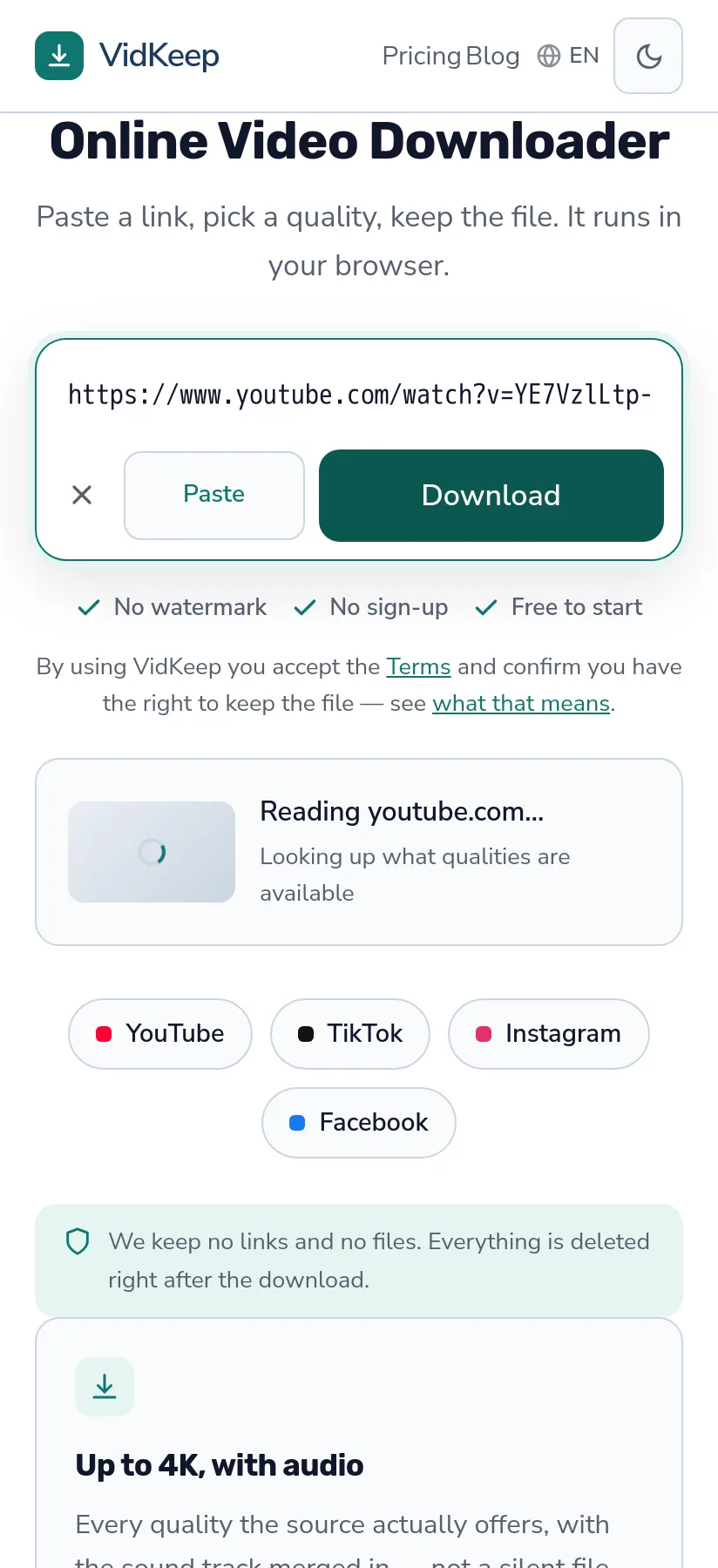
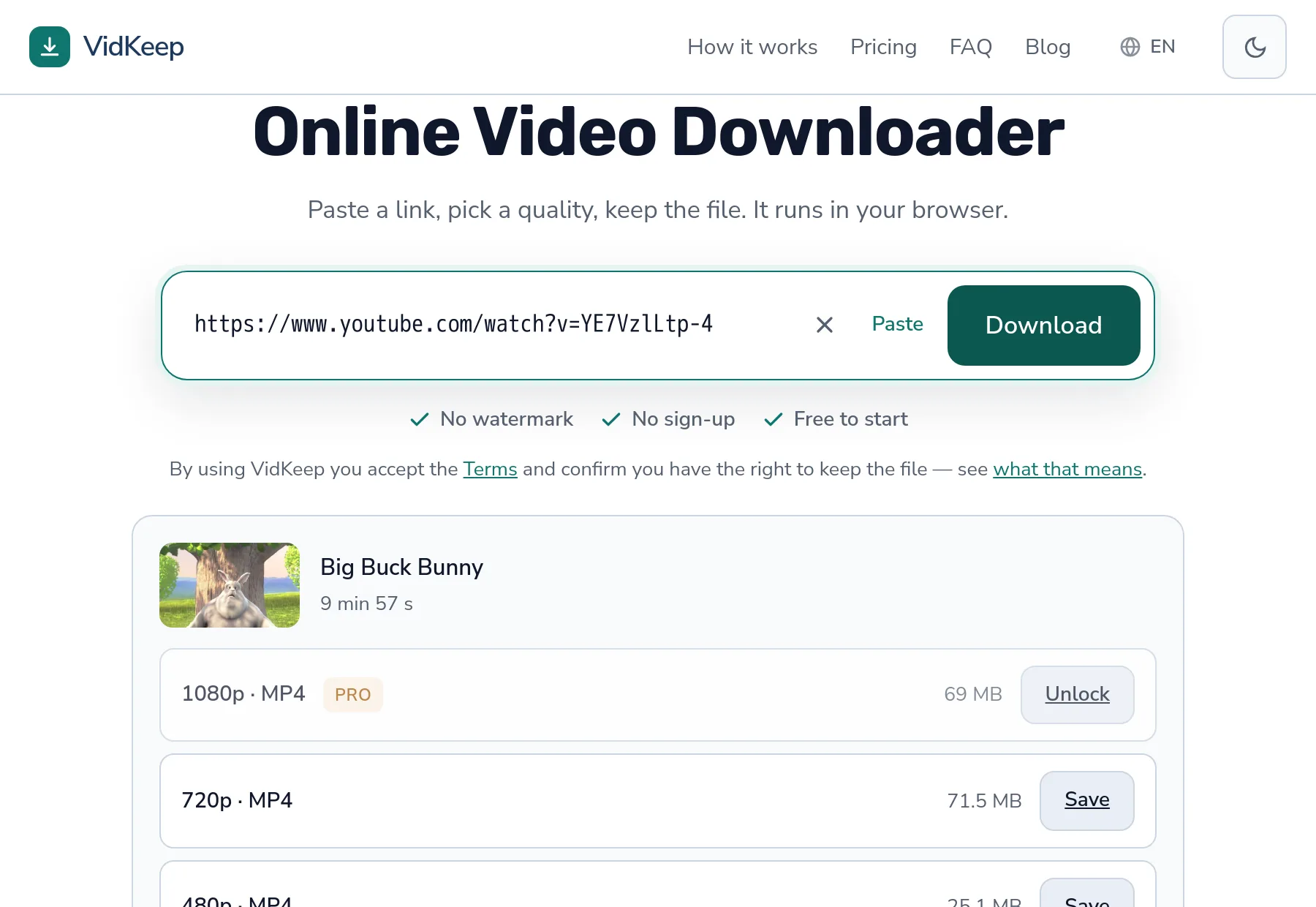
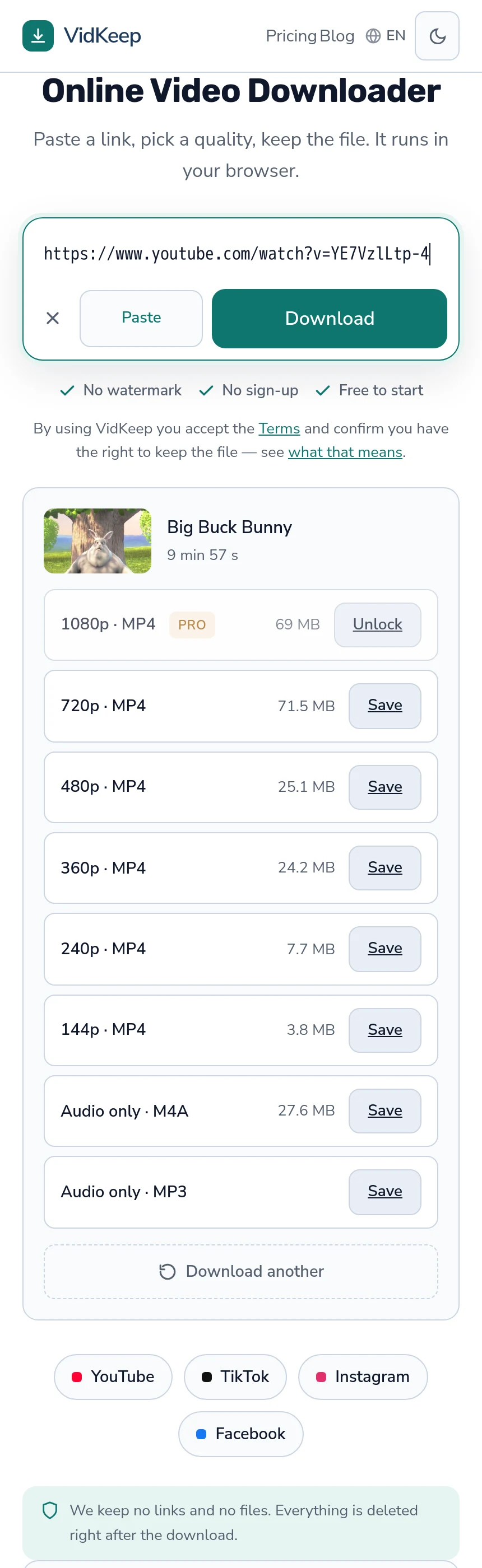
Every quality in our list carries the file's real size, taken from what the platform reports and shown before you commit to anything. On a phone with a card and a storage problem, that is the single most useful thing an interface can do, and plenty of tools in this category do the opposite.
The common pattern is to show quality labels alone and reveal the size once the file has arrived. That is easier to build — the size does not have to be fetched or reasoned about — and it is precisely too late for someone deciding whether a video fits in what is left. The choice between 480p and 1080p is a storage decision as much as a quality one, and it cannot be made with the numbers hidden.
We show them even when they are confusing, which is the harder half of the commitment. Our list regularly displays 1080p as smaller than 720p, because the higher rung uses a more efficient codec and needs less data for a better picture. That looks like a bug in a quality list, and we could hide it by sorting on size or dropping the confusing row. Doing so would misrepresent what you will actually receive.
There is one place we cannot show a number and do not invent one. Some platforms report no size at all — TikTok routinely does — so those rows show a Save button with nothing beside it. We could calculate an estimate from bitrate and duration and it would usually be close. An estimate that is occasionally wrong is worse than an honest blank, particularly for the person this article is about, who is deciding whether something fits.
The same reasoning is why audio shows its size too rather than being described as ‘small’. On a ten-minute video we measured, the audio track came to 27.6 MB against 69 MB for 1080p — a real saving, and not the order of magnitude that vaguer language would imply. If someone is counting megabytes, they deserve the actual number.
Frequently asked questions
How do I save downloads to an SD card on Android?
In Chrome, open the menu, go to Downloads and set the download location to the SD card. Every future download goes there automatically.
How do I move videos already on internal storage?
Open the Files app, go to Internal storage then Download, long-press to select, and choose Move rather than Copy.
Why did my videos disappear from the gallery after moving them?
Android's media index has not rescanned yet. Restarting the phone forces it. Check for a .nomedia file if a folder never appears.
What kind of SD card should I buy?
A recognised brand from a real retailer, Class 10 or better, formatted as exFAT. A genuine 128 GB card is worth far more than a fake 512 GB one.
Why are my downloads slow to the card?
Often the card rather than the connection. Download once to internal storage to compare — if that is fast, the card is the bottleneck.
Should I format the card as internal storage?
Not for video. Adopted storage is encrypted and tied to that phone, so the files cannot be read elsewhere and do not survive the device.
VidKeep runs in your browser — paste a link, pick a quality, keep the file. No account, no app.
Open VidKeepLast updated: 2026-08-01. We revise our guides as the platforms change.