How-to
Downloading Video on Linux

Linux is the one platform where the command line is genuinely the better default. yt-dlp is in every distribution's package manager, does everything a web tool does and a great deal it cannot, and runs from your own connection rather than a datacentre — which reaches content no web service can. The browser route still wins for one video, on a machine that is not yours.
Why use the terminal on Linux?
On other platforms recommending a command-line tool means asking people to install something unfamiliar. On Linux it is one package and a tool most users are already comfortable with.
It runs as you. Requests come from your own connection, so platforms treat them as an ordinary visitor rather than as a datacentre address — which is why a local tool sometimes reaches videos a website cannot — the asymmetry explained.
Nothing leaves your machine. No link is sent to a third party, which is the strongest privacy position available in this whole subject.
It scales. Playlists, archives, scheduled jobs, consistent naming, resume after failure — all things a single-file web page does badly by design.
The commands that cover most needs
Install from your package manager, then:
A video at the best quality:yt-dlp <url>
Capped at 1080p, preferring compatible codecs:yt-dlp -f "bv*[vcodec^=avc1][height<=1080]+ba/bv*[height<=1080]+ba/b[height<=1080]" <url>
Audio only, as MP3:yt-dlp -x --audio-format mp3 <url>
See what exists before choosing:yt-dlp -F <url>
The second command is worth understanding rather than copying blindly: it asks for H.264 video up to 1080p first, falls back to any codec at that height, merging either with the best audio, and only as a last resort takes a single ready-made file, which on YouTube is usually 360p. That codec preference is what makes files play on older hardware — the reasoning.
What do you need alongside yt-dlp?
- ffmpeg. Required for merging separate video and audio streams, which is most qualities above 360p. Without it you get one or the other.
- A recent version. Platforms change and fixes land upstream constantly, so updating is the first thing to try when a link that worked yesterday stops working; a package that is a year old will fail on things a current one handles — why tools break.
- Nothing else, usually. No account, no key, no additional service. For YouTube, current yt-dlp also wants a JavaScript runtime such as Deno; our own engine needs one.
The version point is the one that catches people. Check yours with yt-dlp --version before blaming the link. Distribution packages lag, and a download failing on a current video with an old tool looks like a platform problem. Checking the version is the first diagnostic step.
Playing what you downloaded
Rarely an issue on Linux, and worth a paragraph for the exceptions.
VLC and mpv both carry their own decoders and play essentially anything, including newer codecs that catch out other systems. Either removes the entire class of problem that produces a black screen with working sound — which is a codec question elsewhere.
Hardware acceleration is the one thing worth checking on modest machines. Software decoding of newer codecs at high resolution is demanding, and a laptop that stutters on a 4K file is usually decoding it on the processor.
If that happens, taking H.264 rather than a newer codec fixes it, which is the same advice as for old televisions and phones and for the same reason.
When is the browser still the right choice?
Recommending the terminal does not mean it is always better.
One video, right now. Opening a page and pasting is faster than remembering a format string, and the result is identical.
A machine that is not yours. A borrowed laptop, a work computer, a shared machine — installing software is either not permitted or not polite, and a web page leaves nothing behind.
You do not want to think about codecs. A web tool that picks sensible defaults saves a decision, and for most viewing that decision does not matter.
You are helping someone else. Explaining a URL is easier than explaining a package manager, which matters more often than technical people expect.
Browser or terminal, by situation
| Situation | Better route |
|---|---|
| One video on your own machine | Either; the terminal if already installed |
| A playlist or an archive | Terminal, clearly |
| A borrowed or work machine | Browser — nothing installed, nothing left |
| A platform that refuses servers | Terminal, and it is the only option |
| Maximum privacy | Terminal — no link leaves your machine |
| Helping someone non-technical | Browser, without hesitation |
Four of six favour the terminal, which is a fair reflection of Linux specifically. On a phone the same table would look entirely different, because installing a command-line tool there is not a two-minute proposition.
Where neither route helps
Some limits belong to the platform rather than the tool, and they apply on Linux exactly as anywhere else.
Private and restricted content needs an account, and a local tool having access to your browser cookies is a route people mention that carries its own risks and terms questions — the honest answer.
Deleted videos are gone regardless of what is installed.
Rate limiting applies to your address, and a local tool downloading aggressively can throttle your household's connection rather than a server's — pacing matters more locally.
Platforms that refuse datacentre requests are the one case where the local tool wins outright, because it is not one.
Recommending the tool our own service runs on
The command-line tool this article recommends is the main one our service uses, alongside fallback routes of our own, and that is worth saying plainly rather than leaving it implied.
Nearly every downloader in this category — ours included — is built on the same open-source extraction project. What a web service adds is a page, an assembly step on its own hardware, its own sessions and fallback routes, and a header that makes browsers save files rather than play them. What it subtracts is control, privacy and the ability to script anything.
On Linux that trade is usually a bad one, which is why this article says so. Anyone comfortable installing a package gets a better result from the tool directly: their own connection, no third party, every format available rather than one per resolution, and the frame-rate and codec choices our interface deliberately hides — a gap we have acknowledged before.
Where a web service genuinely earns its place is the cases in the previous section, and they are real: a borrowed machine, a phone, a single video, someone who should not have to learn a format string to save a clip. That is a smaller role than a comparison page would claim and it is the accurate one.
It also explains a recurring theme in these articles. When we say a platform refuses us, or that we cannot reach something, the limitation is rarely in the software — it is in running on a server rather than on your machine. On Linux you have the option of removing that constraint entirely, and it would be strange for a blog about being honest not to mention it.
The one thing we would still claim for the web route is that it produces a sensible file by default. Our format string prefers H.264 where the platform offers it at that resolution and repackages into MP4, which is the difference between a download that plays on a decade-old television and one that does not. Someone using the tool directly and taking the default best quality will occasionally get a file their hardware struggles with — which is why the command above spells the preference out.
Frequently asked questions
What is the best way to download video on Linux?
yt-dlp from your package manager. It runs from your own connection, needs no third party, and handles playlists, audio extraction and consistent naming.
Do I need anything besides yt-dlp?
ffmpeg, for merging separate video and audio streams — which is most qualities above 360p. For YouTube, a JavaScript runtime such as Deno as well.
Why does my download fail on a current video?
Usually an old package. Distribution versions lag, and platforms change often enough that a year-old build fails on things a current one handles.
Can a local tool reach videos a website cannot?
Sometimes, yes. It makes requests from your connection rather than a datacentre, and some platforms refuse datacentre requests outright.
Is the browser route worth using on Linux at all?
For one video, on a machine that is not yours, or when you would rather not think about codecs. Otherwise the terminal is better.
Which player should I use?
VLC or mpv. Both carry their own decoders and play essentially anything, including newer codecs.
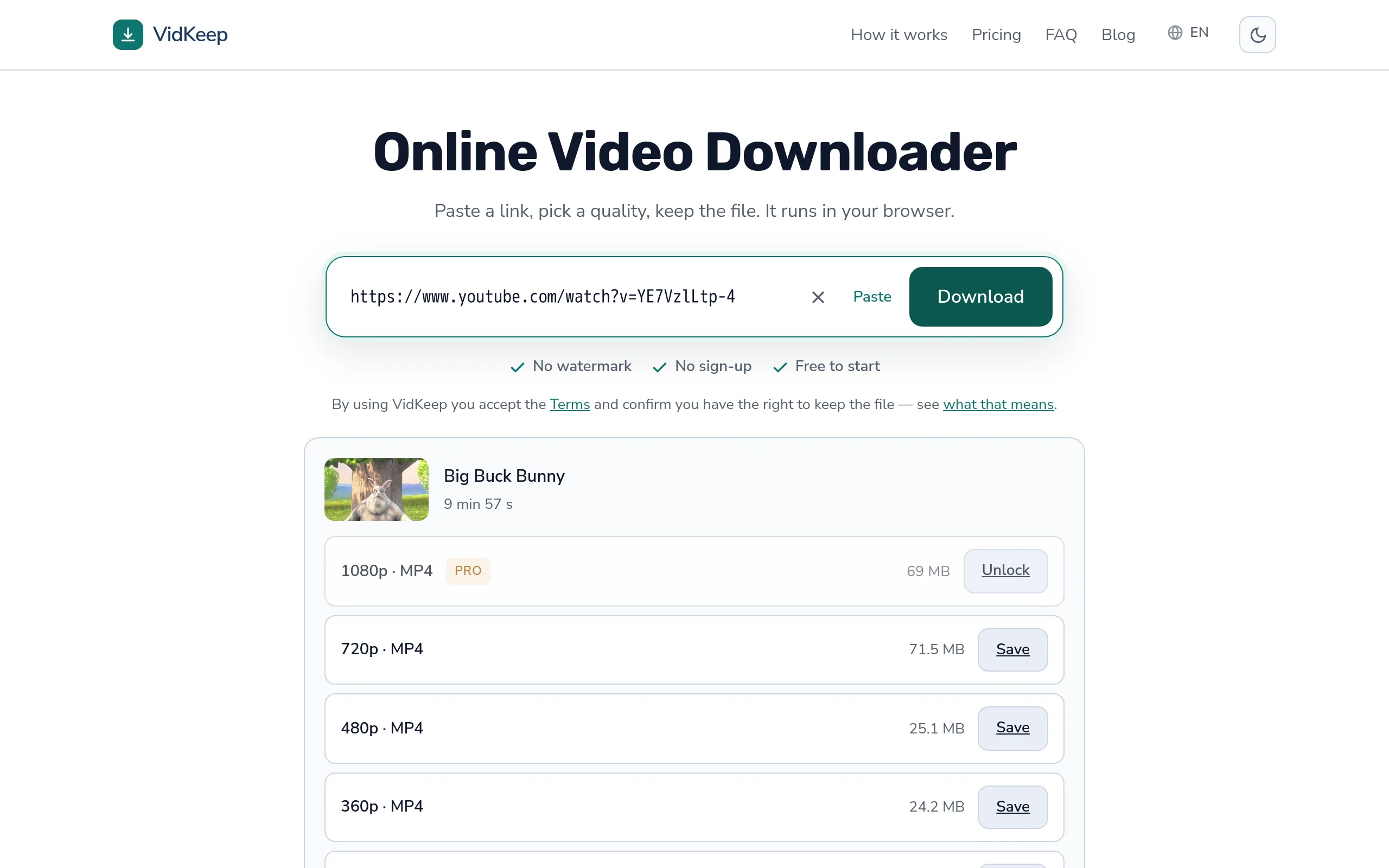
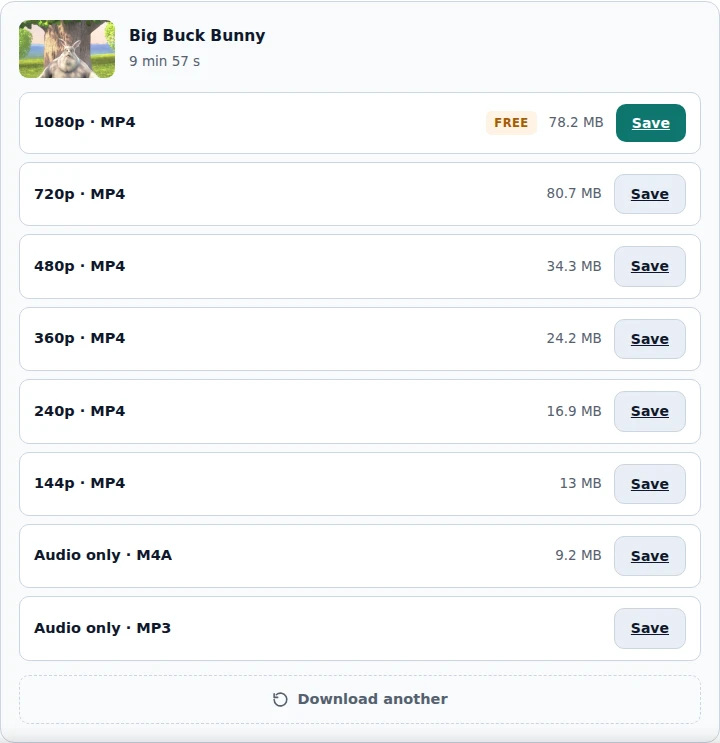
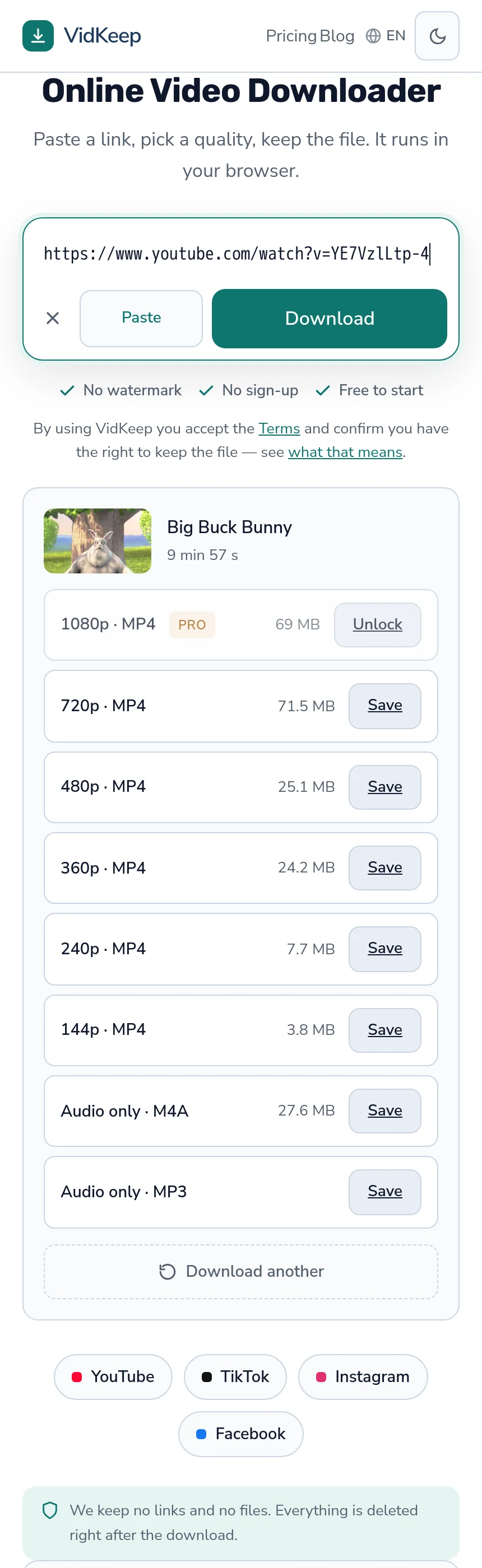
VidKeep runs in your browser — paste a link, pick a quality, keep the file. No account, no app.
Open VidKeepLast updated: 2026-11-06. We revise our guides as the platforms change.