How-to
Download Videos on a Chromebook

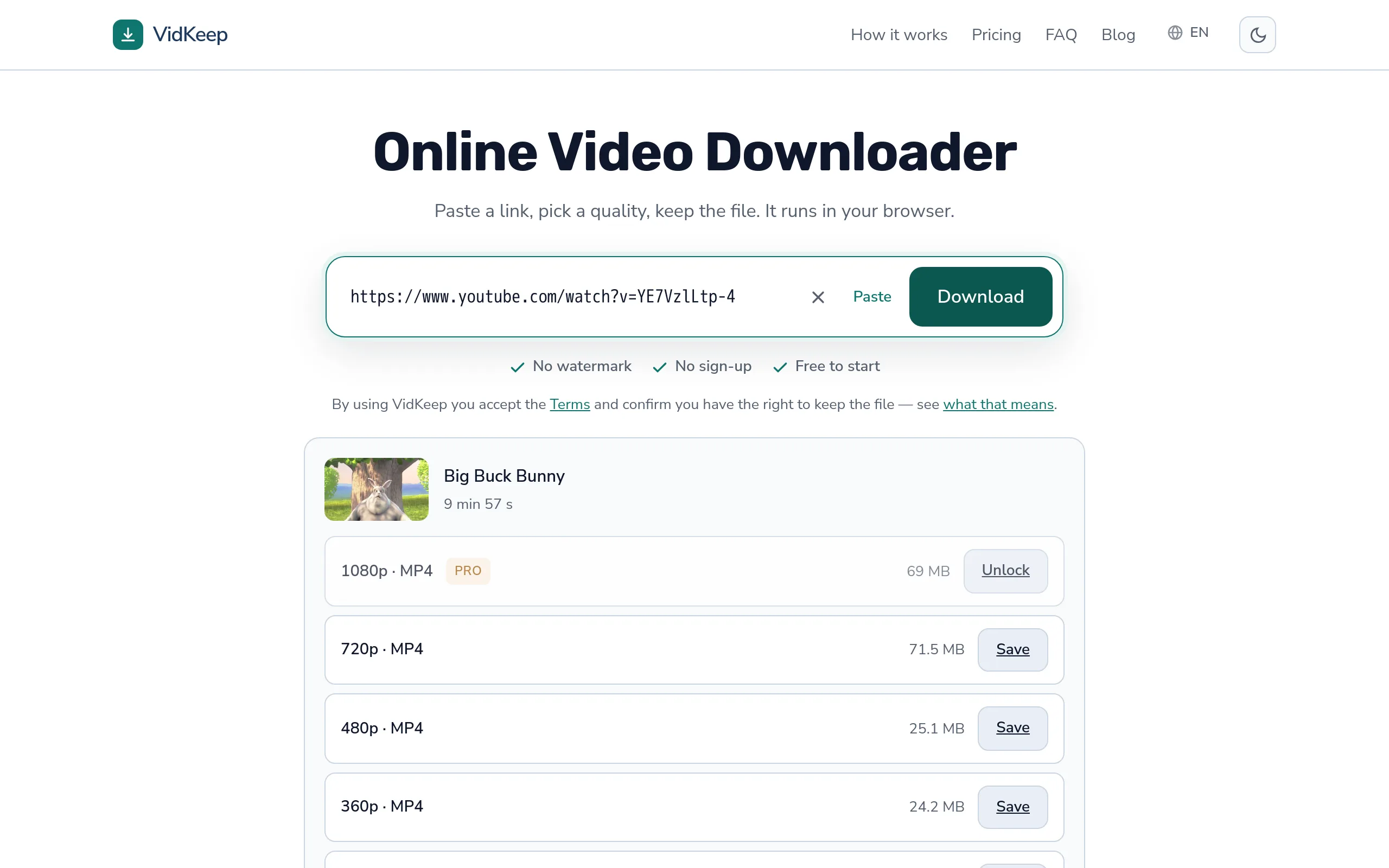
A Chromebook is the easiest device for this: it is a browser, and that is all this needs. Paste the link, pick a quality, save. The file goes to My files → Downloads in the Files app. Two things are worth knowing beyond that — local storage is usually small, and if the Chromebook belongs to a school it may refuse regardless of what you do.
The three steps, and where the file goes
- Copy the video link from the address bar.
- Paste it in and let the page read the qualities.
- Click Save. Chrome downloads it exactly as it would any file.
The file lands in My files → Downloads, which you reach through the Files app in the launcher. Ctrl+J opens Chrome's own download list, which is quicker and has a ‘show in folder’ option next to each entry.
No extension is needed and none should be installed for this. A downloader extension requires permission to read and change data on every site you visit — a trade worth understanding before accepting it.
Storage is the real constraint
Most Chromebooks ship with 32 or 64 GB, and a meaningful part of that is the system. Video fills it faster than anything else you are likely to save.
| Where to put downloads | Good for |
|---|---|
| Local Downloads folder | Watching now, deleting after |
| SD card | Keeping a collection without touching internal storage |
| USB drive | Moving files to another machine |
| Google Drive | Access anywhere, but uses your Drive quota and needs a connection |
An SD card is the answer for most people, if the model has a slot. In Files, right-click the download and move it, or change Chrome's download location under Settings → Downloads so files land there directly.
Drive is tempting and usually the wrong choice for video specifically. Files there are not genuinely local — playing one streams it back down, which defeats the point if you downloaded it to watch offline.
School and work Chromebooks
This is the most common reason downloads fail on a Chromebook, and it is worth recognising early rather than trying to fix.
Managed devices are enrolled in an administration console, and the administrator can block sites by category, block downloads by file type, force all traffic through a filter, and prevent extensions from being installed. Those policies apply at the device level, so no browser setting, no other browser and no incognito window changes them.
The signs are recognisable: a message mentioning your administrator, a site that will not load at all, or downloads that work on home Wi-Fi and fail at school. The last one is a network filter rather than the device itself.
The honest answer is to use a personal device. Working around an institution's controls on an institution's hardware is a bad idea whatever you are saving, and on a school Chromebook it is also monitored.
The Android and Linux layers, and why you probably do not need them
Modern Chromebooks can run Android apps and, on many models, a Linux environment. Both can download video, and both are more complicated than the browser for this task.
Android apps run in a container with their own storage, so files do not always appear where you expect in Files. They also carry the permission questions any installed app does, for a job the browser already does.
Linux gives you command-line tools, which are genuinely the right choice for archiving hundreds of videos with retries and consistent naming. For one video it is a lot of setup, and on a low-end Chromebook the container is slow to start.
Both layers are also frequently disabled on managed devices, which removes the question entirely in exactly the situation where people go looking for them.
Playing what you downloaded
ChromeOS has a built-in player that handles MP4 with H.264 without any trouble, which covers most downloads.
Where it struggles is newer codecs on older hardware. A file that plays perfectly on a recent Chromebook can stutter on a four-year-old one, because the chip has no hardware decoder for it and the processor is doing the work — the codec comparison explains which ones and why.
If a file stutters, take H.264 next time rather than the smallest option. On modest hardware, compatibility matters more than saving twenty megabytes.
For anything the built-in player refuses outright, VLC has a Chrome-compatible version and carries its own decoders. It is the same advice as on every other platform, and it works here too.
Chromebook-specific problems
- ‘Not enough space’ part-way through. Check free storage — Chromebooks fill quickly and the failure is quiet on some builds.
- Downloads work but files are missing. Check Chrome's download location; it may be pointed at Drive or a removable card that is no longer connected.
- Everything fails on the school network. Filter rather than device. Try elsewhere to confirm.
- Chrome warns about the file. Normal for large media. Check the extension is .mp4 or .mp3 and keep it — never keep an executable.
- Playback stutters. Codec, not a damaged file. Try a different quality or a player with its own decoders.
Why a browser-only device is the case we design for
Chromebooks are the clearest example of the constraint the whole product is built around, so it is worth explaining what that constraint costs and what it buys.
On a Chromebook there is no fallback. If a task cannot be done in a browser tab, it cannot be done — no installer, no system utility, no background process. Any downloader that needs software installed is simply unavailable to this user, and extensions are frequently blocked by policy on the managed devices that make up a large share of them.
That shapes decisions elsewhere in the product. It is part of why we send every file with an attachment header rather than handing over a direct link — a link opens in the browser's player on several platforms, and a player with no save button is a dead end for someone who has no other way to save anything. It is also why the interface never assumes a right-click, a file manager, or anything outside the tab.
The cost is real and worth naming. We cannot offer a download queue that survives closing the tab, cannot resume an interrupted transfer, and cannot write anywhere except where the browser puts downloads. A desktop application does all three, and for someone archiving hundreds of videos those are not small omissions — we say so plainly rather than pretending the browser wins every comparison.
What it buys is that the same tool works identically on a school Chromebook, a borrowed laptop, a phone and a machine where you cannot install anything. That is a large share of real computing, and it is systematically underserved by a category that keeps trying to sell people an installer.
There is a second-order effect worth mentioning, because it makes the product better for everyone rather than only for the constrained case. When a browser tab is the whole surface, there is nowhere to hide complexity. No settings panel accumulating options nobody uses, no background service that has to be explained, no state that survives between visits and drifts out of sync with what you expect. The interface is what you can see, and it has to make sense the first time because there is no second screen to put the explanation on.
Designing for the most restricted device turned out to produce a better tool for the least restricted one too — which is not a novel observation in software, but it is easy to lose when the roadmap is driven by what the most capable platform makes possible.
Frequently asked questions
How do I download videos on a Chromebook?
Open a downloader in Chrome, paste the link and click Save. ChromeOS is a browser, so no extension or app is needed.
Where do downloads go on ChromeOS?
My files, then Downloads, in the Files app. Ctrl+J opens Chrome's download list with a show-in-folder option.
Can I download to an SD card?
Yes. Change Chrome's download location under Settings, Downloads — the best option on a Chromebook with small internal storage.
Why does my school Chromebook block downloads?
Managed devices carry administrator policies that apply below the browser. No setting or alternative browser changes them.
Should I use an extension instead?
No. A downloader extension needs permission to read and change data on every site you visit, which is a lot to grant for one feature.
Why does playback stutter on my Chromebook?
Usually a newer codec with no hardware decoding on older hardware. Take an H.264 option or use a player with its own decoders.
VidKeep runs in your browser — paste a link, pick a quality, keep the file. No account, no app.
Open VidKeepLast updated: 2026-08-01. We revise our guides as the platforms change.