Guides
Long Video, Short Clips

Start higher than you will deliver. Cutting a vertical clip out of a widescreen video means keeping about a third of the width, so the frame you publish is a crop of what you downloaded — and a crop of 1080p is not 1080p. Take the highest quality available, cut locally, and export once.
Why headroom matters here specifically
For watching, resolution should match your screen. For cutting clips, the advice inverts, and the arithmetic is unforgiving.
A widescreen frame reframed to vertical keeps roughly a third of its width. Start from 1080p and the vertical crop is around 600 pixels wide — below what platforms want, so it gets upscaled on upload and looks soft. Start from 4K and the same crop is comfortably above 1080p — the shape arithmetic.
Zooming, stabilising and punch-ins all consume the same budget. Every operation that moves or scales the frame spends resolution you cannot get back, and they stack.
None of this is recoverable afterwards. Sharpening a soft crop makes it look processed rather than sharp, and an upscaler invents detail that was never recorded — which is a different thing from restoring it, and it usually shows on faces and text.
The cost is storage and transfer time, both cheap against discovering mid-edit that there is no room to reframe — the wider editing case.
Download once, cut many
The efficient shape of this work is one download and several exports, not one download per clip.
Downloading a two-hour talk five times to extract five moments is five times the bandwidth, five assemblies on someone's server, and five opportunities for rate limiting — which repeated requests reliably produce.
Cut from a single local copy instead. Every editor handles this, most phones do too, and the source file stays intact for the clip you think of next week.
Keep the full download until the project is finished. Re-fetching it later means hoping the video is still up, which for anything topical is not a safe assumption.
There is a pacing argument as well. Working from one local file means the platform sees a single request rather than a burst, which matters if you are producing clips regularly from the same source — repeated fetching of the same video is exactly the pattern rate limiting is designed to catch.
And it is faster in wall-clock terms. One download of a two-hour talk costs minutes once; five downloads cost minutes five times, before any editing has happened.
What to check before cutting
- Frame rate. Mixing rates in one timeline produces judder. Check the file and set the project to match rather than letting the editor guess.
- Whether the rate is constant. Variable frame rate — common in screen recordings — causes audio to drift out of sync as the timeline progresses.
- The codec. H.264 scrubs smoothly; newer codecs are slower to seek in and may need transcoding first — the comparison.
- That the file is complete. A truncated download that plays the first minute is a bad thing to discover after building an edit around it — the check.
Two minutes of checking prevents the failures that cost an afternoon, and all four are invisible until the timeline misbehaves.
The frame rate check is the one worth building a habit around. Editors default to the first clip you drop in, so a project silently set to 24fps by an opening title card will judder every 30fps clip that follows — and the symptom appears late, on export, when it is expensive to fix.
Export once
The most common avoidable quality loss in this whole process.
Every export re-encodes. Exporting to check something, reimporting, adjusting and exporting again stacks generations — invisible at each step and obvious in the result. Finish the edit, then export.
The same applies to intermediate uploads. Posting a clip, downloading it back and editing further is three encodes on top of the platform's own, and platform compression is not gentle — what upload processing does.
Where you genuinely need an intermediate file, export to a high-bitrate or editing codec rather than a delivery one. Larger, and it survives the next step.
Platform upload settings deserve a mention too, because they are the last encode and the one you control least. Uploading a clip that is already at the platform's target resolution and a generous bitrate gives its encoder the best material to work from — feeding it something already squeezed produces compression on top of compression.
Which is the same principle as everywhere else in this article: each step should hand the next one as much information as it can carry, because none of them can add any.
The rights question changes when you publish
Cutting clips for yourself and cutting clips to post are different activities, and the second is where the analysis gets serious.
Publishing a clip of someone else's video is use, and it needs permission, a licence, or a genuine argument based on commentary or criticism — the four factors.
Automated matching will find it regardless of whether your use is defensible, because those systems detect material rather than assess purpose. A claim on a fair use is normal and resolvable, and it is not prevented by being right — claims versus strikes.
Music is the sharpest case. A clip whose background track is licensed will be claimed for the music whatever you did with the picture, which is the most common surprise for people starting to repurpose.
The safer version of repurposing is clips of your own material, or of openly licensed work, or short extracts inside something that is substantially your commentary. All three are ordinary practice; a channel built from other people's clips is not, and platforms penalise it independently of any rights holder.
What a crop costs, in numbers
| Source | Vertical crop is about | Usable? |
|---|---|---|
| 720p widescreen | 400 px wide | No — upscaled on upload |
| 1080p widescreen | 600 px wide | Marginal |
| 1440p widescreen | 800 px wide | Acceptable |
| 4K widescreen | 1200 px wide | Comfortable |
Short-video platforms generally want around 1080 pixels of width, which is why the bottom two rows are the ones that survive without upscaling. Anything above that gives room to reframe as well as crop.
If the source only exists at 1080p — which is most video — the honest answer is to crop as little as possible and accept the result, rather than expecting an upscaler to recover detail that was never in the frame.
If the clip is from your own long video
- Use your export, not a download. What you fetch back from a platform has been compressed twice; your own file has not — what recovery actually gets you.
- Shoot with the crop in mind if you know clips are coming. Keeping the subject centred makes a later vertical crop survivable.
- Keep the project, not just the export. Re-cutting from a timeline beats re-cutting from a finished file.
- Watch the watermark. Cross-posting a clip stamped by another platform is down-ranked as recycled content — what the stamp means.
The first point covers most of it. A creator downloading their own video to clip it is usually solving a problem they created by not keeping the export.
That is worth turning into a habit rather than a regret. Exporting once at delivery quality and once at a higher one, and keeping the second, costs a few minutes and a few gigabytes — and it is the difference between clipping from your own master and clipping from a platform's compressed copy months later.
The same applies to the project file. A timeline you can reopen lets you recut with different framing for a different platform, which is the situation most people find themselves in eventually.
Why the tool that helps here is not us
Everything after the download in this article happens somewhere else, and that is worth being explicit about rather than implying we cover the workflow.
We do not trim, crop, change aspect ratio, or export. Each has been requested and each is declined for the same reason: they require re-encoding, and every other operation we perform copies data without decoding it. The guarantee that your file matches what the platform holds is the one thing that distinguishes the product, and a single processing feature breaks it for everyone who uses it.
There is a practical reason too. Cutting to the right seconds needs iteration — try, watch, adjust — which suits an editor with a timeline and suits a page that hands you one file very badly. We would be building a worse version of software already on your device.
And a cost reason. Trimming means decoding and re-encoding on a single shared processor for output smaller than the input, which is the same arithmetic that rules out GIF conversion — where we published the command instead.
So the honest position for anyone repurposing video: we are the step that gets you a clean, unprocessed source file at the highest quality the platform holds. That is genuinely useful and it is one step of five. Pretending otherwise would sell a workflow we do not have and cannot build without becoming a worse tool at the thing we do.
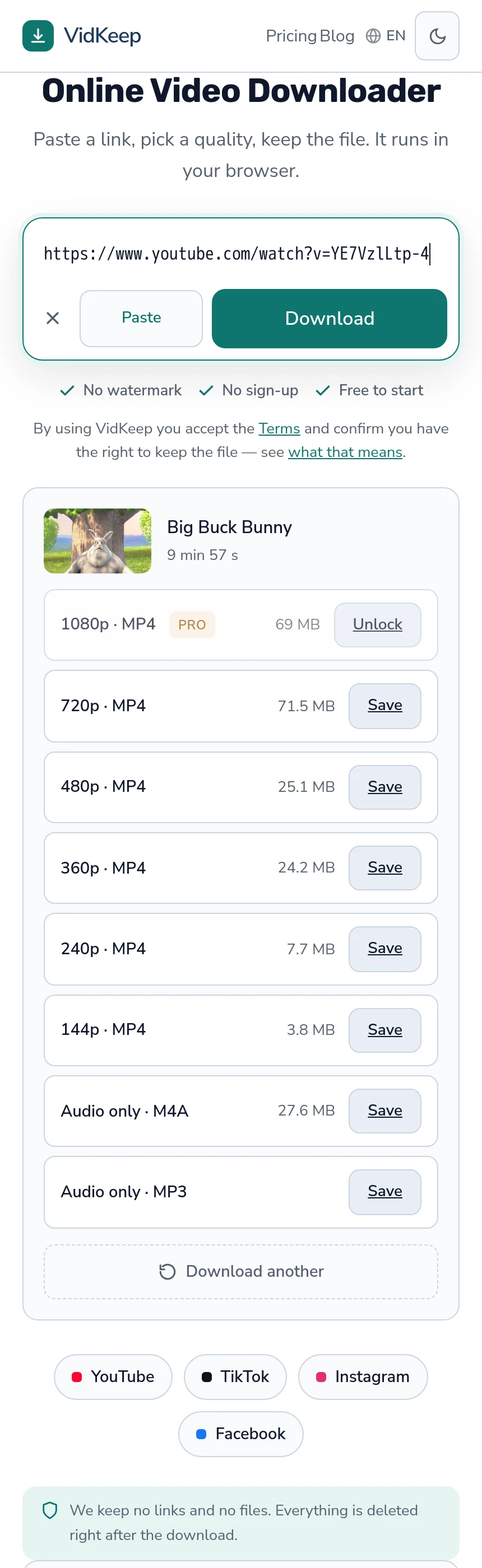
What we did do for this use is smaller and worth knowing. The quality list shows the platform's own file size next to every rung, so choosing the highest available is an informed decision rather than a gamble on how large a 4K file turns out to be. And the selector now tries the exact resolution you asked for before falling back — a fix from this week, after we found that choosing 1080p could silently produce 720p on videos where the higher rung uses a newer codec.
That second one mattered most to exactly this audience. Someone downloading at maximum resolution to preserve cropping headroom was, on some videos, getting a step less than they chose — and finding out only when the crop looked soft.
Frequently asked questions
What quality should I download for making clips?
The highest available. Cropping to vertical keeps about a third of the width, so the published frame is a crop of what you downloaded.
Should I download the video once or once per clip?
Once. Cut locally from a single copy — repeated downloads waste bandwidth and invite rate limiting.
Why does my timeline judder?
Usually mixed frame rates, or a variable frame rate source such as a screen recording, which also causes audio to drift.
Why does quality drop by the time I publish?
Stacked encodes. Every export re-encodes, and posting a clip then downloading it back adds more. Finish the edit, then export once.
Can I publish clips of someone else's video?
It needs permission, a licence, or a genuine commentary argument. Automated matching will find it either way — a claim is not the same as a strike.
Do you offer trimming or cropping?
No. Both require re-encoding, which breaks the guarantee that your file matches the platform's, and getting the seconds right needs iteration an editor handles better.
VidKeep runs in your browser — paste a link, pick a quality, keep the file. No account, no app.
Open VidKeepLast updated: 2026-08-01. We revise our guides as the platforms change.