Guides
Saving Video You Intend to Edit

Take MP4 with H.264 at the highest resolution the platform offers, and check the frame rate before you build a timeline around it. Editors handle that combination natively; newer codecs frequently need transcoding first, which costs an hour and a generation of quality. The resolution matters more here than for viewing, because editing eats headroom.
Why editors are fussy
Playback and editing ask different things of a file. A player decodes forwards at normal speed, in one direction, one clip at a time. An editor jumps to arbitrary frames, plays backwards, scrubs at speed, and decodes several clips simultaneously on the same timeline.
Modern efficient codecs achieve their compression partly by describing frames in terms of other frames, which makes jumping to an arbitrary point expensive — the software has to reconstruct from the last full frame. That is fine at playback and painful on a timeline.
H.264 is old, less efficient, and every editor has had two decades to optimise for it. That combination makes it the pragmatic choice even though newer codecs produce smaller files — the trade is covered in full here.
Resolution: take more than you need
The advice inverts what applies to viewing. For watching, match the screen. For editing, take the maximum available.
The reason is headroom. Cropping into a frame, stabilising footage, reframing for a different aspect ratio and zooming all consume resolution. Starting from 1080p and delivering 1080p means any crop is upscaled; starting from 4K and delivering 1080p means a crop is still sharp.
Stabilisation is the clearest case: it works by shifting and scaling each frame to cancel out movement, so it always crops slightly and sometimes considerably. On footage that was already at delivery resolution, that shows immediately as softness.
The cost is storage and processing, both of which are cheap relative to discovering mid-edit that you have no room to reframe — especially when moving between shapes.
Check the frame rate before you start
The single most common avoidable problem, and it is invisible until the timeline stutters.
Platform video arrives at 24, 25, 30 or 60 frames per second depending on what was uploaded, and nothing in the quality list says which. Mixing frame rates in one timeline produces judder unless the project is configured to handle it, and the judder is subtle enough to survive review and obvious enough to notice later.
Check before importing: Properties then Details on Windows, Show Movie Inspector in QuickTime on macOS, or the media information panel in VLC. Then set the project to match your primary footage rather than letting the editor guess from the first clip.
Where sources genuinely differ, converting the odd ones out to the project's rate beforehand is more reliable than asking the editor to reconcile them during export.
A related trap is the variable frame rate that screen recordings and some phone footage use. The rate changes through the clip to save space, and editors expect a constant one — the symptom is audio drifting out of sync as the timeline progresses, which looks like a sync problem and is a frame rate problem. Converting to constant frame rate before importing fixes it permanently, and nothing you do on the timeline will.
What platform video will not give you
- The original file. Platforms re-encode on upload and discard the source, so what you download has been compressed at least twice — explained here.
- Room for heavy colour work. Compressed 8-bit video breaks up quickly under aggressive grading; bands appear in skies and skin.
- Clean keying. Compression artefacts around edges make green-screen extraction from platform footage difficult at best.
- Separate audio. You get the mix, not stems.
None of these is a downloader limitation. They are consequences of the video having been compressed for delivery, and no tool recovers information an encoder discarded.
It is worth knowing where that leaves you before starting a project rather than afterwards. Platform footage is genuinely fine for cuts, titles, speed changes, modest correction and anything where the clip appears roughly as it was. It is a poor foundation for work that interrogates the image — heavy grading, keying, extensive scaling, or compositing that assumes clean edges.
If a project needs those things, the answer is to obtain the material another way: ask the creator for the original, licence stock footage, or shoot it. Trying to make delivery-compressed video behave like camera footage is a well-known way to spend a weekend and arrive somewhere worse than where you started.
What to take, by what you are making
| Project | Download | Why |
|---|---|---|
| Delivering 1080p, no reframing | 1080p H.264 | Matches output; no transcode |
| Cropping or stabilising | The highest available | Both consume resolution |
| Widescreen to vertical | The highest available | You keep about a third of the width |
| A short quote in a longer video | Match your timeline | Mismatched sources cause judder |
| Audio for a podcast edit | The audio track | No video to decode at all |
The middle rows are where people under-download and regret it. Once an edit is under way, replacing a clip with a higher-resolution version means redoing every adjustment applied to it, which is considerably more work than downloading the larger file was.
The last row is worth remembering for interview and podcast work: if the picture is never going on screen, the audio track alone is a fraction of the size and imports instantly — and the platform's own track needs no conversion at all.
Working with it anyway
- Transcode to an editing codec if your editor struggles. ProRes or DNxHD produce huge files that scrub effortlessly — the standard professional answer.
- Or use proxies. Most editors generate low-resolution copies for editing and switch back to the originals for export. Less disk than full transcoding.
- Grade gently. Compressed footage tolerates modest correction and falls apart under heavy work.
- Export once. Every intermediate export is another generation. Finish the edit, then export.
The last point is where most avoidable quality loss happens. Exporting to check something, reimporting, editing further and exporting again stacks encodes in a way that is invisible at each step and obvious in the result.
Proxies deserve more attention than they get from people editing on modest machines. The editor makes small, easy-to-decode copies, you cut with those, and it substitutes the originals at export — so a laptop that stutters on platform footage becomes perfectly usable without any quality cost in the finished file. Most editors have this built in and most people never turn it on.
The one habit that pays for itself regardless of machine: keep the downloaded files untouched in their own folder, separate from anything the editor generates. Proxies, renders and caches can all be regenerated; the source clip cannot, if the video comes down from the platform while your project is still open.
Rights: the part that matters more here
Editing usually means publishing, which changes the analysis entirely and is worth settling before the work rather than after it.
Downloading a clip to study it is one thing. Cutting it into something you release is use, and it needs either permission, a licence, or a genuine fair-use argument based on commentary or criticism — the four factors are here.
Two practical notes. Music is the most actively enforced category and automated matching finds it reliably, so a clip's soundtrack is a separate rights question from its picture. And commercial context weakens every argument — covered separately.
Where the material is your own, none of this applies and the quality question is the only one — though what you download back is still the platform's version rather than your master, which is the strongest argument there is for keeping your own exports somewhere safe.
What our format preference does for editors, and what it does not
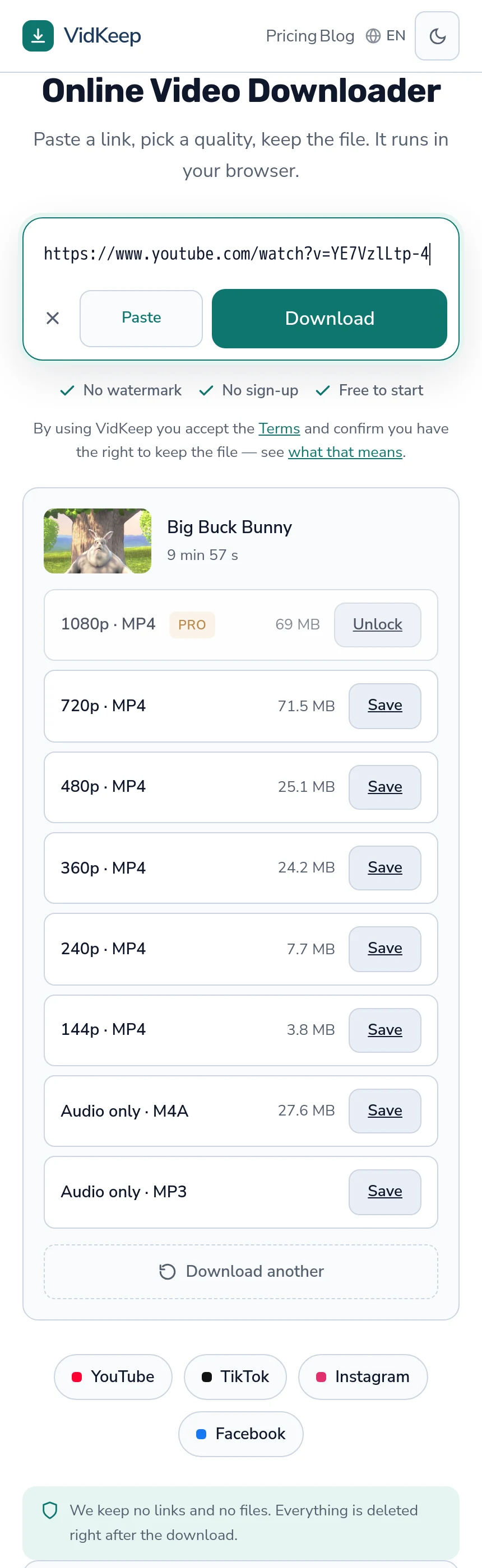
Our selector asks the platform for H.264 first at any given resolution, falling back to newer codecs only when H.264 does not exist there. For anyone downloading footage to edit, that default is doing quiet work worth knowing about.
A tool optimising for the smallest file would invert the preference and take AV1 wherever it is offered — smaller downloads, faster transfers, better-looking numbers. It would also hand editors the format their software is least likely to handle natively, producing an import that stutters or a transcode that costs an hour before work starts.
We also deliver in MP4 rather than whatever container the platform served, and that is free: the container is a wrapper, so repackaging costs nothing and decodes nothing. WEBM is a perfectly good format and it is the one several editors handle worst, so the repackaging is worth doing.
What the preference cannot do is invent an H.264 stream. When a platform offers only newer codecs at the resolution you want — increasingly common at 1440p and above — that is what you get, because the alternative would be silently giving you a lower resolution than you asked for. If your editor rejects it, the honest answer is to take a step down the ladder, where H.264 usually still exists.
And the limitation that matters most to this audience: we do not expose the frame rate, because our list shows one option per resolution step and 30fps and 60fps variants collapse into the same row. You get whichever our preferences select. For an editor with a project already set to a specific rate, that is a genuine gap, and the workaround is checking the file after downloading rather than before — which is why this article says to check before building a timeline.
The general shape of these decisions is that we optimise for the file working everywhere rather than for any one workflow. That happens to suit editors on the codec question and to leave them short on the frame rate one, and stating both is more useful than claiming the product was designed for them.
Frequently asked questions
What format should I download for editing?
MP4 with H.264, at the highest resolution available. Editors handle it natively; newer codecs often need transcoding first.
Why does my editor struggle with the file?
Efficient modern codecs describe frames in terms of other frames, which makes scrubbing and reverse playback expensive. H.264 is older and every editor is optimised for it.
Should I download a higher resolution than I need?
Yes, for editing. Cropping, stabilising and reframing all consume resolution, so headroom matters in a way it does not for viewing.
Why does my timeline stutter or judder?
Usually mixed frame rates. Check each file before importing and set the project to match your primary footage.
Can I colour grade platform video heavily?
Not really. Compressed 8-bit footage bands and breaks up under aggressive grading. Modest correction is fine.
Do you offer a frame rate choice?
No. Our list shows one option per resolution, so 30 and 60fps variants collapse into the same row. Check the file after downloading if the rate matters.
VidKeep runs in your browser — paste a link, pick a quality, keep the file. No account, no app.
Open VidKeepLast updated: 2026-08-01. We revise our guides as the platforms change.