Troubleshooting
Is That Download Actually Complete?

A partial download behaves in one of two ways, and only one of them is obvious. Either the file refuses to open at all, or it plays normally and stops early — reporting the full duration while containing a fraction of the video. The second kind is what ruins flights and presentations, because it looks fine until the moment it matters.
Why some broken files play and some do not
An MP4 keeps an index describing where everything is. Whether a truncated file opens depends entirely on where that index sat.
We tested both. A 30-second video cut to a third of its bytes with the index at the end produced moov atom not found and would not open at all. The same video prepared with the index at the front, cut identically, reported a duration of 30 seconds, opened happily, and threw partial file errors as it ran out of data.
| Index position | Truncated file behaves as |
|---|---|
| At the end (default) | Will not open — obvious failure |
| At the front (streaming-optimised) | Opens, claims full duration, stops early |
The second row is the dangerous one. The file reports the right length because the index was written before the data was cut off — the metadata describes a video that is no longer entirely there.
The thirty-second check
- Compare the file size to what was promised. A few per cent off is normal; a third of the expected size is a truncated download.
- Skip to the last minute. Drag the playback position near the end rather than watching from the start. A partial file fails there and nowhere else.
- Check the reported duration matches the source. If the platform said ten minutes and the file says four, it stopped early in a way that also broke the index.
Step two is the one that matters and the one nobody does. Playing the first ten seconds proves the file opens, which is a different question from whether it is whole.
Do it before the moment you need it. A file checked at home is a minor inconvenience if it is wrong; the same file discovered on a plane or in front of an audience is not recoverable.
The technical check, if you want certainty
ffprobe, which ships with ffmpeg, reads a file without playing it:
ffprobe -v error -show_entries format=duration,size -of default=nw=1 video.mp4
A whole file answers with a duration and a size. A badly truncated one reports moov atom not found instead — the index is missing, so there is nothing to read.
For the deceptive case, decode the whole thing without producing output:
ffmpeg -v error -i video.mp4 -f null -
Silence means the file decoded end to end. Any output — partial file, Invalid data, errors about frames — means it did not, whatever the duration claimed. On our test the streaming-optimised truncated file passed the first check and failed this one, which is exactly the pattern to catch.
What a partial file cannot be
Worth stating plainly because it saves time spent on the wrong idea.
It cannot be repaired. The missing data was never received. Tools advertising video repair rebuild an index so a file opens; they do not restore content, and the video still stops where the download did.
It cannot be resumed. A file assembled for you does not exist on a server to continue from, so the transfer restarts — covered in full here.
The part that arrived is genuinely fine. If you only needed the first two minutes, a truncated file containing them is usable. Nothing is wrong with the data that made it; there is simply less of it.
What causes truncation in the first place
- The connection dropped. Moving between networks, a weak signal, a VPN reconnecting — long transfers are exposed to all of it.
- Storage ran out. Phones abandon downloads quietly when space runs short — and the requirement is larger than the file.
- The device suspended the browser. Switching apps or locking the screen can stop a transfer on a phone.
- A server-side limit was reached. Size ceilings and processing timeouts cut a transfer mid-flight rather than after.
All four produce the same result and none announces itself. Which is why the check matters more than the cause: you cannot prevent every interruption, and you can always verify what you ended up with.
Building the habit into an archive
For anything you are keeping rather than watching immediately, verification belongs in the routine.
Check on arrival, not on use. The gap between downloading and needing a file is where the source disappears — deleted posts, closed accounts, expired VODs.
Record the expected size. A line in a text file beside the video makes the comparison possible months later, when nothing else remembers what it should have been.
Verify before deleting anything. The one irreversible step in archiving an account is the deletion, and it should come after the files are confirmed — the order of operations matters.
Re-download while you still can. A truncated file discovered today is a minor annoyance; the same file discovered after the source is gone is a permanent loss.
Why we cannot verify this for you, and what we do instead
The obvious question is why a service that sends you a file cannot confirm it arrived intact. The answer is that we genuinely cannot see the outcome, and it is worth explaining where our knowledge ends.
We stream the file out in chunks. From our side, success means the last chunk was handed to the network — not that it reached your device, not that your browser wrote it fully to storage, and certainly not that the file on your phone is complete. Everything after that hand-off is invisible to us, and any claim we made about it would be a guess.
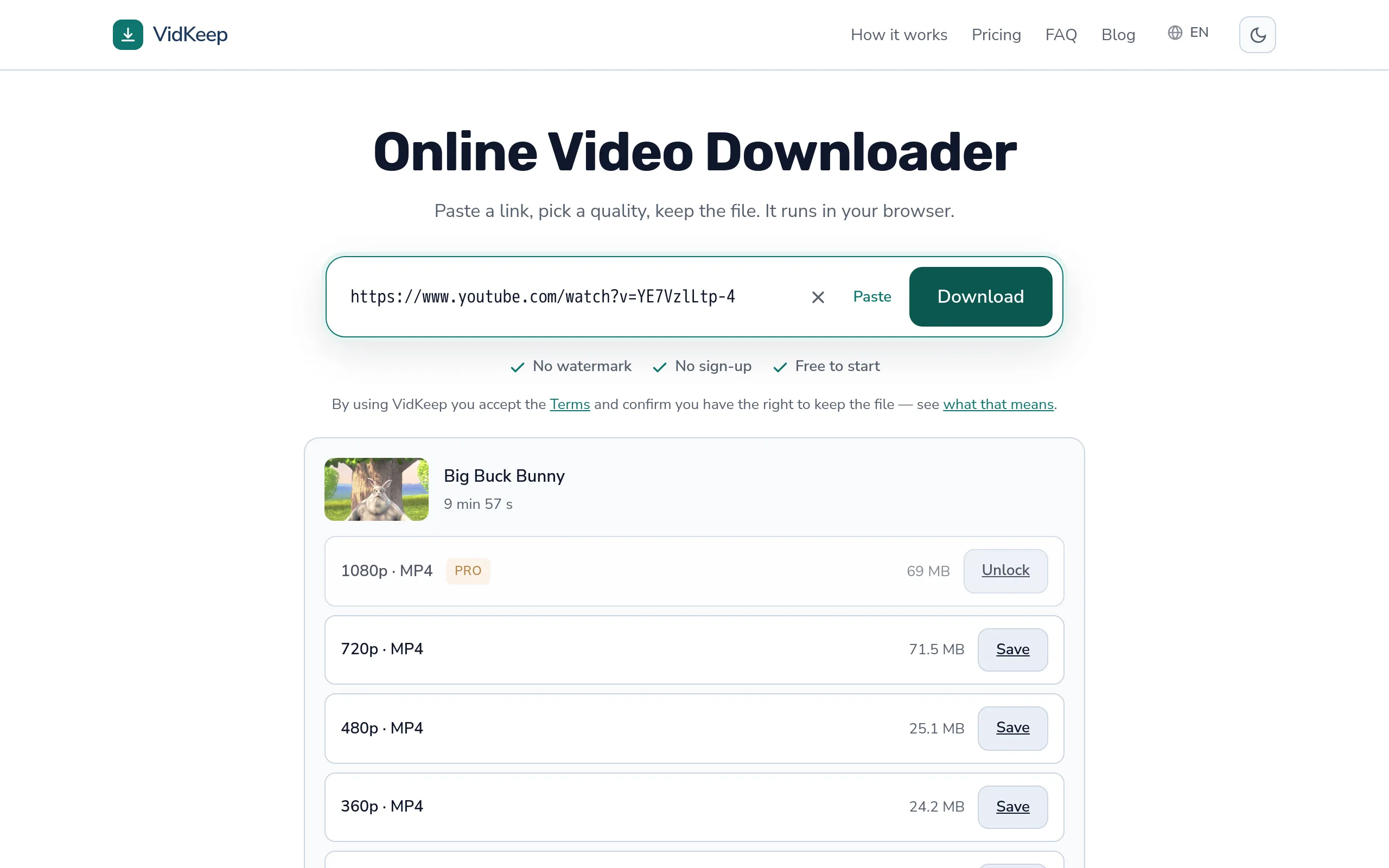
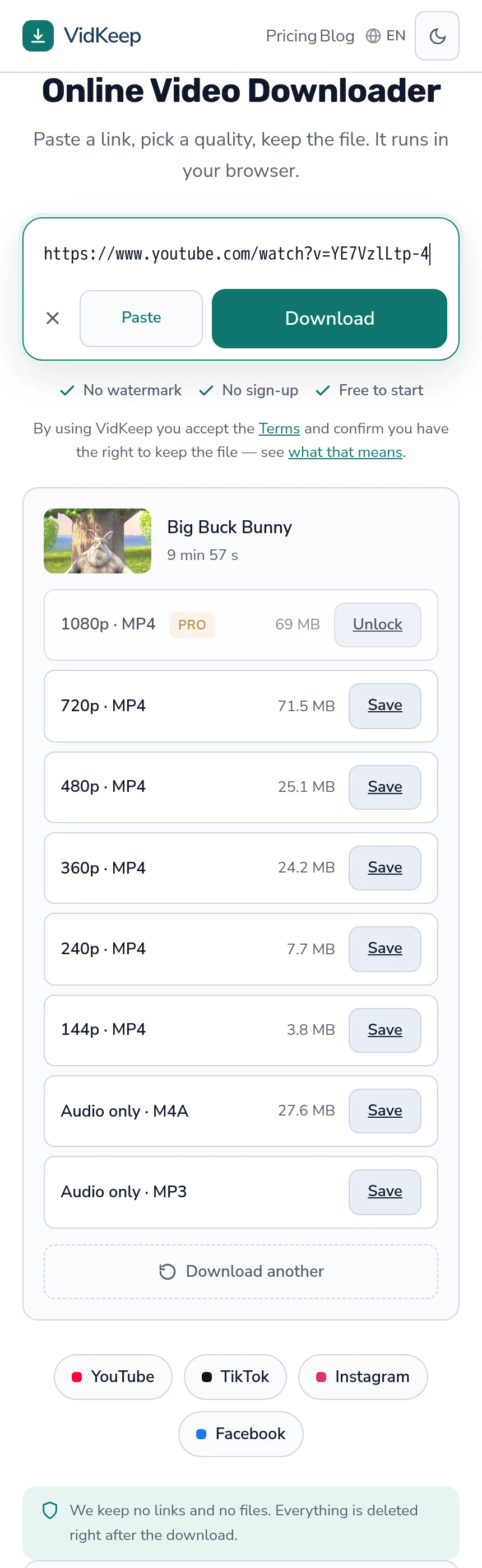
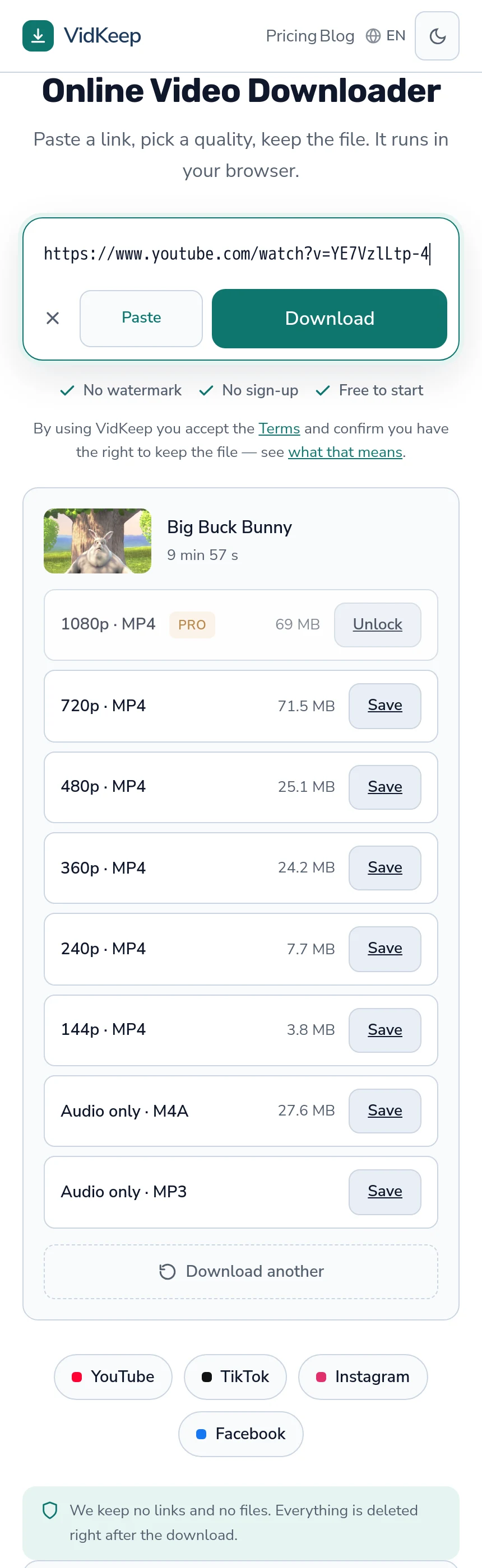
What we do instead is give you the number to check against. Every quality carries the file size the platform reports, shown before you commit, and that figure is what makes the comparison in this article possible at all. Without it there is nothing to compare a finished download to — which is precisely the situation on tools that reveal size only after the fact, or not at all.
We also pass through Content-Length whenever the source provides it. That is what gives your browser a progress bar and lets it recognise a transfer that ended early. A download with no declared length looks the same whether it finished or stopped, and browsers treat unknown-length transfers with more suspicion for exactly that reason.
The limit worth admitting: where a platform reports no size, we show a blank rather than an estimate, so for those downloads the size comparison is unavailable and the playback check is all you have. TikTok is the common case. An invented figure would restore the appearance of a check while removing its value, which is worse than the gap.
The wider principle is that a service should be honest about where its knowledge stops. We know what the platform reported, what we fetched and what we sent. We do not know what happened on your device, and a progress bar that claims otherwise is describing our side of the connection while implying yours.
Frequently asked questions
How do I know if a downloaded video is complete?
Compare the file size to what was shown before downloading, then skip to the last minute and confirm it plays there. Playing the beginning proves nothing.
Why does a broken file sometimes play normally?
Because its index was written before the data was cut off. The file reports the full duration and stops early — the metadata describes a video that is no longer all there.
Can a partial video be repaired?
No. The missing data was never received. Repair tools rebuild the index so a file opens; the video still stops where the download did.
What does 'moov atom not found' mean?
The index that describes the file's contents is missing, usually because the download stopped before the end. It is the obvious kind of truncation.
Can I resume an interrupted download?
Usually not. A file assembled for you does not exist on a server to continue from, so the transfer restarts.
Why can the service not check the file for me?
We only know the last chunk left our server. Whether it reached your device and was written fully is invisible to us — which is why we show the expected size instead.
VidKeep runs in your browser — paste a link, pick a quality, keep the file. No account, no app.
Open VidKeepLast updated: 2026-08-01. We revise our guides as the platforms change.