How-to
Saving the Description and Everything Around It

A downloaded video file contains the picture and the sound. It does not contain the description, the links in it, the chapters, the pinned comment or the upload date — all of that lives on the platform page, not in the file. If the video disappears, so does that context, and the only reliable way to keep it is to copy it deliberately while the page is still there.
What is in the file and what is not
| Element | In the video file? |
|---|---|
| Picture and sound | Yes |
| Title | Usually as the file name only |
| Description and links | No |
| Chapters and timestamps | No |
| Upload date, channel, view count | No |
| Comments | No |
| Thumbnail | No — it is a separate image |
This surprises people archiving a channel or saving research material. The video is the smallest part of what a page contains, and it is the only part a downloader retrieves.
Descriptions frequently hold the most durable value: sources, links to papers, timestamps, credits, corrections. A tutorial without its linked resources is often half a tutorial.
The simple method that works everywhere
- Expand the description. Click ‘more’ — the collapsed view hides most of it, and copying without expanding gets you three lines.
- Select and copy the whole thing. Including the timestamps, which are plain text.
- Paste it into a text file next to the video, named the same way.
- Add the video's own address at the top, plus the date you saved it.
Unglamorous and completely reliable. A plain text file beside the video will still open in thirty years, needs no software, and survives every format change that might affect the video itself.
The address and the date matter more than they look. Six months later, ‘where did this come from’ is the question you cannot answer from the file alone, and it is the one that matters for anything you intend to cite or reuse.
Chapters and timestamps
Chapters are generated from timestamps written in the description, in the form 0:00 Introduction. They are not a separate data structure — the platform reads them out of the text.
Which means copying the description captures them automatically, and they remain useful next to a downloaded file: your player will not show chapter markers, but a text list of times tells you where to skip to.
For a long recording this is the difference between a usable archive and three hours you will never navigate. A four-hour conference talk with a timestamp list is searchable; the same file alone is not — long streams are where this matters most.
Some players and media servers do support embedded chapters, but adding them to a file means re-encoding or remuxing with extra tooling. For most purposes the text file is sufficient and considerably less work.
Archiving properly: what to keep
If you are saving something you expect to need later, a short checklist prevents the regret.
- The video file, at a quality that suits how you will use it.
- The description as text, expanded, with the links intact.
- The video's address and the date you saved it.
- The channel name — handles change, and a link to a renamed channel leads nowhere.
- The thumbnail, if it matters visually.
- Anything in the comments you rely on — corrections and clarifications frequently live there rather than in the description.
That last one is the least obvious and the most often lost. A pinned comment correcting an error in the video is part of the content, and it is nowhere in the file.
For creators: your own metadata is work
Descriptions, tags, thumbnails and chapter lists represent real effort, and they are harder to recover than the video.
Recovering a video from a platform is possible, if degraded — covered here. Recovering a description you wrote three years ago, from a deleted post, generally is not: nobody archived it and no tool retrieves it.
Most platforms offer a data export that includes this material, and it is worth requesting periodically rather than at the point of leaving. It takes days to arrive, which is exactly the wrong timing if the account is already closing.
The simplest habit: write descriptions somewhere before pasting them in. A document of your own descriptions costs nothing to maintain and survives anything that happens to the account.
Why automated tools rarely help here
Tools exist that fetch a description alongside a video. They are useful and they have a specific weakness worth knowing.
Descriptions are unstructured text. A tool can retrieve the block, and it cannot reliably tell which parts are links to sources, which is sponsorship, which is boilerplate repeated on every video, and which is the pinned correction. Sorting that out is reading, and reading is what you were going to do anyway.
For a handful of videos, copying by hand takes less time than finding a tool that does it properly. For hundreds, a command-line archiver is the right instrument — that category handles metadata thoroughly and is built for exactly this — where installed software genuinely wins.
What no tool does is decide what mattered. That judgement is the actual work in archiving, and it is the part that cannot be automated regardless of the instrument.
What our page shows, and why it stops there
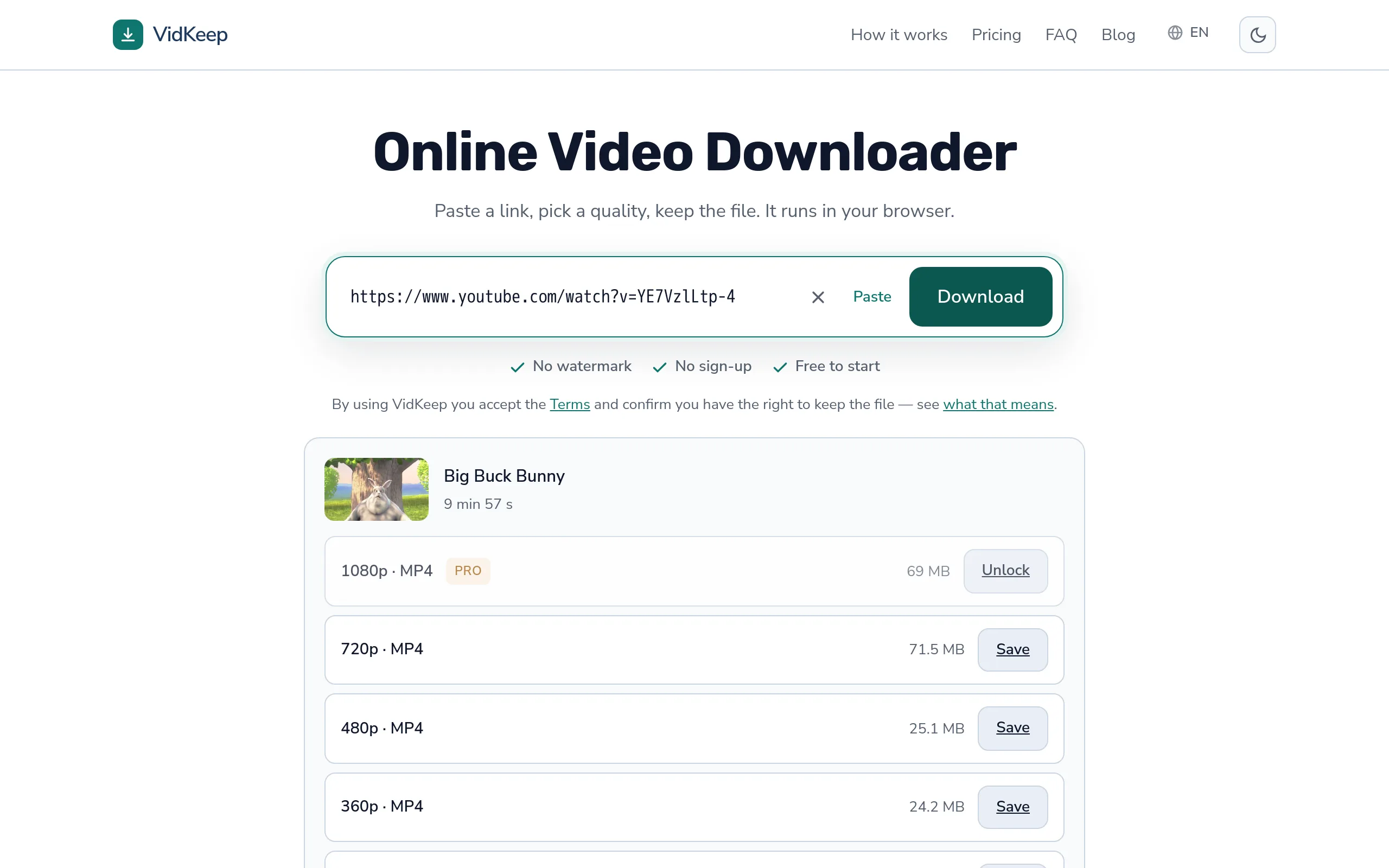
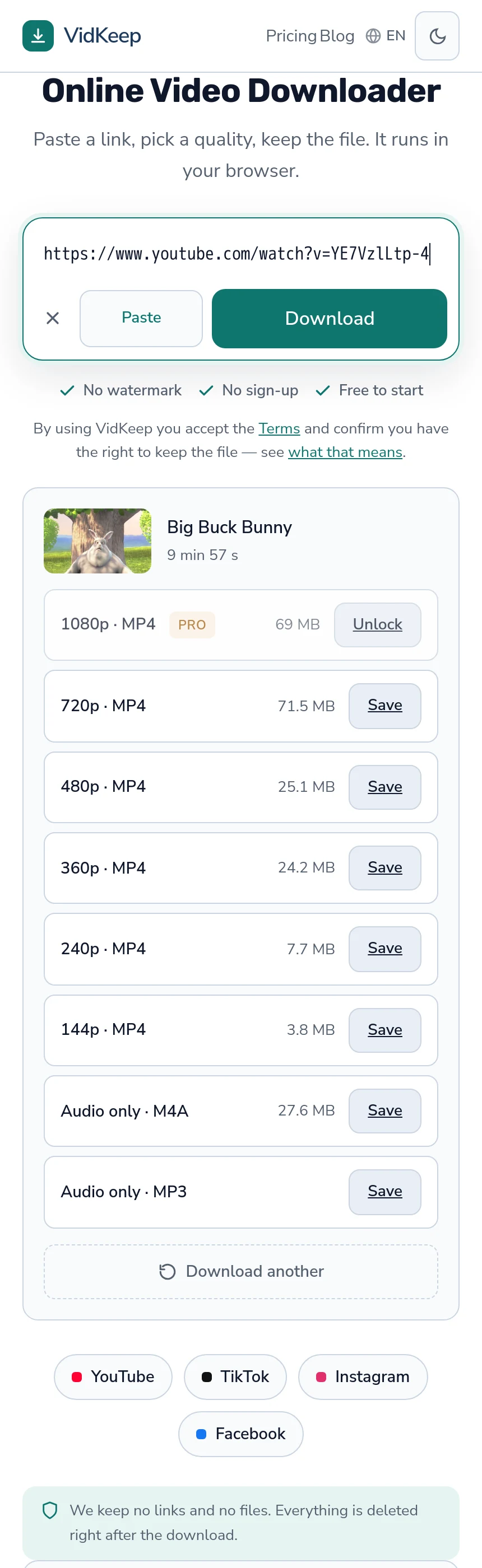
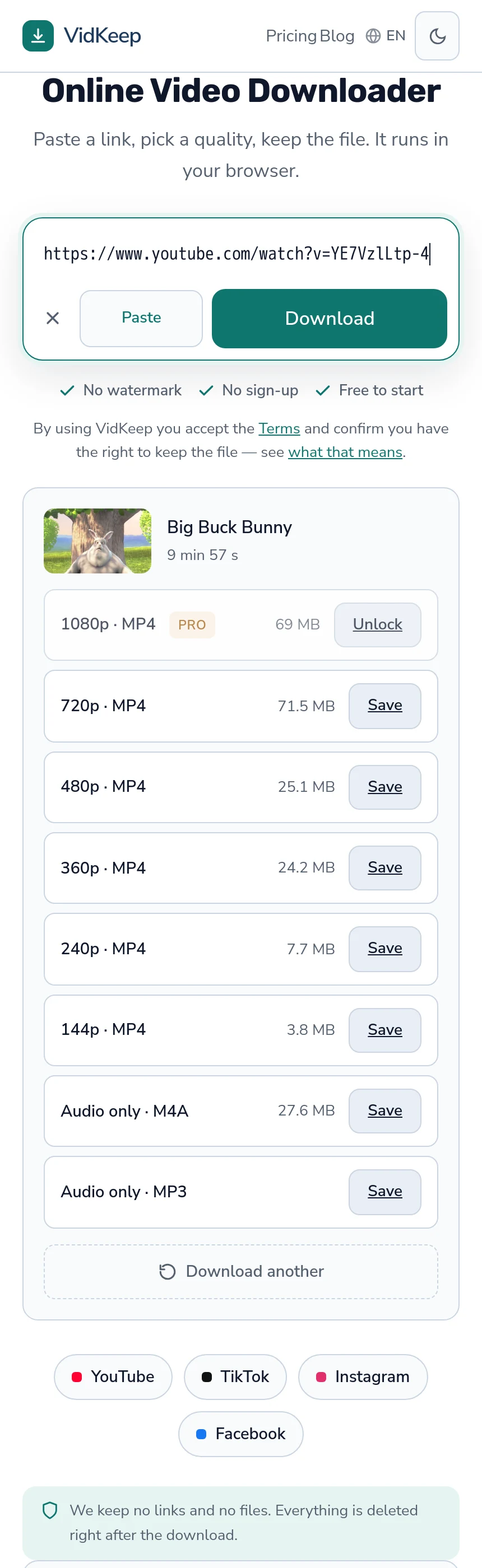
When you paste a link, our result shows the video's title, its duration and its thumbnail. Not the description, not the channel, not the upload date, not the view count — and the restraint is deliberate rather than unfinished.
Those three exist for one purpose: confirming you pasted the right link. A title tells you the video is the one you meant, a duration catches the case where you have a different edit of the same thing, and a thumbnail is recognisable at a glance. All three answer ‘is this it?’ before you spend a download on the wrong video.
A description would not serve that purpose. It is long, it needs expanding and scrolling, and it would push the quality options below the fold on a phone — where the whole interaction is meant to be paste, glance, tap. The thing people came for would be further away, in service of information they can read on the platform.
There is a second reason, about what we would be building. Displaying descriptions means rendering arbitrary text from a third party, including links, which is a category of feature with its own security considerations and no benefit to the task. The safest handling of untrusted content is not to display it, and the task genuinely does not need it.
The honest consequence is that we do nothing for anyone archiving properly, and this article is what we can offer instead: the manual method takes two minutes, works on every platform, and produces something more durable than any feature we might add. For a hundred videos the right answer is a command-line archiver, and pointing at one is more useful than building a worse version of it.
The one thing we do carry into the file is the title, as its name. That is not nothing: a folder of downloads named after their videos is navigable, and a folder of numeric identifiers is not. It also required more work than it sounds, because HTTP headers accept only Latin-1 characters and video titles arrive in every script there is — so the file name goes out twice, once stripped to ASCII for old clients and once in full UTF-8 for current ones.
Frequently asked questions
Does a downloaded video include its description?
No. The file contains picture and sound. The description, chapters, links and comments live on the platform page.
How do I save a YouTube description?
Expand it with 'more', select and copy the whole thing, and paste it into a text file beside the video along with the address and the date.
Are chapters saved with the video?
No. Chapters are generated from timestamps in the description text, so copying the description captures them as a list.
What else should I keep when archiving?
The address, the date you saved it, the channel name, the thumbnail if it matters, and any pinned comment — corrections often live there rather than in the description.
Can I recover a description from a deleted video?
Generally not. Videos are sometimes recoverable in degraded form; descriptions are not archived by anything.
Do you save the description?
No. We show title, duration and thumbnail so you can confirm the link is right. For archiving, copying by hand is more durable, and a command-line archiver is better for bulk.
VidKeep runs in your browser — paste a link, pick a quality, keep the file. No account, no app.
Open VidKeepLast updated: 2026-08-01. We revise our guides as the platforms change.