Troubleshooting
Download a TikTok Photo Slideshow: What Actually Works

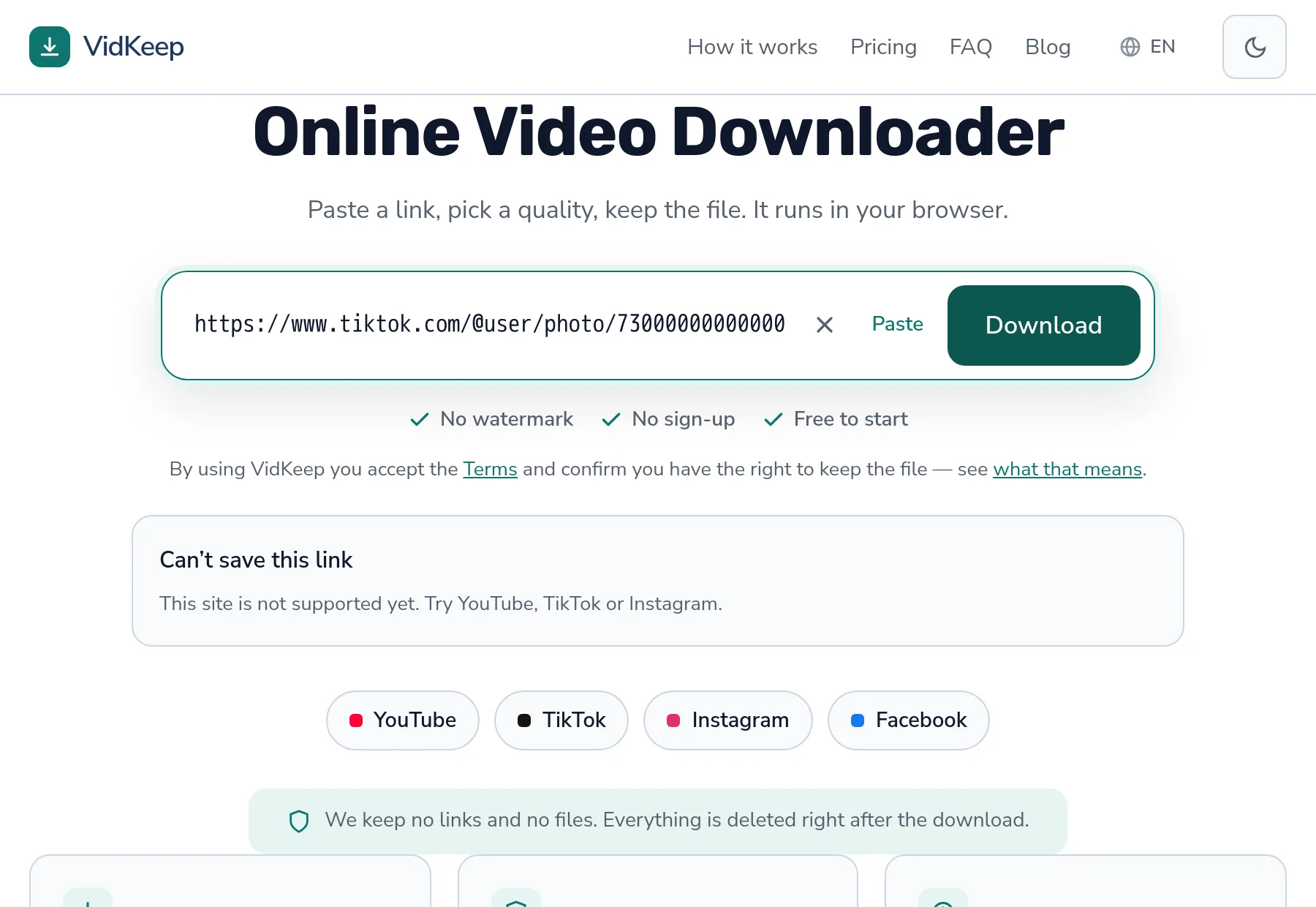
A TikTok slideshow is not a video — it is a set of photos with a track playing over them, assembled inside the app as you watch. That is why downloaders fail on these links: they look for a video stream that was never there. We do not save slideshows either, and this article explains exactly why, what you can do instead, and how to spot tools that pretend otherwise.
Why a slideshow is not a video file
When a creator picks Photo Mode, TikTok stores a set of still images and a reference to a sound. Your phone builds the show live: image one, image two, image three, with music underneath and a transition between slides.
Nothing is rendered into a video on TikTok's side. There is no MP4 sitting on a server waiting to be fetched. The thing you watched existed only inside the app, for as long as you were looking at it.
So when a downloader asks TikTok for this post, the answer comes back as a list of images and an audio entry — no video anywhere. Tools that assume every TikTok link is a video find nothing and report a vague failure, which is why people conclude the tool is broken. It is not: the post is simply a different shape.
What we do, and what we deliberately do not do
Paste a slideshow link into our tool and you get one clear sentence: this is a photo slideshow, not a video. Nothing downloads.
That is a choice, not a gap we forgot to fill. Here is the reasoning, plainly:
- We will not hand you a silent MP3 labelled as a video. Early on, the underlying data made it easy to do exactly that — the audio field is populated, so a careless tool returns it and calls it a download. You would tap Save and get a sound file where you expected pictures.
- We will not render a slideshow into a video for you. Some tools do. It means re-encoding the images into a new file — which is not the creator's work, loses quality, and usually arrives with the tool's own watermark stamped on it.
- We would rather say no clearly than fail vaguely. A precise refusal takes five seconds of your time. A confusing error costs you ten minutes of trying other tools.
If we add slideshow support later, it will be honest support: the original images as separate files. Until then, the answer is no, and this is what no looks like.
How to save slideshow photos by hand
The reliable route needs no tool at all, and it gives you the images at the quality TikTok serves them:
- Open the post in the TikTok app. Slideshows behave best there.
- Pause on the slide you want. Tap and hold to stop the sequence.
- Take a screenshot. On iPhone: side button plus volume up. On Android: power plus volume down.
- Crop the interface out. Both phones let you crop straight from the screenshot preview.
It is manual, and for a three-slide recipe card it takes under a minute. It is also the only method that never gives you something other than what you asked for.
One caveat worth knowing: a screenshot is your screen, not the original file. The image is as sharp as your display, not as sharp as the upload. For a reference photo that is fine; for reprinting someone's artwork it is not — and reprinting someone's artwork needs their permission anyway.
Spotting tools that overpromise
Search this topic and you will find sites offering ‘slideshow to MP4 in one click’. Some genuinely produce a file. It is worth knowing what that file is.
| What they claim | What you usually get |
|---|---|
| Slideshow downloaded as video | A re-rendered clip: their transitions, their timing, often their watermark |
| Original quality | Re-encoded images, so lower quality than the upload by definition |
| No watermark | No TikTok watermark, but frequently the tool's own logo instead |
None of this is fraud exactly — they do make a file. But the file is theirs, not the creator's, and the difference matters if you care about quality or attribution. The same instinct applies to any downloader promising more than physics allows.
What about the sound?
The audio in a slideshow is a real, separate part of the post, and technically it is the one piece that could be extracted. We do not offer it, for the reason above: handing back audio when someone asked for pictures is the confusion we are trying to avoid.
If the sound is what you are after, that is a different task with a clean answer on other platforms — most TikTok sounds originate elsewhere, and finding the original track usually gives you better audio than a 20-second clip pulled from a photo post.
And the point people skip: a commercial song in someone's slideshow is still that artist's song. Personal listening is one thing. Putting it into content you publish is a licensing question, not a technical one.
How this became a deliberate refusal in our code
This section exists because the decision is recorded in our own history, and it is more useful than a generic explanation of Photo Mode.
When we first added TikTok support, our code did what most tools do: ask the provider for the post, take whichever playable URL came back, hand it to the user. For ordinary videos that works perfectly. Then we ran a reality check against a batch of real TikTok links — the kind of test that opens actual posts rather than trusting the code to be right — and one case came back wrong.
A slideshow post had returned a URL. Not a video URL: the sound. The playable field was populated, our code took it at face value, and the result was that a user asking for a slideshow would tap Save and receive an audio file. No error, no warning — just the wrong thing, silently.
The fix was small and the lesson was not. We now check whether the response contains an image collection before deciding anything else. If it does, we stop and say so in plain language, in whichever of our nineteen languages you are reading. Roughly: this is a photo slideshow, not a video.
We keep that behaviour even though it means answering ‘no’ to a search query people actively make. The alternative — returning something, anything, so the interaction feels successful — is how tools end up with reviews saying ‘it downloaded but it was the wrong file’. A clear no beats a confusing yes, and it is also the only version of this we would be comfortable explaining afterwards.
There is a postscript worth telling, because it happened while this article was being written. Fact-checking our own claim, we opened the code to confirm that the refusal really reaches the user — and found it did not. The check for image posts was there, and the explanation was translated into all nineteen site languages, but the result was being discarded one function later: the code treated ‘this is a slideshow’ as ‘the provider failed’ and quietly moved on to a second method. The precise message existed and had never once been shown.
We fixed it the same day. It is a small bug with an uncomfortable shape: the feature was built, tested, translated and documented — and broken in the one line that decides whether anybody sees it. We mention it because writing an article about your own product is a surprisingly effective way to audit it, and because a claim you cannot verify is worth less than no claim at all.
Frequently asked questions
Can VidKeep download TikTok slideshows?
No. We detect them and say so directly, rather than returning the sound file and calling it a video. Ordinary TikTok videos download normally.
Why do downloaders fail on TikTok photo posts?
Because a slideshow has no video file. It is a set of images plus a track, assembled inside the app while you watch.
How do I save the photos from a slideshow?
Pause on each slide in the TikTok app, take a screenshot, and crop. It is manual but reliable, and it never gives you the wrong file type.
Are the tools that convert slideshows to MP4 real?
They produce a file, but they render it themselves — their transitions, their timing, usually their watermark, and lower quality than the original photos.
Can I get just the sound from a slideshow?
Not through us. The audio exists as a separate part of the post, but returning audio to someone who asked for images is exactly the confusion we avoid.
Will slideshow support be added later?
Possibly — but only as the original images, saved as separate files. We will not add a re-rendered video pretending to be the creator's work.
VidKeep runs in your browser — paste a link, pick a quality, keep the file. No account, no app.
Open VidKeepLast updated: 2026-08-03. We revise our guides as the platforms change.